EULER Support Package
The EULER support package ensures operation Engee with the EULER solver using an exchange DLL library that works in the context of the EULER solver and exchanges signals with Engee.
The support package works in the context of a subsystem Engee.Integrations.
The signal reception and transmission ports are set by the user in the block parameters EULER Cosimulation on the side Engee and they are mirrored to the file. settings.cfg for reading in the DLL from EULER.
Default values are not fixed — for each pair Engee ↔ EULER a free pair of UDP ports is selected, unique within the local machine.
Requirements
-
The subsystem is installed and running Engee.Integrations.
-
Installed by EULER.
-
The UDP ports specified in the block settings are available locally. EULER Cosimulation (not occupied by other applications, allowed by OS/Firewall rules).
Preparing settings.cfg
Before creating a simulation object in EULER, you must prepare settings.cfg for the downloaded DLL in EULER.
-
In Engee add a block to the canvas EULER Cosimulation and set a pair of UDP receiving and transmitting ports in its parameters. They will be used to exchange signals between Engee and EULER. Specify the names, quantity, and units of measurement of the input and output signals — see Description of settings.cfg below.
-
In the parameter Путь к Эйлер: the block EULER Cosimulation specify the absolute path to the folder where you want to generate the file.
settings.cfg. Then click the button Сгенерировать конфигурационный файл. Engee generates a filesettings.cfgto this folder based on the block parameters.Also get a library
Engee_Euler.dllusing the following command:engee.package.getdemos("Engee-Device-Manager")After executing the command, the library will be available in Engee on the way
/user/Engee-Device-Manager-demos/integrations/Euler. Download the fileEngee_Euler.dllfrom the specified folder to your computer and save it in any convenient directory of the local file system.
Creating a simulation object in EULER
There are two ways to create a simulation object:
-
through a special menu on the top panel of the EULER;
-
manually in the EULER text editor.
Panel for creating a simulation object
The object of cosimulation in .elr-file (construction cosimulation engee_cosim = engee(…)) is created through a special menu in the upper panel of the EULER.
Step 1. Launch EULER and create or open an existing project .elr.
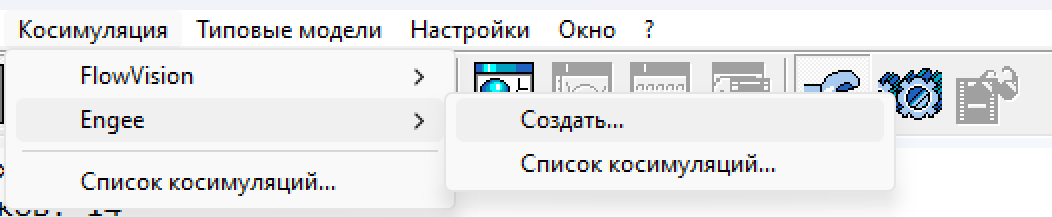
Step 2. In the upper menu of the EULER, select «Cosimulation» → Engee → «To create…»:
Step 3. A window will open «Simulation Settings Engee» with three empty fields on top:
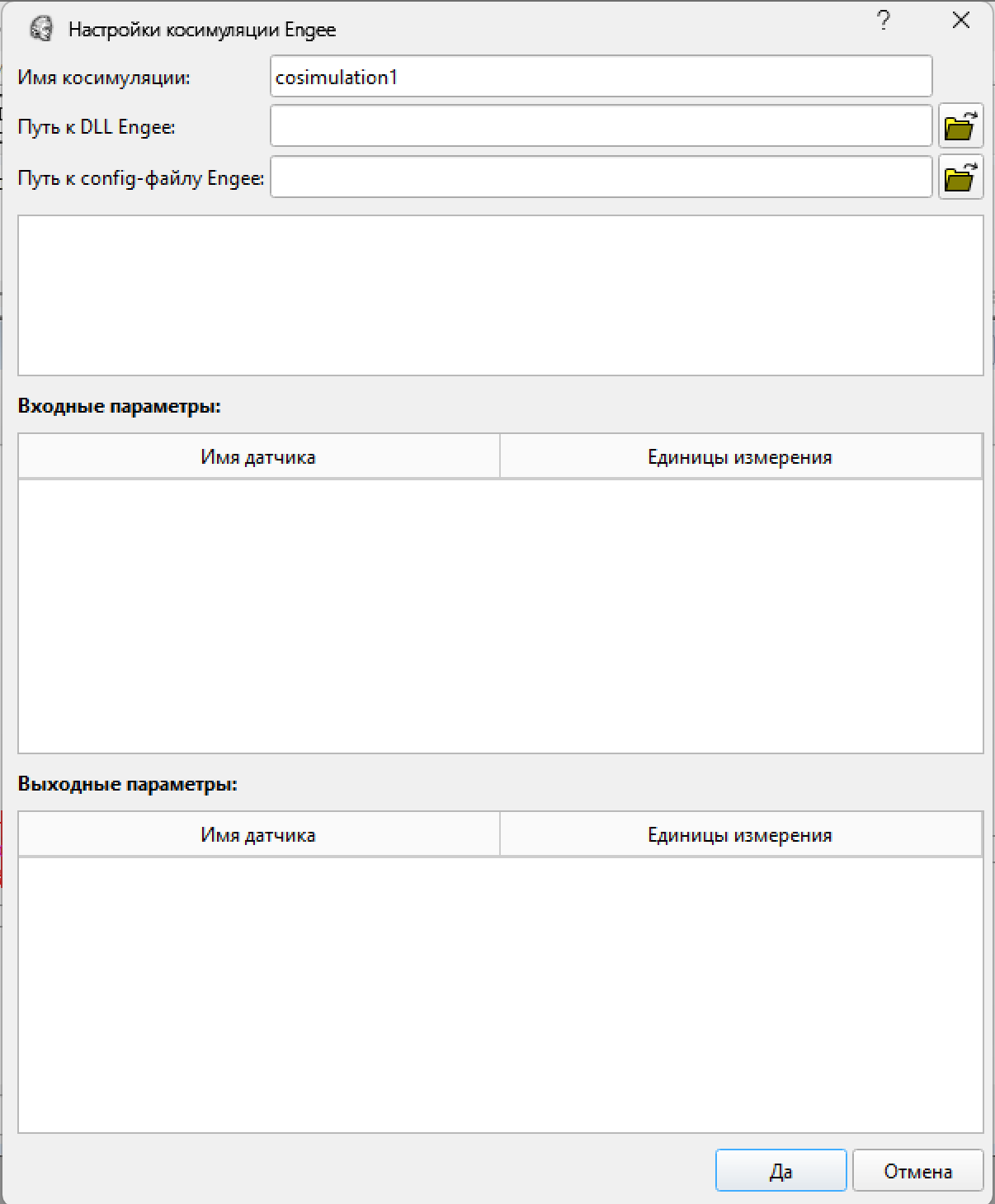
Fill them out:
-
Simulation name is an arbitrary object name (for example,
engee_connector). The name will become an identifier in.elr- the file. -
Path to the DLL Engee — the path to
Engee_Euler.dll. You can specify a relative path if the DLL is located next to.elr. -
Path to the config file Engee — the path to
settings.cfg. You can specify a relative path ifsettings.cfglying next to.elr.
After that, the input/output sensor tables will be automatically filled with data from the file. settings.cfg.
Step 4. Click «Yes». An object engee it will be automatically created in the current .elr-a file and will be available in a text editor.
Step 5. To view or edit an object that has already been created, select «Cosimulation» → Engee → «List of cosimulations…»:
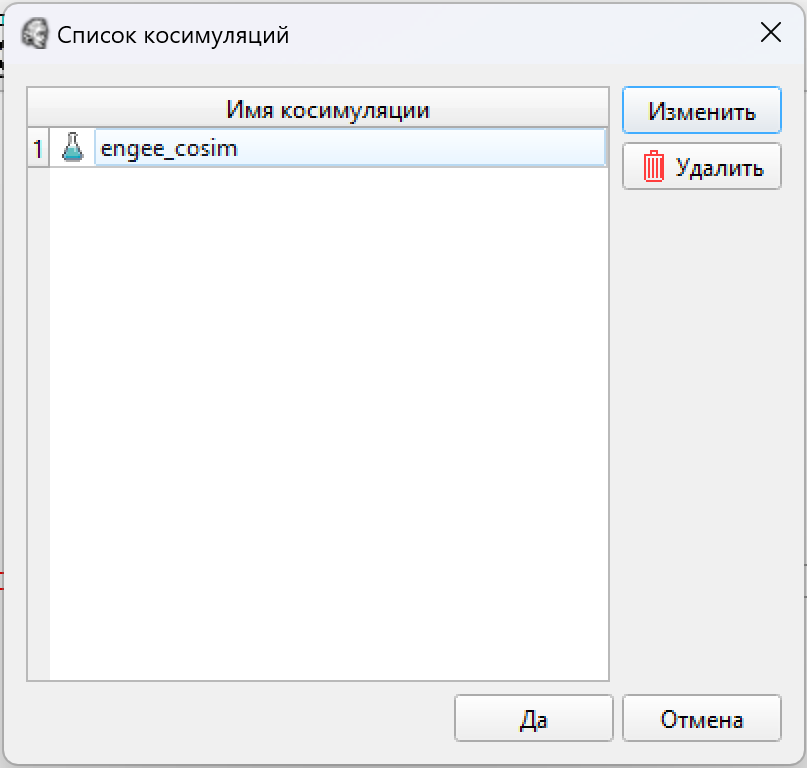
A line with the name of the object will appear in the window (for example, engee_cosim). Double-clicking on the row opens the window «Simulation Settings Engee»:
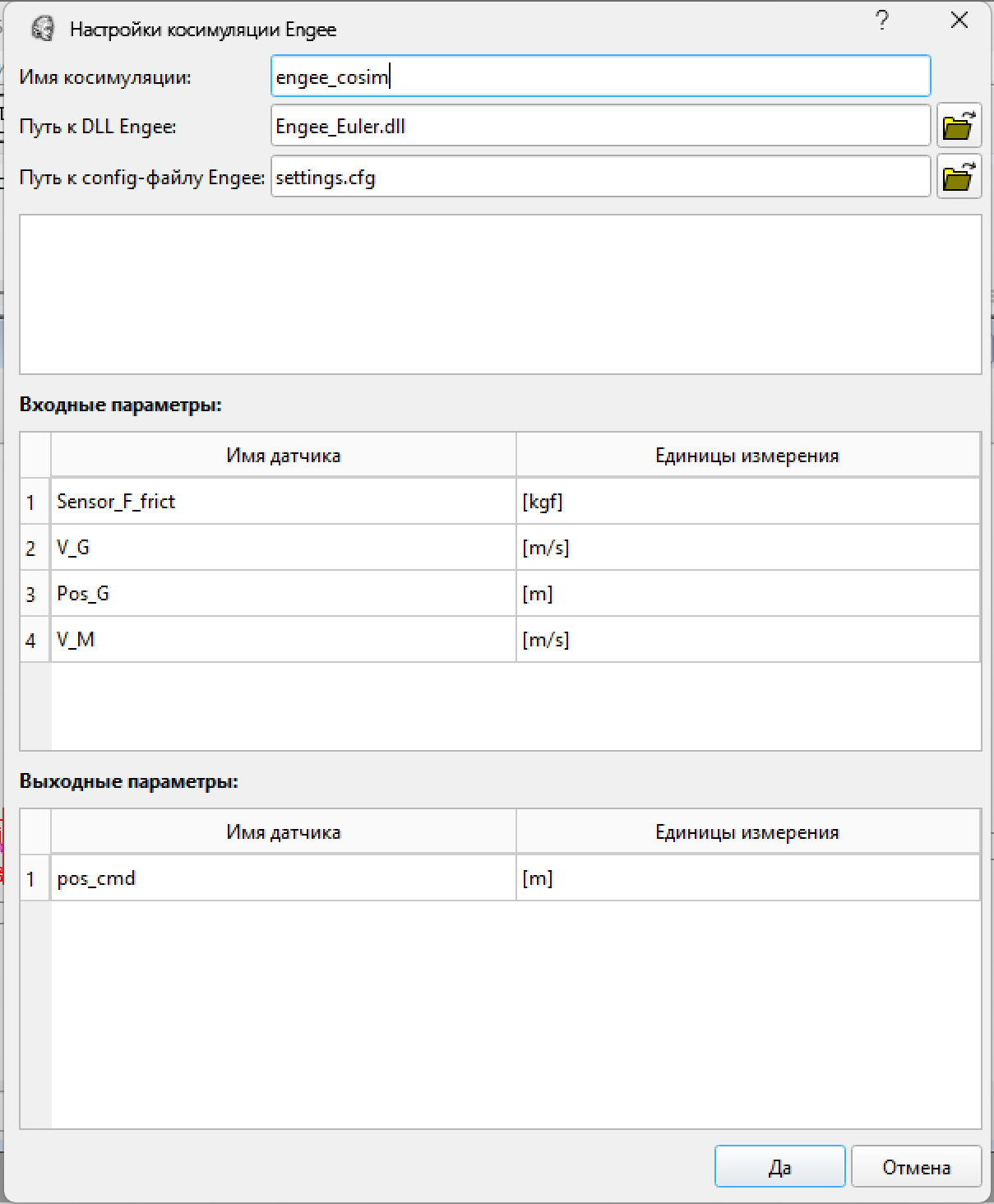
which means a filled window
Window «Simulation Settings Engee» (with filled tables) is a visual interface for linking sensors (sensor) EULER with signals Engee:
-
«Input parameters» (columns «Sensor Name», «Units of measurement») are sensors in EULER, to which EULER will receive data from Engee. Their names and units correspond to the fields
OUTPUT_SIGNAL_NAMES/OUTPUT_MEASURE_UNITSinsettings.cfg(from the point of view of Engee these are the output signals). -
«Output parameters» (columns «Sensor Name», «Units of measurement») are EULER sensors that transmit data to Engee. Their names and units correspond to
INPUT_SIGNAL_NAMES/INPUT_MEASURE_UNITSinsettings.cfg(from the point of view of Engee these are the input signals).
|
«Entrances» and «outputs» the window shows from the point of view of EULER, and not Engee. Don’t confuse the direction when checking: what EULER calls «the entrance» (accepts from Engee), Engee He considers it his own «exit». An example of a match for the screenshot above:
|
that is created in .elr- the file
After clicking «Yes» in the EULER text editor (i.e. in the file itself .elr) a line of the form appears automatically:
cosimulation engee_cosim = engee("Engee_Euler.dll", "settings.cfg",
    list((Sensor_F_frict, "[kgf]"), (V_G, "[m/s]"), (Pos_G, "[m]"), (V_M, "[m/s]")),
    list(("pos_cmd", "[m]")));
The first list contains the EULER outputs (the fact that Engee gets from EULER), the second list is the EULER inputs (what Engee passes it to EULER). In both lists, each pair is — (sensor name, "unit of measurement"). The names of the sensors must exist in the EULER project.
If you open an already created object by double-clicking and clicking again «Yes», it will be updated in .elr. If you need to delete an object, in the window «List of cosimulations» There is a button «Remove».
Manual creation of a simulation object
Alternatively, you can manually add a line with the object creation in the EULER text editor. engee. For example:
cosimulation engee_cosim = engee("Engee_Euler.dll", "settings.cfg",
    list((Sensor_F_frict, "[kgf]"), (V_G, "[m/s]"), (Pos_G, "[m]"), (V_M, "[m/s]")), list(("pos_cmd", "[m]")));
Syntax for manually creating an object engee in the EULER text editor:
engee(DLLPath, SettingsPath, U, Y)Method Parameters
string SimDLLNameThe path to the DLL module containing the DLL library Engee_Euler.dll.
-
string U— a string describing the names of the input sensors and the units of measurement of the values passed to the model Engee.The input objects in the line are separated from each other by commas, and the units of measurement for each object are indicated in square brackets after its name. Scalar or sensor type objects corresponding to the given names are being searched for in the current EULER project. If the specified object name is not found or the type of the found object does not match the scalar or sensor, an error is diagnosed. The names of the input objects have nothing to do with their names in the DLL, the mapping is performed in the order they are mentioned in the string.
Example of a string describing input sensors:
"sensor_U1 [kg], sensor_U2 [], sensor_U3 [m/s]" -
string Y— a string describing the names of the output sensors and the units of measurement of their values in which they are transmitted from the model Engee to the EULER software package.The sensors in the row are separated from each other by commas, the units of measurement of each object are indicated after its name in square brackets. The names of the output objects have nothing to do with their names in the DLL, the mapping is performed in the order they are mentioned in the string. The names of the sensors within the generated output array must be unique. The output parameters with the specified names are created automatically as child objects, the value of which changes according to the model. Engee.
Example of a string describing output sensors:
"sensor_Y1 [], sensor_Y2 [N], sensor_Y3 [m]"
Launching first — Engee or EULER
In the current version, cosimulation can be started first as from the side Engee, and from the side of EULER — the specific order is not important. Both sides are waiting for a handshake message during a configurable timeout.
The handshake timeout is set by the parameter Maximum connection timeout, ms in the block EULER Cosimulation (by default 2 minutes).
Typical scenarios:
-
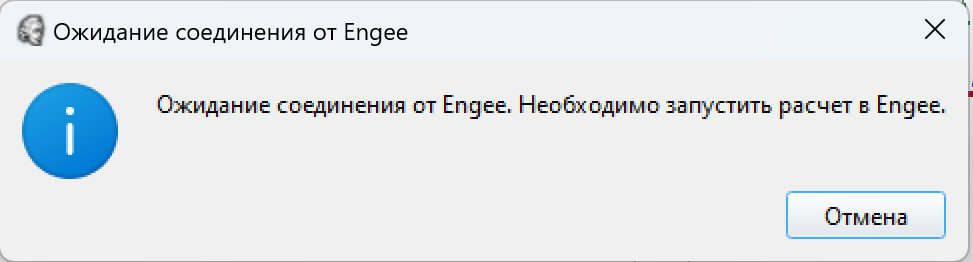
Launching EULER first, Engee Second: switch to the mode «Project research». EULER will start expecting a handshake from Engee, followed by launching the model in Engee. Engee sends a handshake to the EULER, after which the handshake is completed — both sides proceed to data exchange.
-
Launch Engee first, EULER second: run the model first Engee. She will expect a handshake from EULER, then you need to put EULER into project research mode, after which he immediately accepts and confirms the handshake. Engee.
If no handshake is received during the timeout, the simulation fails and an error message appears in the diagnostic messages.
In this case, check if the IP and UDP ports match in settings.cfg and in the block parameters EULER Cosimulation, as well as the availability of ports at the OS level.
Synchronization of model times Engee and EULER
In the simulation Engee and EULER work as two independent models (black box), each with its own model time. Their times do not have to match at any point in the exchange — this is a normal situation. The connection between them provides Engee_Euler.dll. The internal calculation function of the DLL library is called at each step. Engee and aligns the data calculated by EULER with the current model time. Engee according to the rules below.
Scenario 1 — The model times are equal
This is the normal mode. Engee gets the signal value calculated by EULER exactly for the current moment in time. This will be the case in most cases if the EULER step and the Engee they match. Model time adjustment is not applied.
Scenario 2 — EULER «It doesn 't count» (the EULER model time is lagging behind Engee)
EULER has not yet reached the point where Engee requested the data. For example, the EULER step is 10 times larger than the step Engee, and at the time of requesting data from a step from Engee EULER took only every tenth step. The calculation function of the DLL library is not «Waiting» EULER is a synchronous call. In that case Engee gets the value of the signal calculated by EULER at his last available moment in time (that is, at the previous step of EULER), and not at the current moment Engee.
This behavior is equivalent to extrapolation by a piecewise step function: until EULER catches up, Engee gets the last calculated value on the discrete grid (closest to its current value on the left).
Scenario 3 — EULER «recalculates» (EULER is ahead of the model time Engee)
EULER has already gotten ahead of himself, and Engee still on the old step. For example, the EULER step is 10 times smaller than the step Engee, and by the time of the request Engee EULER managed to take 10 of his inner steps. In this case, the calculation function of the DLL library selects from the EULER buffer the value closest to the time point. Engee, but not exceeding it. That is, EULER «He jumps back» by the moment Engee (the last step calculated by him is used, which ≤ t_Engee).
Practical implications
Examples:
-
EULER steps and Engee match (for example,
st_euler = 0.001andst_engee = 0.001). The model times are always equal, synchronization is trivial, and there is no extrapolation. -
EULER step is more than a step Engee (for example,
st_euler = 0.01byst_engee = 0.001). EULER will be 1-10 steps behind Engee. Engee it will get a piecewise constant value of the EULER signal at each of its 10 steps. -
The EULER step is less than a step Engee (for example,
st_euler = 0.0001byst_engee = 0.001). EULER recalculates, Engee gets values from a discrete EULER grid (every 10th EULER step), and the remaining 9 EULER steps are used for refinement. EULER’s Steps Engee sees with thinning to discrete precision. -
Recommendation. Choose the steps so that their relationship is complete (1:1, 1:10, 10:1). Then there won’t be «floating» There will be a time lag, and the behavior of the model will be more predictable.
Cosimulation with multiple EULER Cosimulation blocks based on the Model block
In one Engee-models can be placed in multiple blocks EULER Cosimulation (multi—simulation) - each of them communicates with its own instance amEuler.exe and with his .elr- the project. A nested architecture is also allowed: the main model (parent.engee) via the block Model calls the auxiliary model (sub.engee), and that, in turn, contains its own EULER Cosimulation, which connects to a separate instance of EULER.
Each block EULER Cosimulation it must have a unique pair of UDP ports described in its own settings.cfg. This also applies to nested cosimulation through a block. Model: Different ports are selected for the parent and child models.
Example of setting up two pairs (parent and child models):
-
the parent model:
elr1/settings.cfg— a bridge for the parent model Engee:MODEL_NAME multicosim_parent2 INPUT_SIGNAL_COUNT 1 OUTPUT_SIGNAL_COUNT 1 INPUT_SIGNAL_NAMES dummy_out INPUT_MEASURE_UNITS [m/s] OUTPUT_SIGNAL_NAMES dummy_in OUTPUT_MEASURE_UNITS [N] IP 127.0.0.1 RCV_PORT 7479 SND_PORT 7959 MAX_RCV_BUFFER_SIZE 4096 MAX_SND_BUFFER_SIZE 4096 SRVCIO_TIMEOUT 20000.0 HANDSHAKE_TIMEOUT 120000.0 SAMPLE_TIME 0.001 DIAGNOSTIC 1 -
child model:
elr2/settings.cfg— bridge for the child model Engee (nested through a block Model):MODEL_NAME multicosim_sub2 INPUT_SIGNAL_COUNT 1 OUTPUT_SIGNAL_COUNT 1 INPUT_SIGNAL_NAMES dummy_out INPUT_MEASURE_UNITS [m/s] OUTPUT_SIGNAL_NAMES dummy_in OUTPUT_MEASURE_UNITS [N] IP 127.0.0.1 RCV_PORT 7489 SND_PORT 7919 MAX_RCV_BUFFER_SIZE 4096 MAX_SND_BUFFER_SIZE 4096 SRVCIO_TIMEOUT 20000.0 HANDSHAKE_TIMEOUT 120000.0 SAMPLE_TIME 0.001 DIAGNOSTIC 1
Pay attention to the different port pairs (7479/7959 against 7489/7919): this is the isolation between the two bridges.
The order of execution of blocks in a cosimulation with two EULER Cosimulation blocks
In a multi-simulation project via the block Model it is important to understand * in which instance of EULER you need to run the model first*. Engee executes the blocks in a certain order: it may turn out that the blocks inside are executed first. Model (that is, in the child model sub.engee), and only then the blocks of the parent model parent.engee. This means that the handshake with EULER for the child model should be installed earlier than the handshake with EULER for the parent model.
To see this order in the model settings Engee, enable the option «Blocks execution sequence» in the settings: menu «Settings» → tab «Debugging» → check the box «Blocks execution sequence».
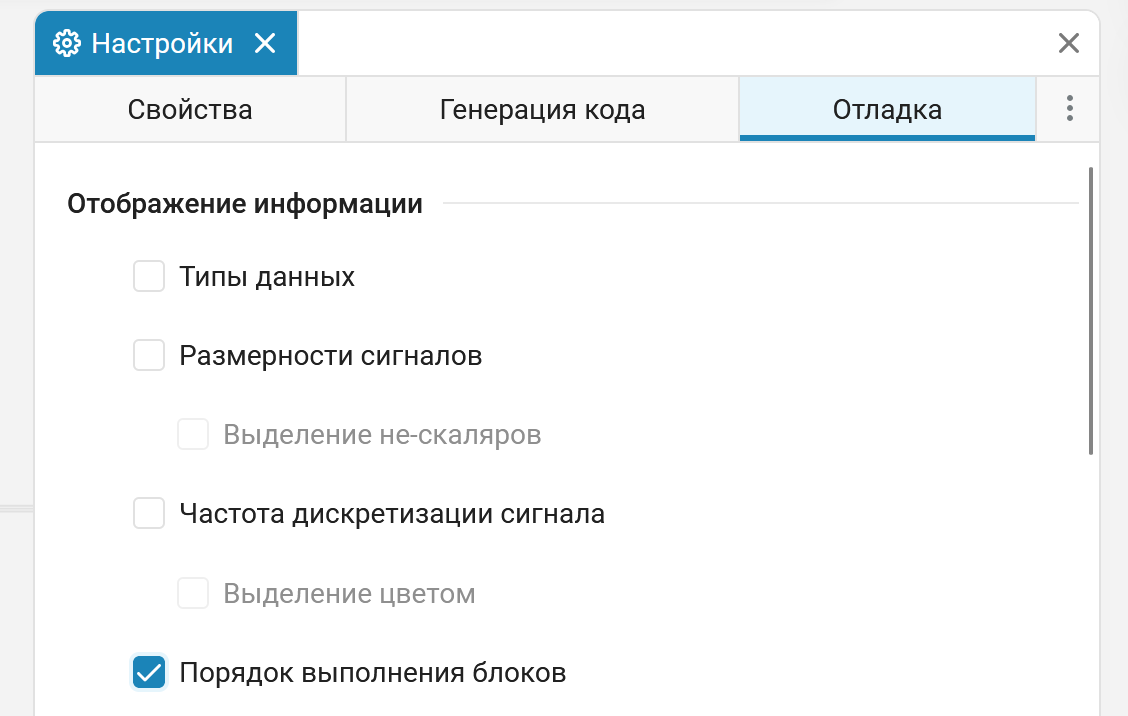
After enabling the option, its sequence number in the current model cycle will appear in the upper-right corner of each block.
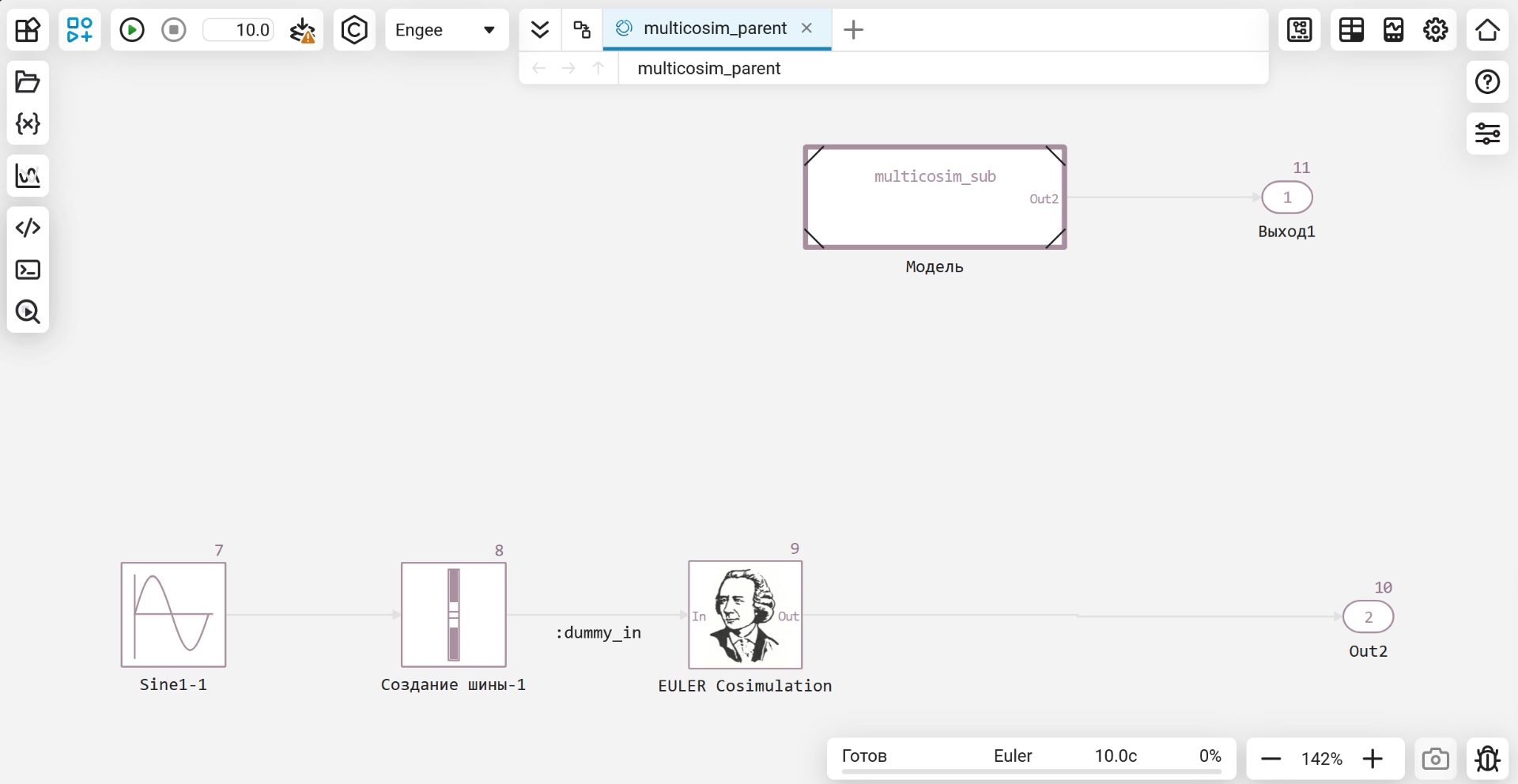
Parent model multicosim_parent.engee — the block is visible Model (on multicosim_sub.engee) and the block EULER Cosimulation. In this example, the blocks in the parent model are assigned numbers. 7, 8, 9, 10, 11 — that is, they are executed after the child:
Child model multicosim_sub.engee (opens by double-clicking on the block «Model» in the parent model). Here, the blocks are numbered 1, 2, 3, 4 — that is, they are executed earlier than all blocks of the parent model.:
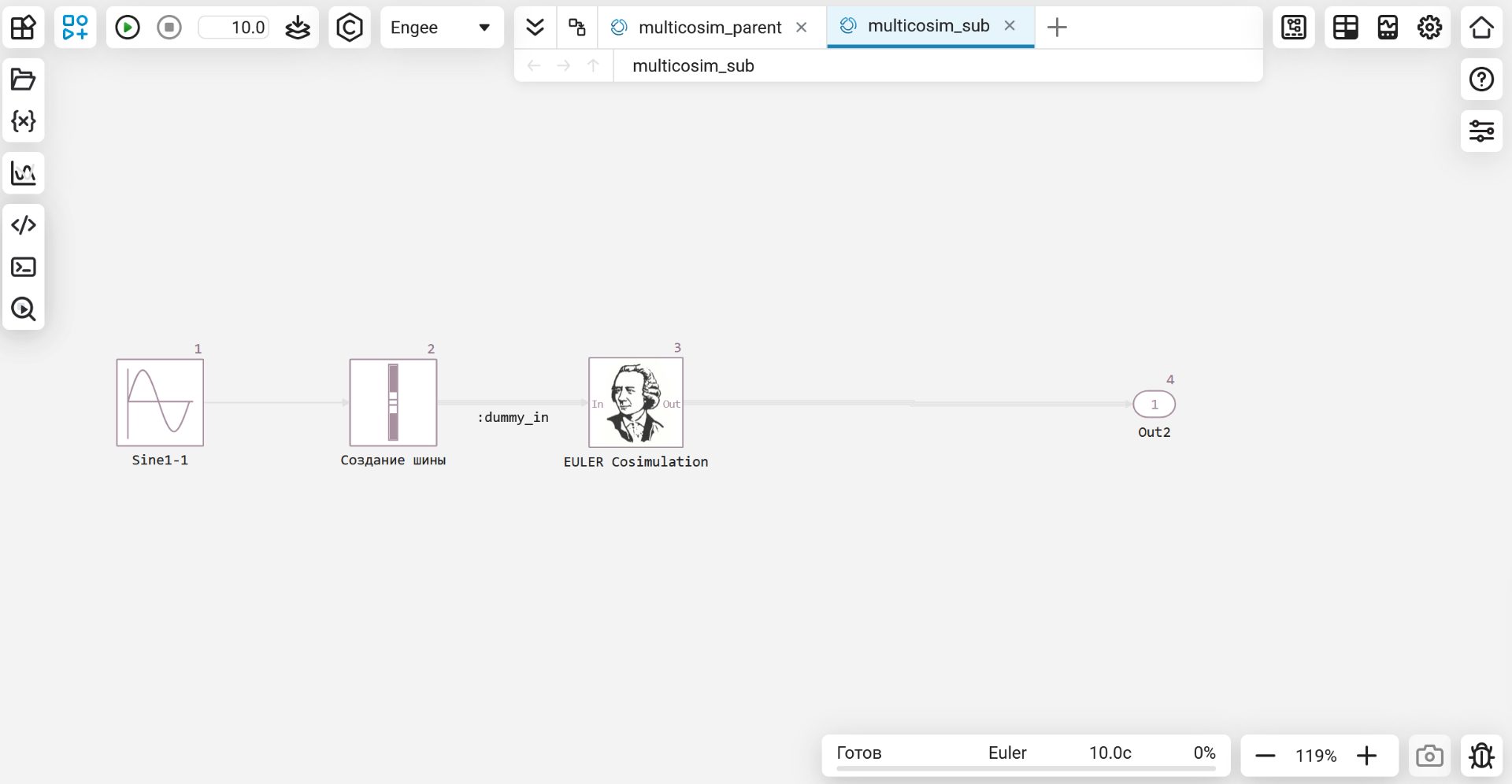
From this order (1-4 for the child model, 7-11 for the parent model), a rule of thumb follows: run the EULER in the order corresponding to the execution order of the blocks in Engee — first, open and run the calculation in the EULER instance serving sub.engee (the one that listens on a pair of ports 7489/7919 from elr2/settings.cfg), and only after the handshake with the child model is completed, run the calculation in the EULER instance for parent.engee (ports 7479/7959 from elr1/settings.cfg). If you run them in reverse order, the parent EULER will wait for the handshake until the timeout expires (by default, 2 minutes) and returns an error.
Description of the model parameters in settings.cfg
File settings.cfg describes the model and composition of signals for exchange between Engee and EULER: names, quantities, physical units, network parameters, timeouts, and debugging mode.
The table below lists all the parameters recognized by the DLL library. Engee_Euler.dll. The default values are applied if the corresponding line in the file is missing.
| Key | Type | Description |
|---|---|---|
|
line |
Model Name Engee. Must match the name of the open model being passed to |
|
the whole |
The number of signals that Engee gets from EULER (i.e. how many values does EULER give in Engee in one step). |
|
the whole |
The number of signals that Engee sends to EULER (i.e. how many values does EULER accept from Engee in one step). |
|
list of names |
Names of inputs Engee — these are the names of the signals that EULER gives in Engee. In |
|
list of names |
Names of outputs Engee — these are the names of the signals that EULER receives from Engee. In |
|
array of units |
Physical units of inputs Engee. Each element is written in square brackets separated by a space, for example: |
|
array of units |
Physical units of outputs Engee, the format is similar |
|
IPv4 |
The address where Engee and EULER exchange UDP packets. By default |
|
the whole |
The UDP port on which the DLL library is located |
|
the whole |
The UDP port that the DLL library is on. |
|
bytes |
The size of the UDP receive buffer. By default |
|
bytes |
The size of the UDP transfer buffer. By default |
|
ms |
Timeout of blocking I/O operations on the socket. By default |
|
ms |
Timeout for waiting for a handshake message during cosimulation initialization. By default |
|
seconds |
The integration step with which the DLL exchanges signals. Required must be a multiple of |
|
|
Enabling logging. |
Example of settings.cfg
A complete example with minimal cosimulation (one input and one output signal). The names of the signals and ports are arbitrary and are generated by the user from the block for a specific task.
MODEL_NAME multicosim_parent2
INPUT_SIGNAL_COUNT 1
OUTPUT_SIGNAL_COUNT 1
INPUT_SIGNAL_NAMES dummy_out
INPUT_MEASURE_UNITS [m/s]
OUTPUT_SIGNAL_NAMES dummy_in
OUTPUT_MEASURE_UNITS [N]
IP 127.0.0.1
RCV_PORT 7479
SND_PORT 7959
MAX_RCV_BUFFER_SIZE 4096
MAX_SND_BUFFER_SIZE 4096
SRVCIO_TIMEOUT 20000.0
HANDSHAKE_TIMEOUT 120000.0
SAMPLE_TIME 0.001
DIAGNOSTIC 1The corresponding line of the minimal example for the task in `.elr`In the EULER project, declaring a connector object with a DLL library looks like this:
cosimulation engee_cosim = engee("Engee_Euler.dll", "settings.cfg",
    list((fx_sensor, "")),    // список датчиков → INPUT_SIGNAL_NAMES
    list(("FX", "")));        // список Engee-сигналов → OUTPUT_SIGNAL_NAMES
Logging
The DIAGNOSTIC parameter controls the recording of logs to a file engee_logs.txt. The file is created next to the project .elr.
-
DIAGNOSTIC 1 — logging is enabled.
-
DIAGNOSTIC 0 — logging is disabled.
Example of a fragment engee_logs.txt:
[2026-03-04 22:12:55] Euler model time: 0.053750
[2026-03-04 22:12:55] Engee model time: 0.054000
[2026-03-04 22:12:55] Received from Engee, signal dX: 0.400000
[2026-03-04 22:12:55] Received from Engee, signal dY: 0.300000
[2026-03-04 22:12:55] Received from Engee, signal dZ: 0.500000
[2026-03-04 22:12:55] Send from Euler, signal Fx: 0.305510
[2026-03-04 22:12:55] Send from Euler, signal Fy: 0.104000
[2026-03-04 22:12:55] Send from Euler, signal Fz: 0.524999
The logs are also displayed in the Engee client program window.Integration. When starting the model in Engee messages appear in this window notifying about the progress of establishing communication with EULER.:
INFO: Waiting for connection with EULER.
INFO: If the model inside EULER is not running, please start it.
INFO: Successfully interconnected with EULER!
The first two lines indicate that Engee He has already sent a handshake and is awaiting confirmation from EULER; at this point, the user needs to run the calculation in EULER. Line INFO: Successfully interconnected with EULER! appears after the successful completion of the handshake.