LOGO Support Package
LOGOS is a software package for industrial 3D modeling and multidisciplinary engineering analysis. Integration with Engee is organized through the mechanism of User Functions (PF) in the LOGO "Platform" module, which is designed to connect third-party calculation modules.
|
Integration with LOGOS requires an installed and running Engee subsystem.Integration. Make sure that the client program is running and connected to the current Engee session before starting integration. For detailed installation and configuration instructions, see the article Engee.Integrations. |
Integration is performed by registering user-defined functions written in Python in the context of the LOGOS integration solver. These functions receive and send data from/to Engee over the UDP protocol via specific ports.:
-
Port 6848 — for receiving signals from Engee to the LOGO;
-
Port 6849 — for transmitting signals from LOGOS to Engee.
This interaction allows for cosimulation, a joint calculation where both systems exchange data in real time. This opens up opportunities for:
-
Using specialized Engee models inside the LOGOS strength calculations;
-
Transfer of calculated parameters between systems at each integration step;
-
Creation of complex models combining physics from different domains.
Custom functions in the LOGO
|
The User function (PF) is a callback function called by the calculation module during the task calculation process. The PF mechanism allows you to change or supplement the behavior of an existing calculation module without modifying it. The PF connector is an interface (pointer to a function) through which the calculation module calls a user function with a predefined set of parameters. During task initialization, the interface module loads libraries from the PF, initializes connectors, and calls the PF at the right moments of calculation. Each PF has its own API set of arguments and return values. The PF interface can be displayed automatically in the LOGO Platform editor when creating or enabling a custom function. |
The general scheme of PF operation:
-
The calculation module (for example, LOGOS-Heat or LOGOS-Strength) contains built-in PF connectors to which the user can connect his function.
-
The connector transmits to the PF all the necessary data for the current calculation step (for example, temperature, voltage, density, etc.).
-
The PF performs user logic (for example, recalculating the coefficient of thermal conductivity or calculating the destruction criterion).
-
The results are returned to the calculation module, where they are used in the modeling process.
|
For the PF to work correctly, it is necessary that its interface matches the interface of the connector to which it is connected. |
|
The list of PF in the LOGOS calculation modules is given below. For more information about PF LOGOS, see the official LOGOS documentation. The built-in user functions of the LOGOS calculation modules
The listed user functions are built into the main LOGOS calculation modules and can be used as templates when developing your own PF in Python or for integration with Engee. |
The simulation module
The simulation module cosimulation.py — this is an auxiliary module in Python that provides exchange between Engee and LOGOS over the UDP protocol. The module allows you to organize bidirectional signal exchange between systems in real time according to the following logic:
-
Two UDP sockets are created: reception (port 6848) and transmission (port 6849);
-
The module initializes the connection once and stores the time of the Engee model;
-
The custom LOGO function calls
cosimulate(time, signals)and gets a list of values from Engee.
To work, it is enough to place cosimulation.py next to the custom functions and import it at the beginning of the code:
import cosimulation # or: from cosimulation import engee_sim|
Below is a complete sample file A global object is created at the end of the file. The contents of the file
|
Use in a custom function
To link the calculation in the LOGO with the Engee model, you need to connect the module cosimulation.py and call his method cosimulate() inside the user function (PF).
This will allow you to exchange signals at each step: send data from LOGOS to Engee and receive values from there that can be used in calculations.
-
Open your custom function in the Platform module.
-
At the very beginning of the function, add the import line:
import cosimulation # or: from cosimulation import engee_sim -
Then add a challenge
cosimulate()to exchange data with Engee.
A ready-made example of the function is shown below.:
import cosimulation  # Connecting the simulation module

def erosion_user(nsh, nip, ncmr, nhv, Cmr, strainVelF, strain, stress,
                 pu, eu, epsp, rou, divU, ts, loc, tt, time, eraseFlag):

    # We send three signals to {docs_engee}: pressure, energy, and density
    signals_from_engee = cosimulation.engee_sim.cosimulate(time, [pu, eu, rou])

    # If there is no data ({docs_engee} has not responded yet), we return everything unchanged.
    if not signals_from_engee:
        return nsh, nip, ncmr, nhv, Cmr, strainVelF, strain, stress, \
               pu, eu, epsp, rou, divU, ts, loc, tt, time, eraseFlag

    # Extracting the signals received from {docs_engee}
    strain_from_engee = signals_from_engee[0]   # extreme plastic deformation
    epsp_from_engee = signals_from_engee[1]     # current plastic deformation

    # Destruction criterion: if epsp >= strain, the element is considered destroyed
    if epsp_from_engee >= strain_from_engee:
        eraseFlag = True

    # Returning the updated values to the LOGOS calculation
    return nsh, nip, ncmr, nhv, Cmr, strainVelF, strain, stress, \
           pu, eu, epsp_from_engee, rou, divU, ts, loc, tt, time, eraseFlag
How it works:
-
Module import — when importing
cosimulation.pyan object is automatically created and configuredengee_sim, which opens a UDP connection to Engee. -
Challenge
cosimulate()— at each step of the calculation, the LOGO:-
The current model time is passed as the first argument (
time); -
The second is a list of signals that need to be sent to Engee (for example,
[pu, eu, rou]).
-
-
Data exchange:
-
The module sends these signals to Engee via port 6849;
-
Next, a response is expected from Engee on port 6848;
-
If a response is received, the module returns a list of values that came from Engee.
-
-
Data usage — the returned values can be used in the logic of a function, for example, to set certain conditions.
-
If there is no data available —
cosimulate()returns an empty list, and the calculation continues without exchange.
Registration and launch of a custom function in the LOGO
After preparing the module cosimulation.py and writing a custom function (for example, erosion_user) it is necessary to connect it to the LOGO and start a joint calculation with Engee.
Step 1. Connecting the function to the LOGO
-
Open the "Platform" module in the LOGO.
-
The Project tab → select the required calculation task. An example of a path where a project can be located:
VNIIEF/LOGOS-EXAMPLES-5.3.24.109/LOGOS-MIP/Projects/project_name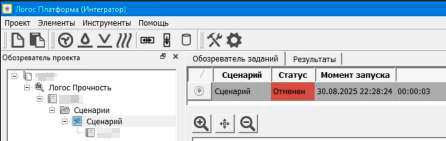
-
Right-click on the task and select "Properties".
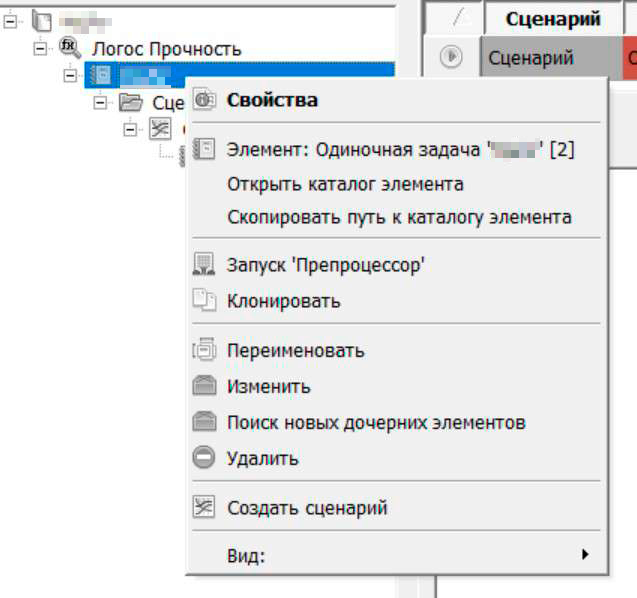
The Single Task Editor window opens:
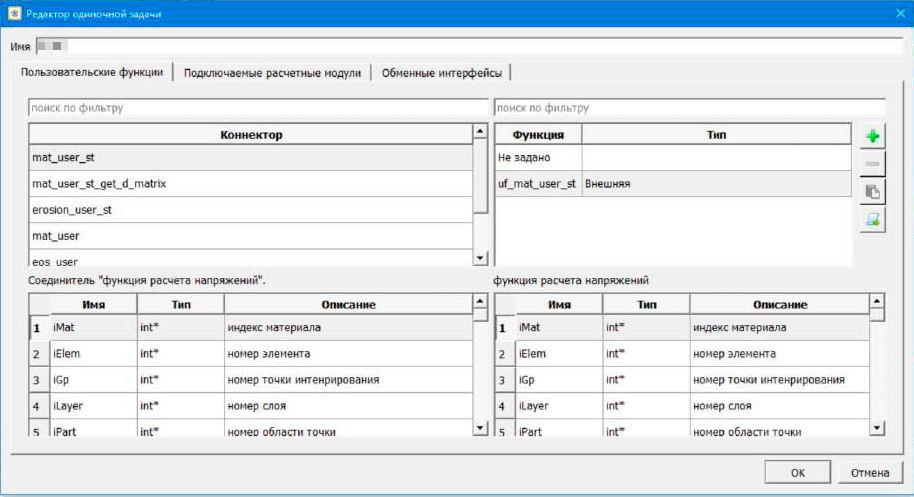
-
In the list of PF connectors, find the appropriate one (for example,
erosion_userto calculate erosion).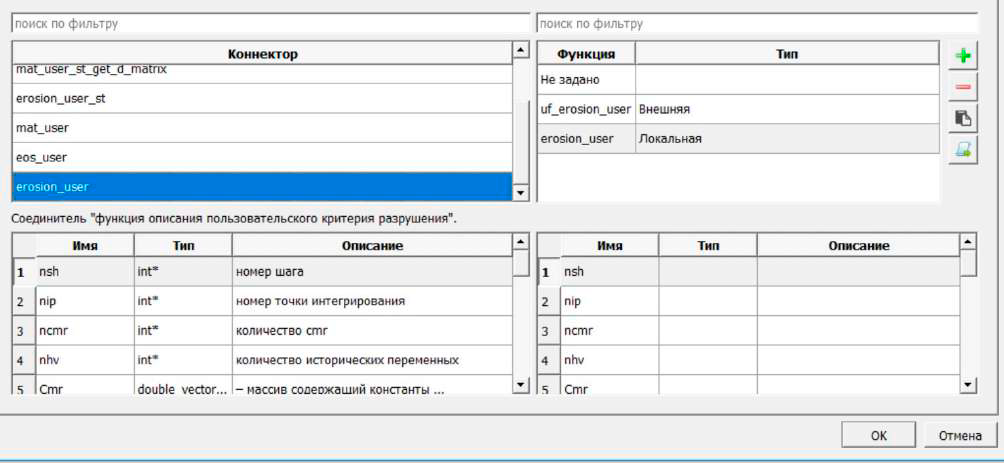
-
Double-click on the connector to open the Custom Function Editor.
-
In the editor that opens, paste the code of your function using
cosimulate():import cosimulation # Importing the simulation module def erosion_user(nsh, nip, ncmr, nhv, Cmr, strainVelF, strain, stress, pu, eu, epsp, rou, divU, ts, loc, tt, time, eraseFlag): # Signal exchange between LOGOS and {docs_engee} signals = cosimulation.engee_sim.cosimulate(time, [pu, eu, rou]) if not signals: return nsh, nip, ncmr, nhv, Cmr, strainVelF, strain, stress, \ pu, eu, epsp, rou, divU, ts, loc, tt, time, eraseFlag strain_from_engee, epsp_from_engee = signals # Destruction criterion: if epsp >= strain, the element is considered destroyed if epsp_from_engee >= strain_from_engee: eraseFlag = True return nsh, nip, ncmr, nhv, Cmr, strainVelF, strain_from_engee, stress, \ pu, eu, epsp_from_engee, rou, divU, ts, loc, tt, time, eraseFlag -
Go back to the Task Editor, select the created function and connect it to the appropriate connector.
|
LOGOS can have its own set of connectors for each task. Before connecting, make sure that the signature of your function (the list of arguments) matches the interface of the selected connector. |
Step 2. Starting the simulation
The startup order is important for proper synchronization of Engee and LOGOS.
-
First, run the model in Engee. It should be loaded and awaiting connection from LOGOS.
-
Then run the calculation in LOGOS (within 1 minute after starting the model in Engee).
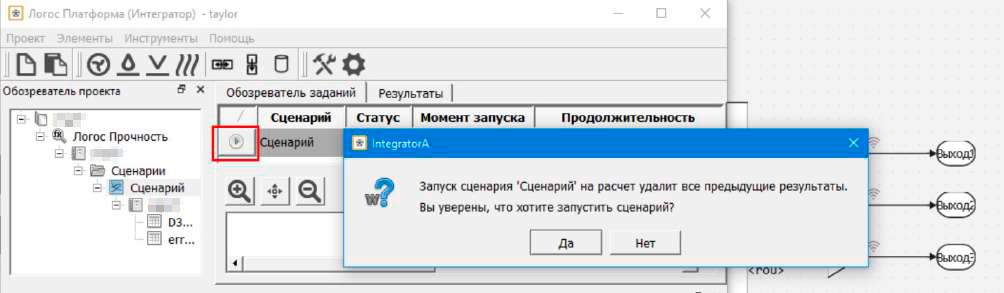
|
Engee must be started first! If you start the LOGO before starting the model in Engee, the connection will not be established. The calculation step in Engee must be equal to or a multiple of the LOGOS calculation step. |
Step 3. Checking the successful connection
After launching, check the messages in the Engee log. The successful connection is shown in the lines:
INFO | Object has been created: Logos
INFO | Successfully interconnected with LOGOS!
Step 4. Control of transmitted signals
To verify the data coming from LOGOS, open Data Inspector  in Engee:
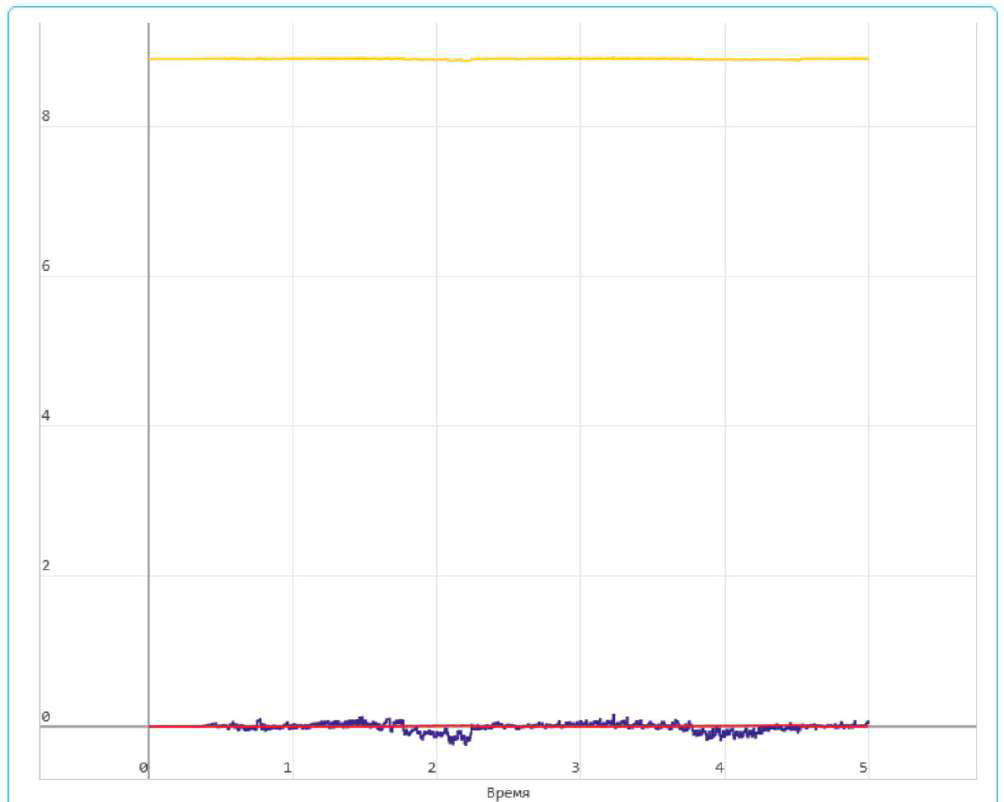
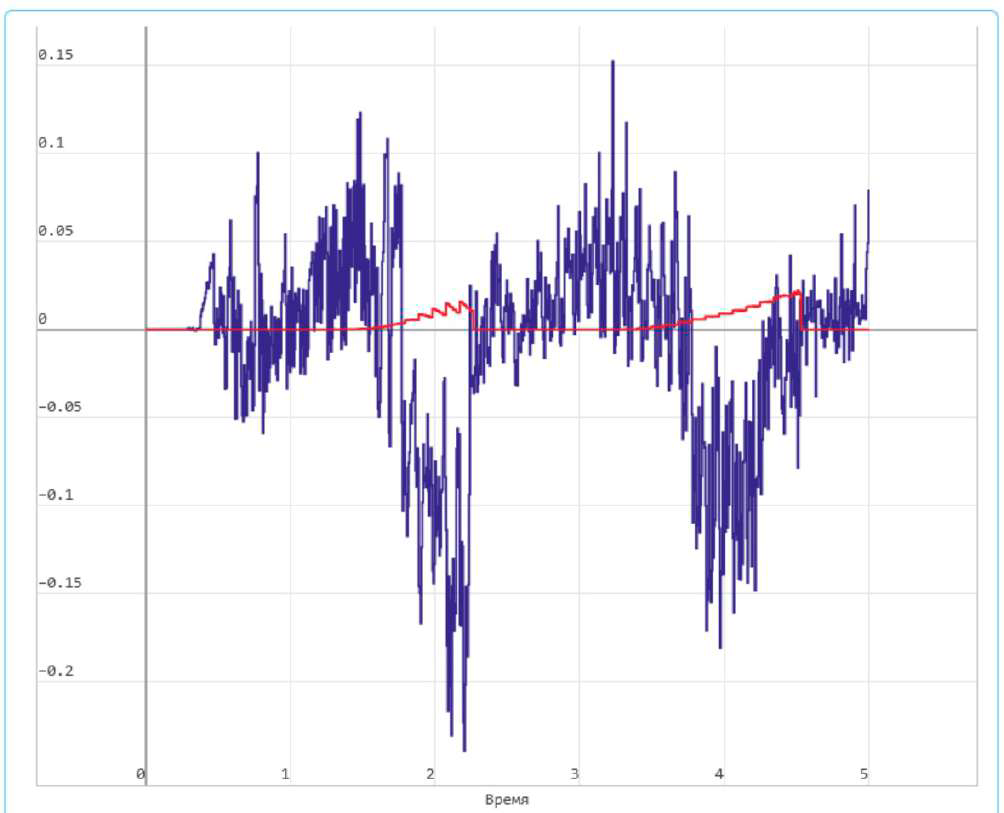
Here you can observe the values of the signals transmitted between the systems in real time.
Step 5. Completion of the calculation
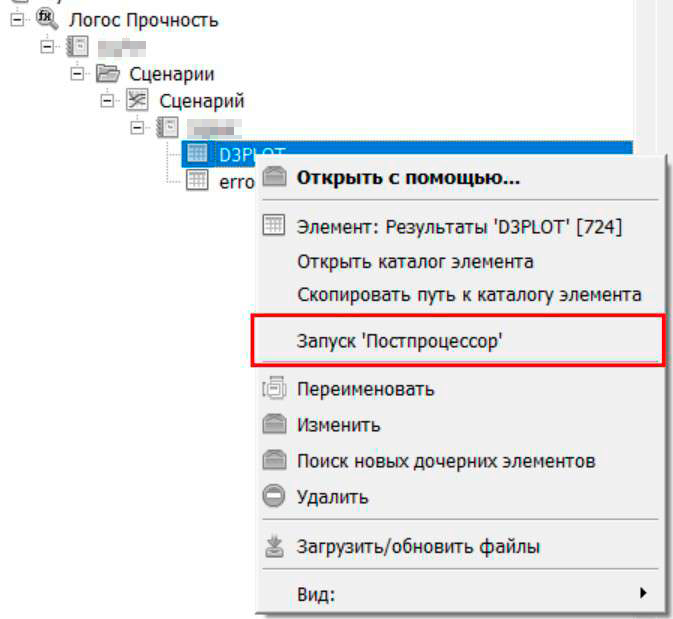
After the calculation is completed, both programs shut down synchronously. The calculation results can be viewed in LOGOS via the Scientific View module — select the desired output file in the Postprocessor: