Axis
|
The page is in the process of being translated. |
Plotting into an Axis
You can use all the normal mutating 2D plotting functions with an Axis. These functions return the created plot object. Omitting the ax argument plots into the current_axis(), which is usually the axis that was last created.
lineobject = lines!(ax, 0..10, sin, color = :red)
scatobject = scatter!(0:0.5:10, cos, color = :orange)

f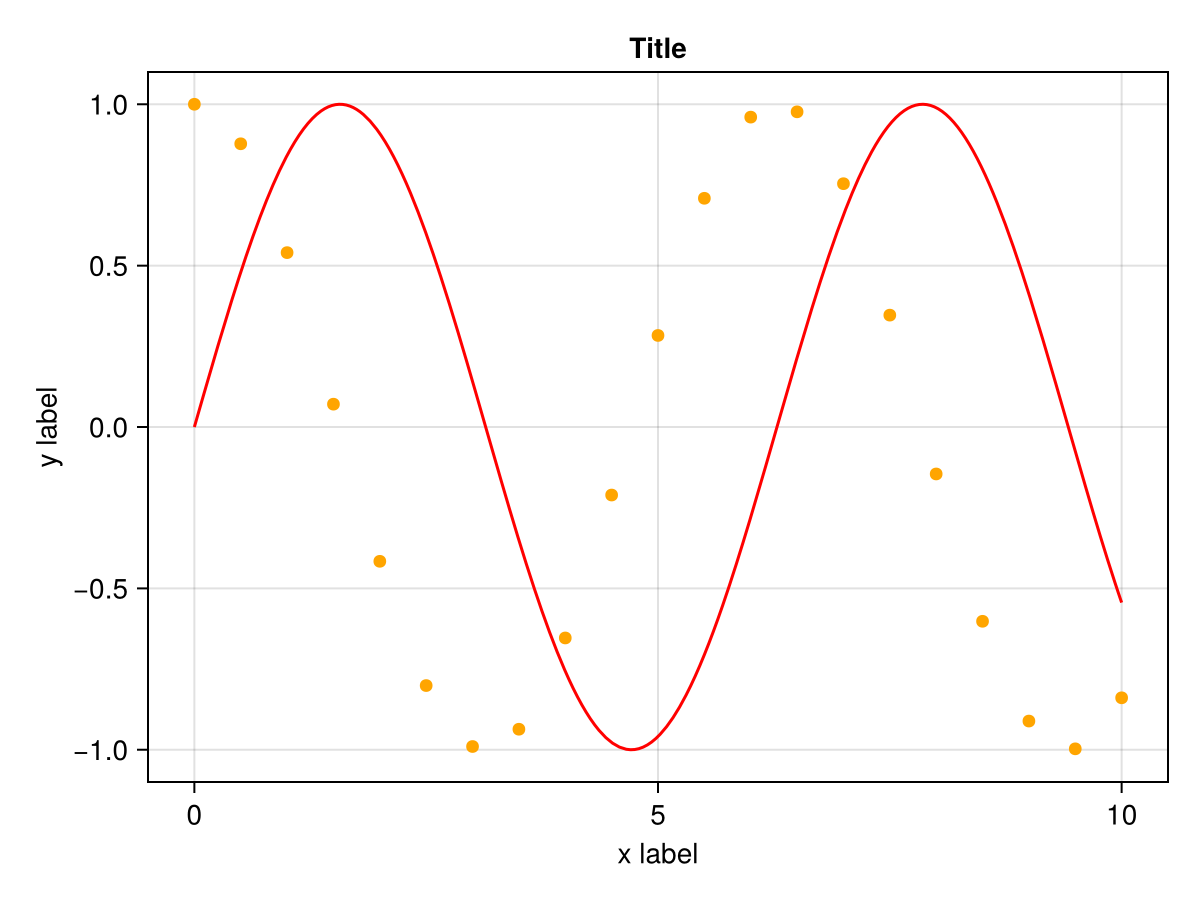
Deleting plots
You can delete a plot object directly via delete!(ax, plotobj). You can also remove all plots with empty!(ax).
using CairoMakie
f = Figure()

axs = [Axis(f[1, i]) for i in 1:3]

scatters = map(axs) do ax
    [scatter!(ax, 0:0.1:10, x -> sin(x) + i) for i in 1:3]
end

delete!(axs[2], scatters[2][2])
empty!(axs[3])

f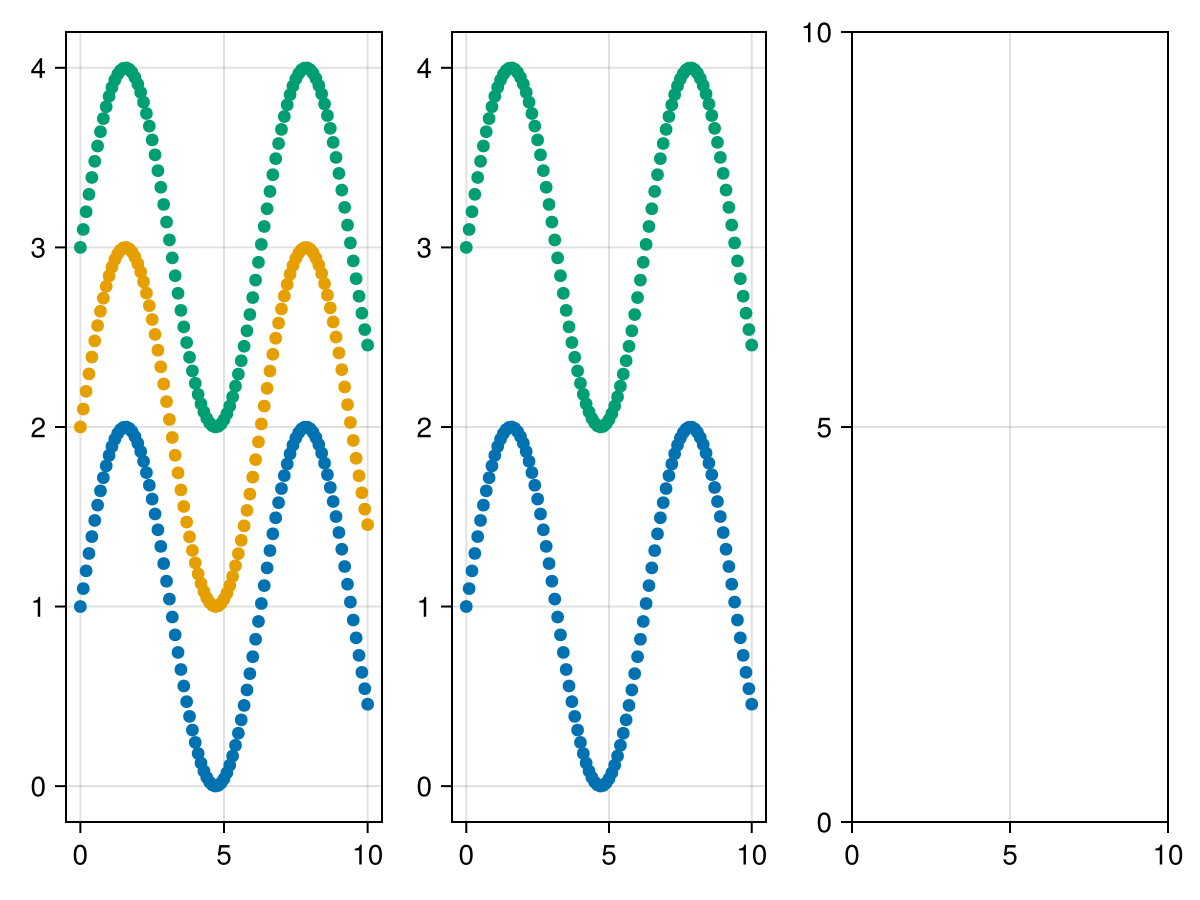
Hiding Axis spines and decorations
You can hide all axis elements manually, by setting their specific visibility attributes to false, like xticklabelsvisible, but that can be tedious. There are a couple of convenience functions for this.
using CairoMakie
f = Figure()

ax1 = Axis(f[1, 1], title = "Axis 1")
ax2 = Axis(f[1, 2], title = "Axis 2")

hidespines!(ax1)
hidespines!(ax2, :t, :r) # only top and right

f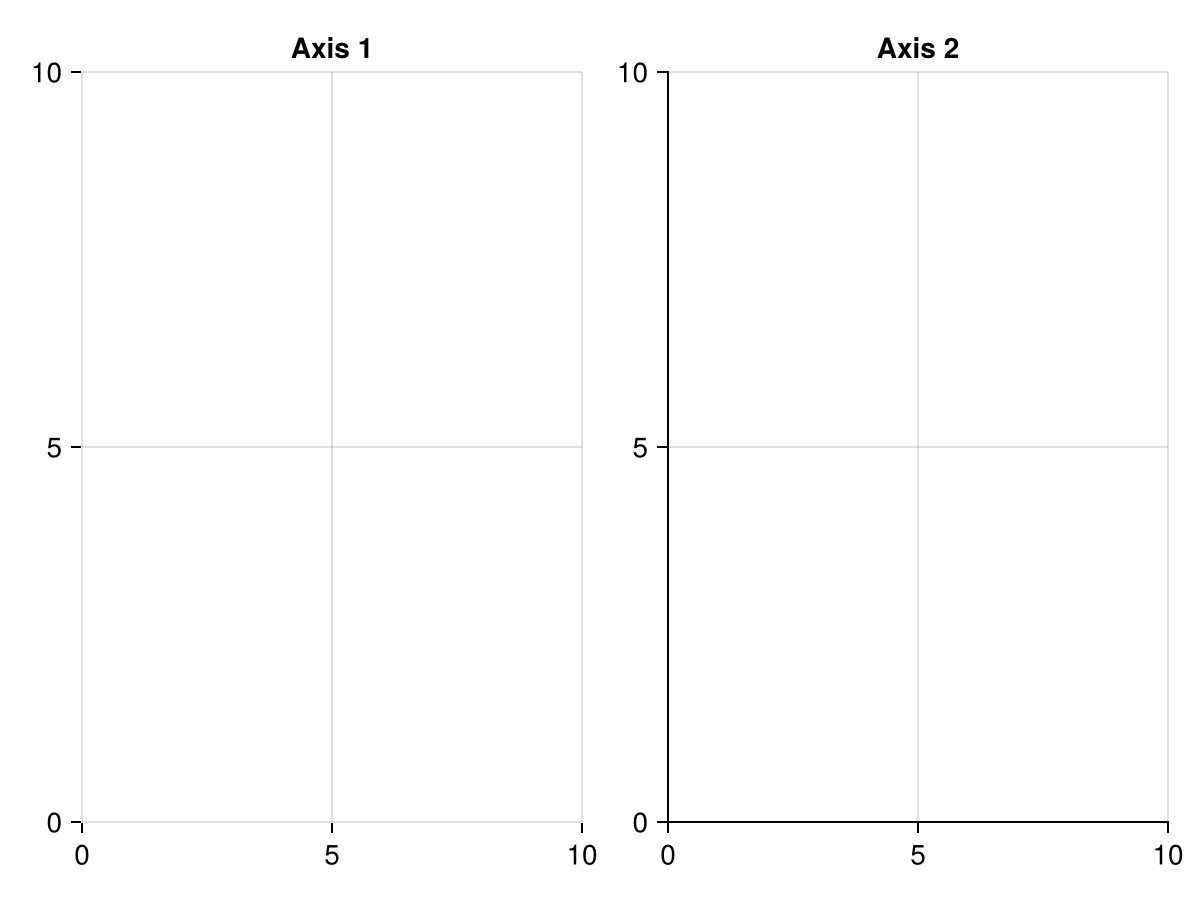
To hide decorations, you can use hidedecorations!, or the specific hidexdecorations! and hideydecorations!. When hiding, you can set label = false, ticklabels = false, ticks = false, grid = false, minorgrid = false or minorticks = false as keyword arguments if you want to keep those elements. It’s common, e.g., to hide everything but the grid lines in facet plots.
using CairoMakie

f = Figure()

ax1 = Axis(f[1, 1], title = "Axis 1")
ax2 = Axis(f[1, 2], title = "Axis 2")
ax3 = Axis(f[1, 3], title = "Axis 3")

hidedecorations!(ax1)
hidexdecorations!(ax2, grid = false)
hideydecorations!(ax3, ticks = false)

f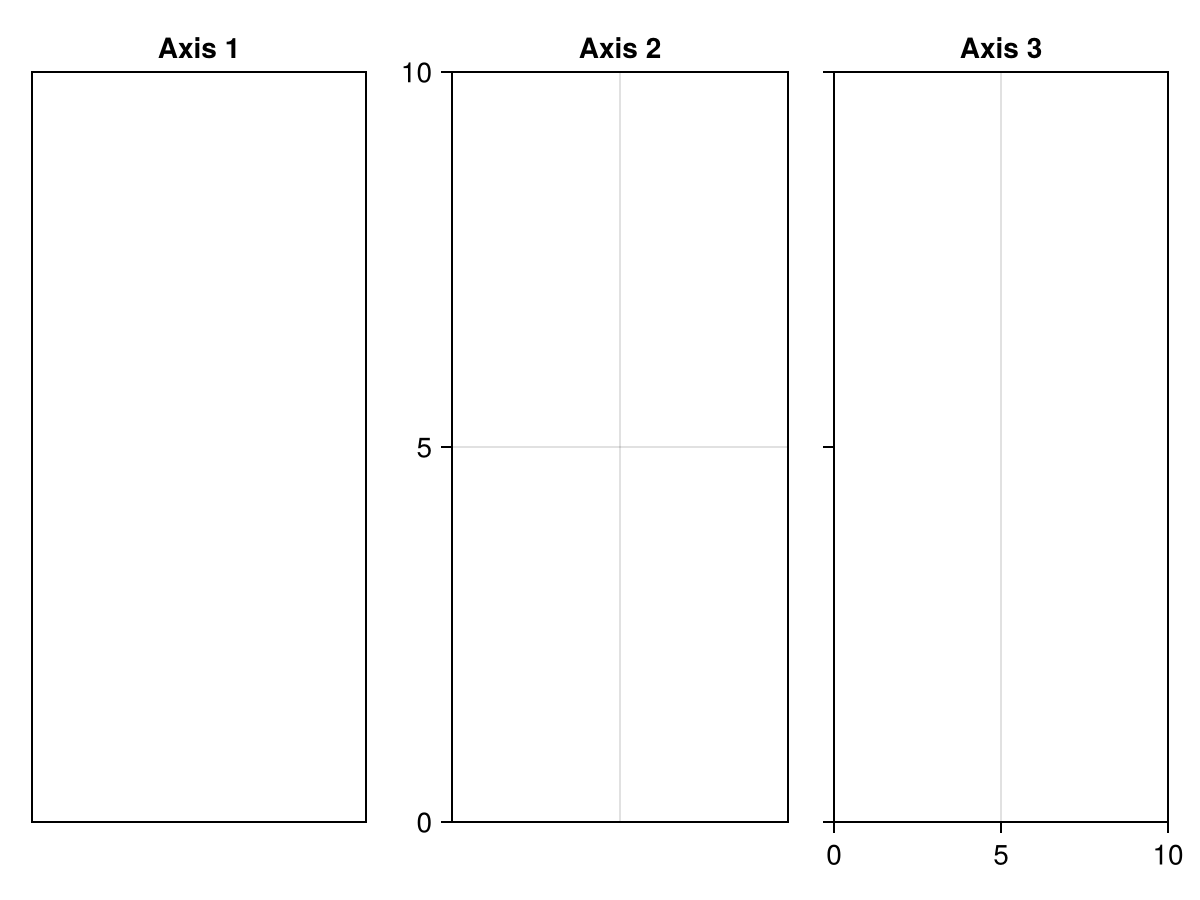
Linking axes
You can link axes to each other. Every axis simply keeps track of a list of other axes which it updates when it is changed itself. You can link x and y dimensions separately.
using CairoMakie

f = Figure()

ax1 = Axis(f[1, 1])
ax2 = Axis(f[1, 2])
ax3 = Axis(f[2, 2])

linkyaxes!(ax1, ax2)
linkxaxes!(ax2, ax3)

ax1.title = "y linked"
ax2.title = "x & y linked"
ax3.title = "x linked"

for (i, ax) in enumerate([ax1, ax2, ax3])
    lines!(ax, 1:10, 1:10, color = "green")
    if i != 1
        lines!(ax, 11:20, 1:10, color = "red")
    end
    if i != 3
        lines!(ax, 1:10, 11:20, color = "blue")
    end
end

f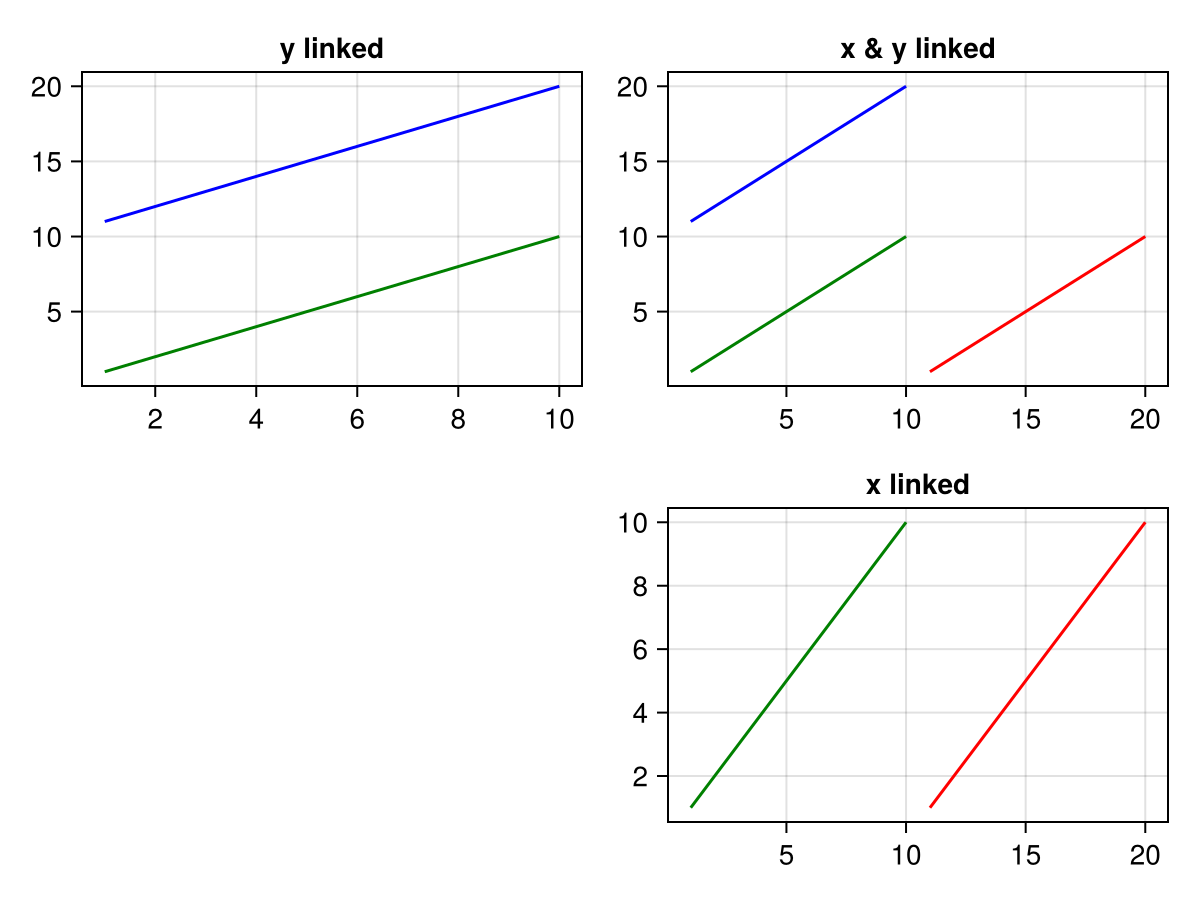
Aligning neighboring axis labels
When placing axes with different ticks next to each other it can be desirable to visually align the labels of these axes. By default, the space allocated for the ticklabels is minimized. This value can be fixed by using the functions tight_xticklabel_spacing!, tight_yticklabel_spacing! or tight_ticklabel_spacing! for both.
using CairoMakie

f = Figure()

ax1 = Axis(f[1, 1], title = "Axis 1", ylabel = "y label", ytickformat = "{:.3f}")
ax2 = Axis(f[2, 1], title = "Axis 2", ylabel = "y label", xlabel = "x label")
ax3 = Axis(f[2, 2], title = "Axis 3", xlabel = "x label", xtickformat = "{:.3f}", xticklabelrotation = pi/4)

f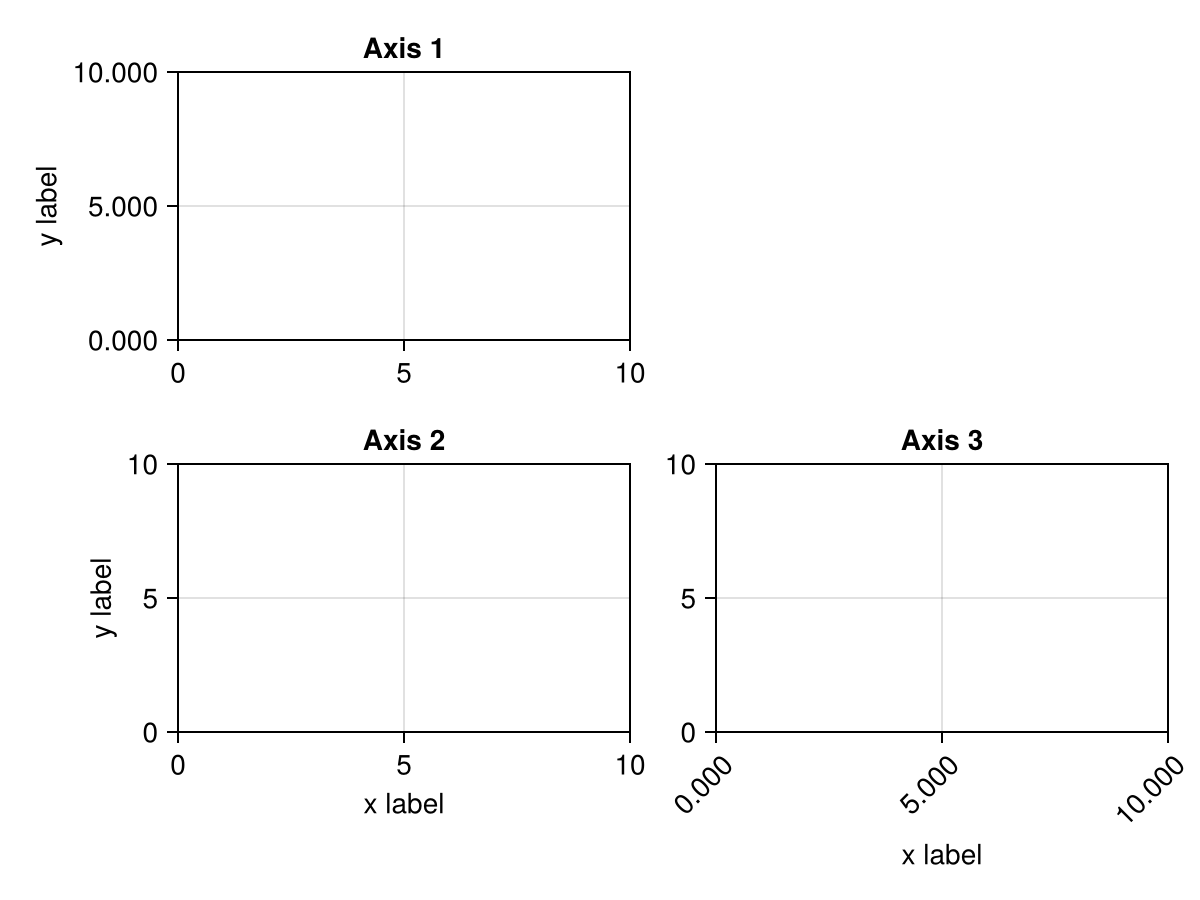
To align the labels, we can set the xticklabelspace or yticklabelspace attributes of the linked axes to the maximum space.
yspace = maximum(tight_yticklabel_spacing!, [ax1, ax2])
xspace = maximum(tight_xticklabel_spacing!, [ax2, ax3])

ax1.yticklabelspace = yspace
ax2.yticklabelspace = yspace

ax2.xticklabelspace = xspace
ax3.xticklabelspace = xspace

f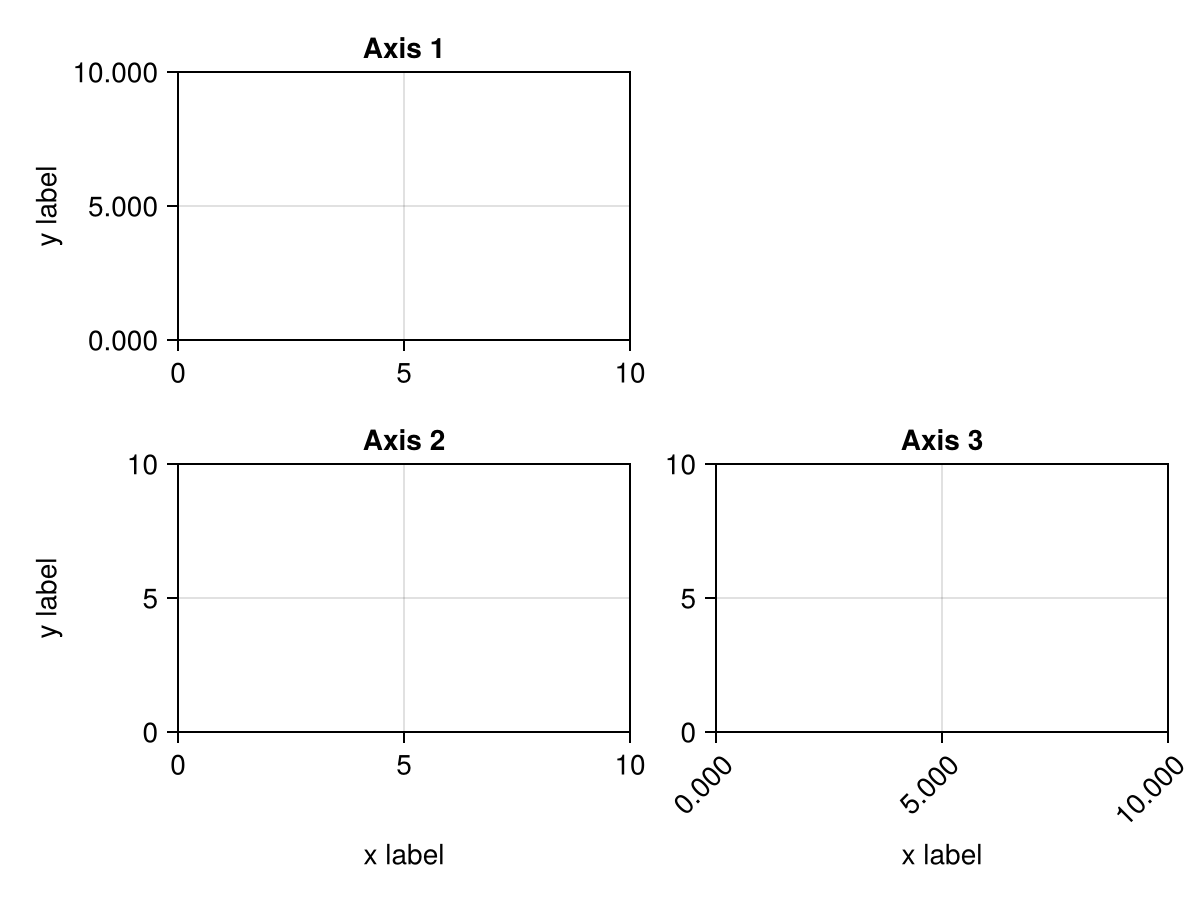
Creating a twin axis
There is currently no dedicated function to do this, but you can simply add an Axis on top of another, then hide everything but the second axis.
using CairoMakie

f = Figure()

ax1 = Axis(f[1, 1], yticklabelcolor = :blue)
ax2 = Axis(f[1, 1], yticklabelcolor = :red, yaxisposition = :right)
hidespines!(ax2)
hidexdecorations!(ax2)

lines!(ax1, 0..10, sin, color = :blue)
lines!(ax2, 0..10, x -> 100 * cos(x), color = :red)

f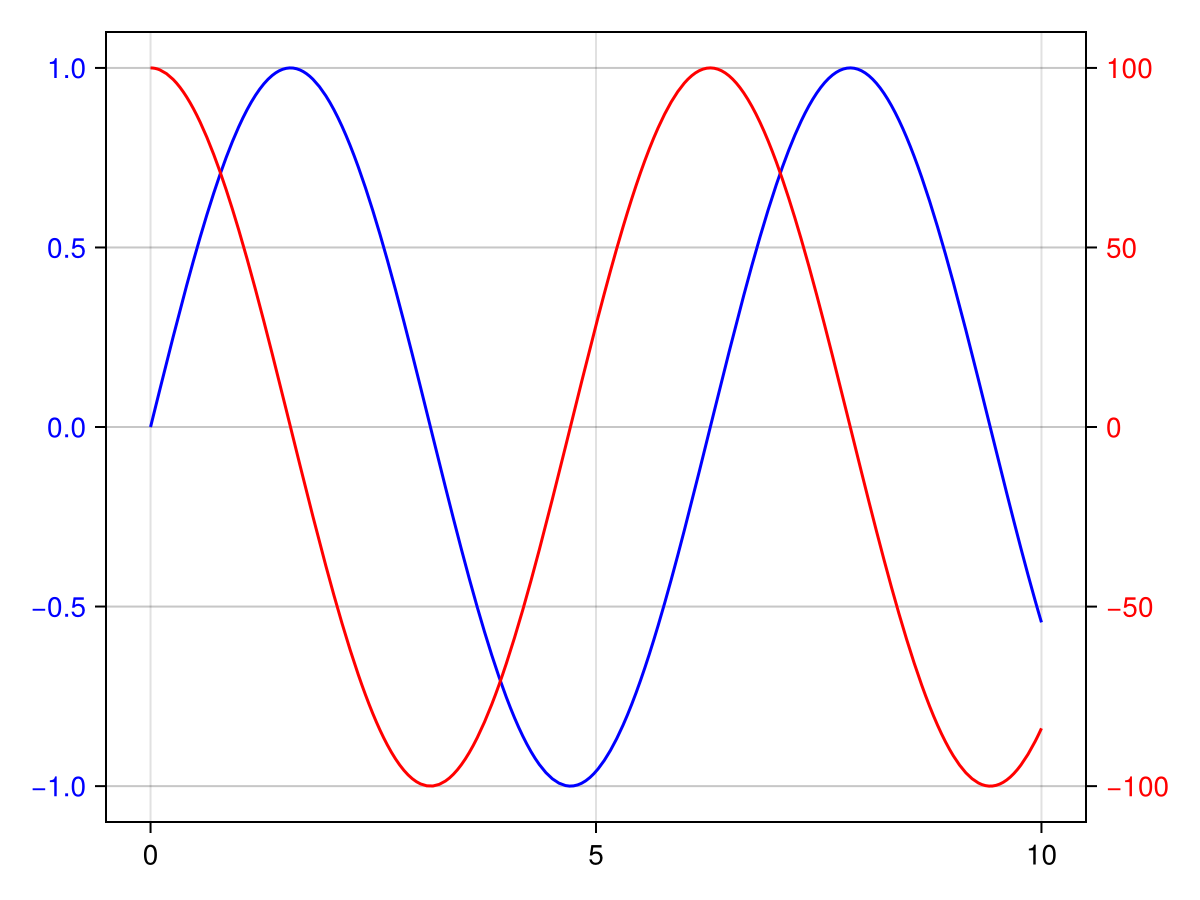
Axis interaction
An Axis has a couple of predefined interactions enabled.
Scroll zoom
You can zoom in an axis by scrolling in and out. If you press x or y while scrolling, the zoom movement is restricted to that dimension. These keys can be changed with the attributes xzoomkey and yzoomkey. You can also restrict the zoom dimensions all the time by setting the axis attributes xzoomlock or yzoomlock to true.
Drag pan
You can pan around the axis by right-clicking and dragging. If you press x or y while panning, the pan movement is restricted to that dimension. These keys can be changed with the attributes xpankey and ypankey. You can also restrict the pan dimensions all the time by setting the axis attributes xpanlock or ypanlock to true.
Limit reset
You can reset the limits with ctrl + leftclick. This is the same as doing reset_limits!(ax). This sets the limits back to the values stored in ax.limits, and if they are nothing, computes them automatically. If you have previously called limits!, xlims! or ylims!, these settings therefore stay intact when doing a limit reset.
You can alternatively press ctrl + shift + leftclick, which is the same as calling autolimits!(ax). This function ignores previously set limits and computes them all anew given the axis content.
Rectangle selection zoom
Left-click and drag zooms into the selected rectangular area. If you press x or y while panning, only the respective dimension is affected. You can also restrict the selection zoom dimensions all the time by setting the axis attributes xrectzoom or yrectzoom to true.
Custom interactions
The interaction system is an additional abstraction upon Makie’s low-level event system to make it easier to quickly create your own interaction patterns.
Registering and deregistering interactions
To register a new interaction, call register_interaction!(ax, name::Symbol, interaction). The interaction argument can be of any type.
To remove an existing interaction completely, call deregister_interaction!(ax, name::Symbol). You can check which interactions are currently active by calling interactions(ax). The default interactions are :dragpan, :limitreset, :rectanglezoom and :scrollzoom.
Activating and deactivating interactions
Often, you don’t want to remove an interaction entirely but only disable it for a moment, then re-enable it again. You can use the functions activate_interaction!(ax, name::Symbol) and deactivate_interaction!(ax, name::Symbol) for that.
Function interaction
If interaction is a Function, it should accept two arguments, which correspond to an event and the axis. This function will then be called whenever the axis generates an event.
Here’s an example of such a function. Note that we use the special dispatch signature for Functions that allows to use the do-syntax:
register_interaction!(ax, :my_interaction) do event::MouseEvent, axis
    if event.type === MouseEventTypes.leftclick
        println("You clicked on the axis!")
    end
end
As you can see, it’s possible to restrict the type parameter of the event argument. Choices are one of MouseEvent, KeysEvent or ScrollEvent if you only want to handle a specific class. Your function can also have multiple methods dealing with each type.
Custom object interaction
The function option is most suitable for interactions that don’t involve much state. A more verbose but flexible option is available. For this, you define a new type which typically holds all the state variables you’re interested in.
Whenever the axis generates an event, it calls process_interaction(interaction, event, axis) on all stored interactions. By defining process_interaction for specific types of interaction and event, you can create more complex interaction patterns.
Here’s an example with simple state handling where we allow left clicks while l is pressed, and right clicks while r is pressed:
mutable struct MyInteraction
    allow_left_click::Bool
    allow_right_click::Bool
end

function Makie.process_interaction(interaction::MyInteraction, event::MouseEvent, axis)
    if interaction.allow_left_click && event.type === MouseEventTypes.leftclick
        println("Left click in correct mode")
    end
    if interaction.allow_right_click && event.type === MouseEventTypes.rightclick
        println("Right click in correct mode")
    end
end

function Makie.process_interaction(interaction::MyInteraction, event::KeysEvent, axis)
    interaction.allow_left_click = Keyboard.l in event.keys
    interaction.allow_right_click = Keyboard.r in event.keys
end

register_interaction!(ax, :left_and_right, MyInteraction(false, false))
Setup and cleanup
Some interactions might have more complex state involving plot objects that need to be setup or removed. For those purposes, you can overload the methods registration_setup!(parent, interaction) and deregistration_cleanup!(parent, interaction) which are called during registration and deregistration, respectively.
Attributes
aspect
Defaults to nothing
Controls the forced aspect ratio of the axis.
The default nothing will not constrain the aspect ratio. The axis area will span the available width and height in the layout.
DataAspect() reduces the effective axis size within the available layout space so that the axis aspect ratio width/height matches that of the data limits. For example, if the x limits range from 0 to 300 and the y limits from 100 to 250, DataAspect() will result in an aspect ratio of (300 - 0) / (250 - 100) = 2. This can be useful when plotting images, because the image will be displayed unsquished.
AxisAspect(ratio) reduces the effective axis size within the available layout space so that the axis aspect ratio width/height matches ratio.
Note that both DataAspect and AxisAspect can result in excess whitespace around the axis. To make a GridLayout aware of aspect ratio constraints, refer to the Aspect column or row size setting.
using CairoMakie
using FileIO

f = Figure()

ax1 = Axis(f[1, 1], aspect = nothing, title = "nothing")
ax2 = Axis(f[1, 2], aspect = DataAspect(), title = "DataAspect()")
ax3 = Axis(f[2, 1], aspect = AxisAspect(1), title = "AxisAspect(1)")
ax4 = Axis(f[2, 2], aspect = AxisAspect(2), title = "AxisAspect(2)")

img = rotr90(load(assetpath("cow.png")))
for ax in [ax1, ax2, ax3, ax4]
    image!(ax, img)
end

f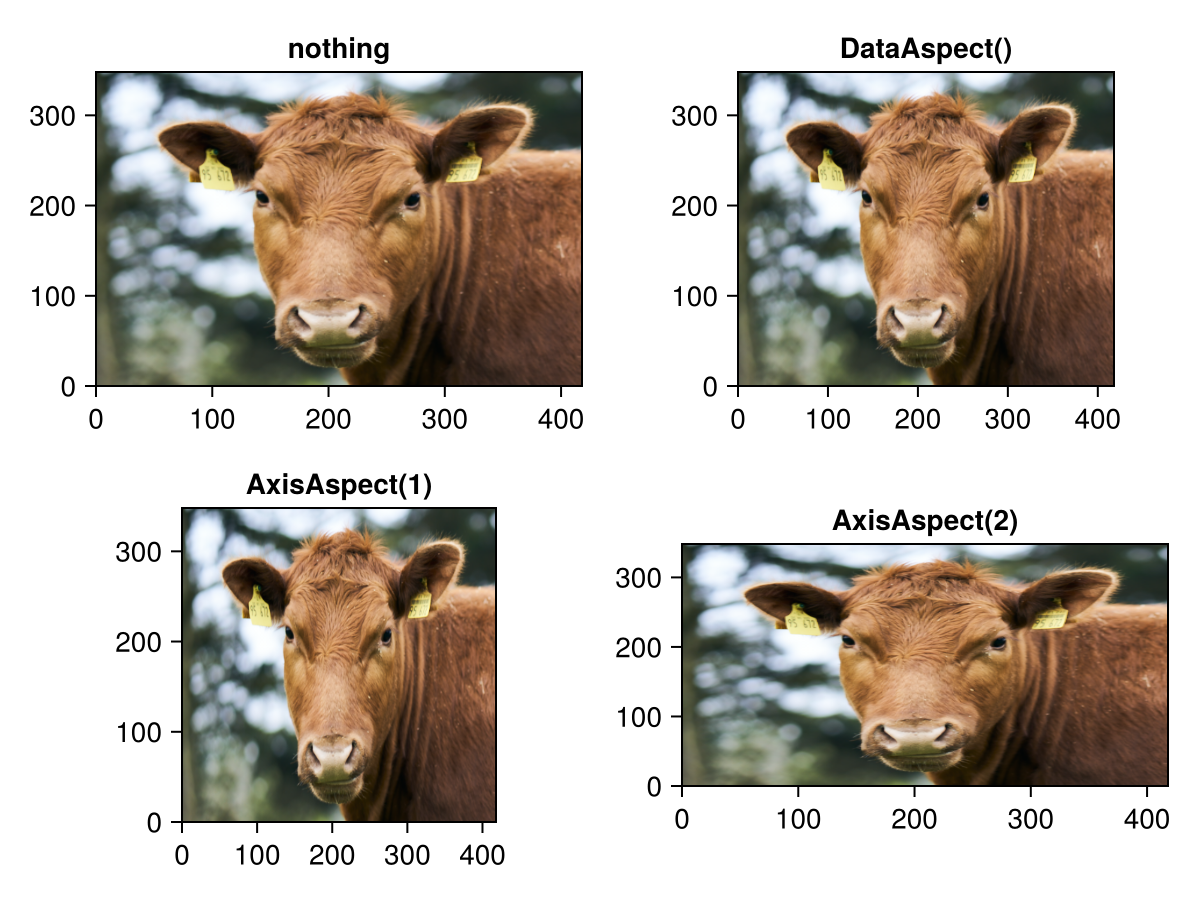
autolimitaspect
Defaults to nothing
If autolimitaspect is set to a number, the limits of the axis will autoadjust such that the ratio of the limits to the axis size equals that number.
For example, if the axis size is 100 x 200, then with autolimitaspect = 1, the autolimits will also have a ratio of 1 to 2. The setting autolimitaspect = 1 is the complement to aspect = AxisAspect(1), but while aspect changes the axis size, autolimitaspect changes the limits to achieve the desired ratio.
|
Warning |
You can hide the ticklabels or fix `xticklabelspace` and `yticklabelspace` to avoid the relayouts. You can choose the amount of space manually or pick the current automatic one with `tight_ticklabel_spacing!`.
using CairoMakie
f = Figure()

ax1 = Axis(f[1, 1], autolimitaspect = nothing)
ax2 = Axis(f[1, 2], autolimitaspect = 1)

for ax in [ax1, ax2]
    lines!(ax, 0..10, sin)
end

f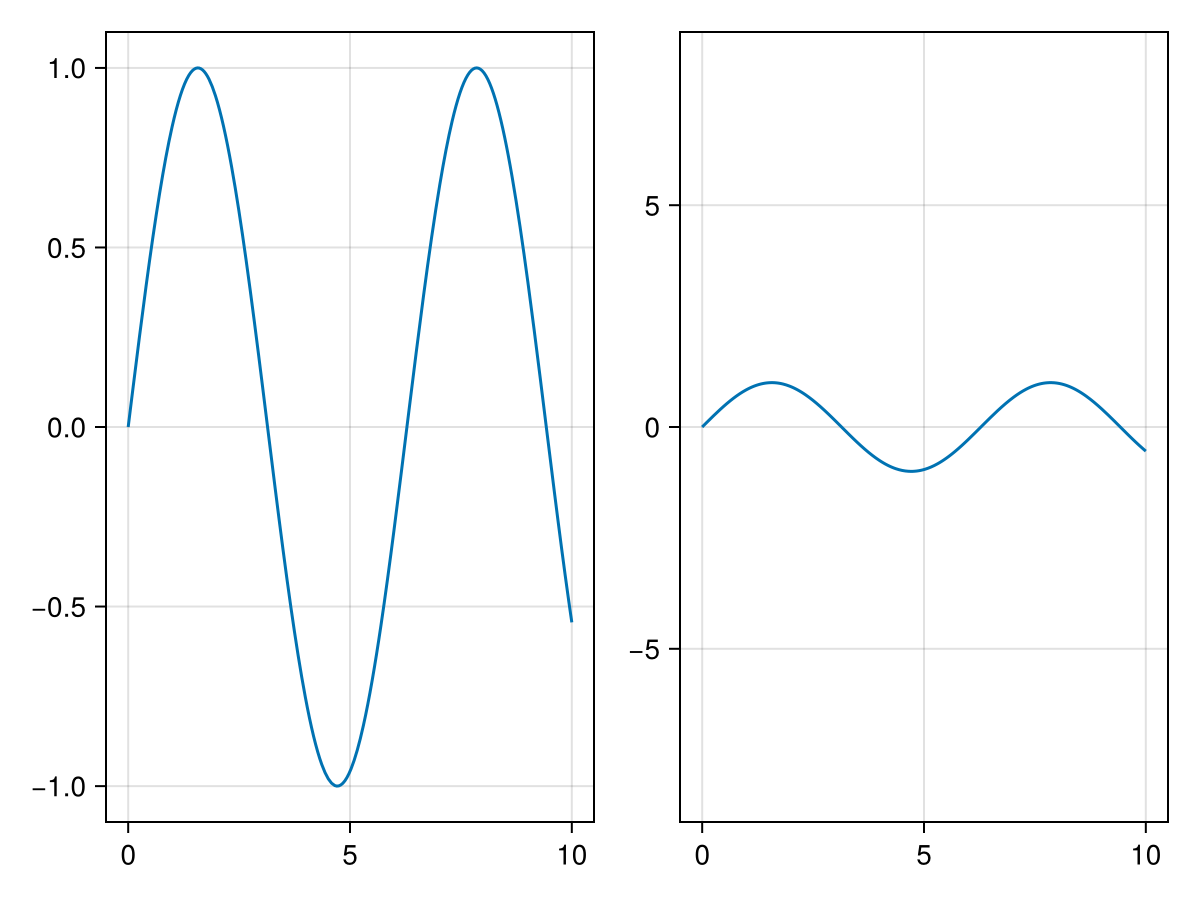
backgroundcolor
Defaults to :white
using CairoMakie
    f = Figure()

    ax1 = Axis(f[1, 1])
    ax2 = Axis(f[1, 2], backgroundcolor = :gray80)

    f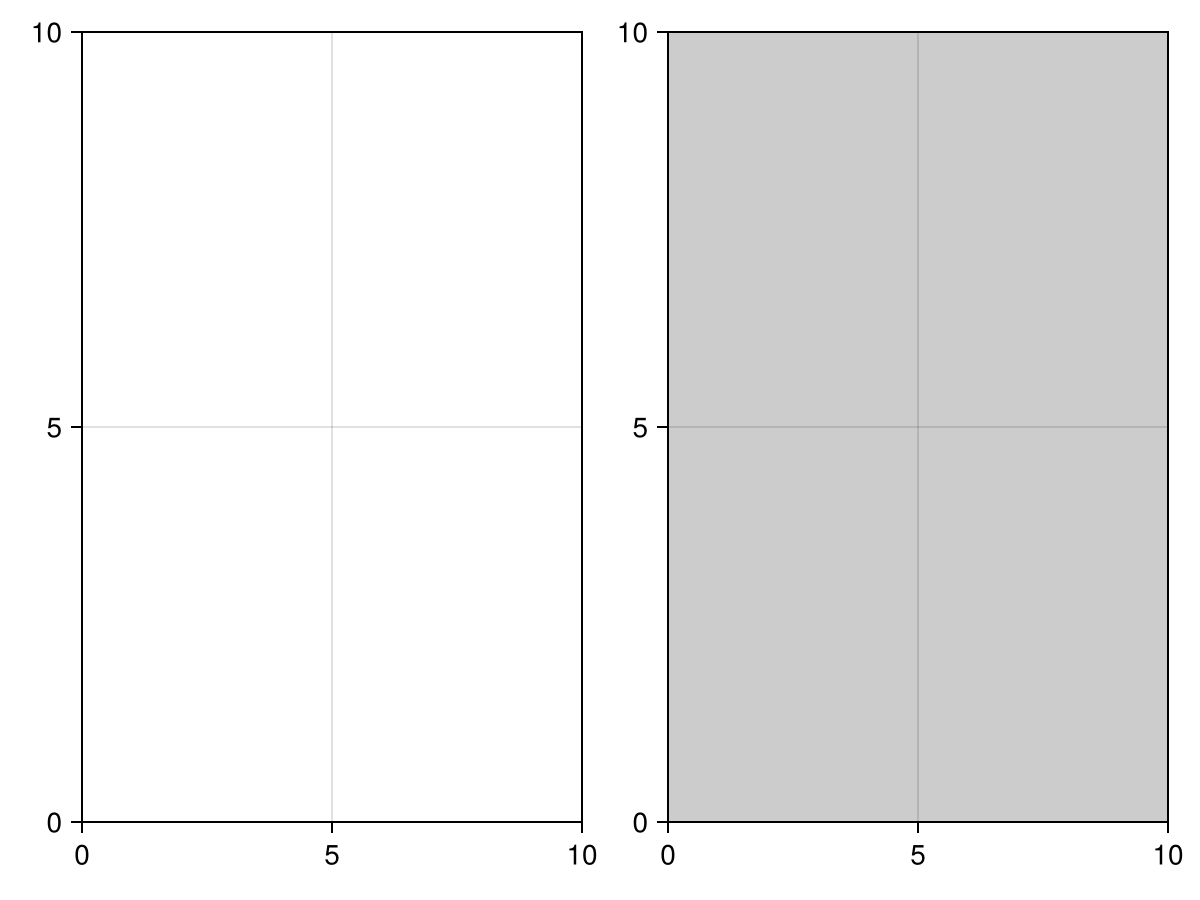
limits
Defaults to (nothing, nothing)
Can be used to manually specify which axis limits are desired.
The limits attribute cannot be used to read out the actual limits of the axis. The value of limits does not change when interactively zooming and panning and the axis can be reset accordingly using the function reset_limits!.
The function autolimits! resets the value of limits to (nothing, nothing) and adjusts the axis limits according to the extents of the plots added to the axis.
The value of limits can be a four-element tuple (xlow, xhigh, ylow, yhigh) where each value can be a real number or nothing. It can also be a tuple (x, y) where x and y can be nothing or a tuple (low, high). In all cases, nothing means that the respective limit values will be automatically determined.
Automatically determined limits are also influenced by xautolimitmargin and yautolimitmargin.
The convenience functions xlims! and ylims! allow to set only the x or y part of limits. The function limits! is another option to set both x and y simultaneously.
using CairoMakie
f = Figure()

ax1 = Axis(f[1, 1], limits = (nothing, nothing), title = "(nothing, nothing)")
ax2 = Axis(f[1, 2], limits = (0, 4pi, -1, 1), title = "(0, 4pi, -1, 1)")
ax3 = Axis(f[2, 1], limits = ((0, 4pi), nothing), title = "((0, 4pi), nothing)")
ax4 = Axis(f[2, 2], limits = (nothing, 4pi, nothing, 1), title = "(nothing, 4pi, nothing, 1)")

for ax in [ax1, ax2, ax3, ax4]
    lines!(ax, 0..4pi, sin)
end

f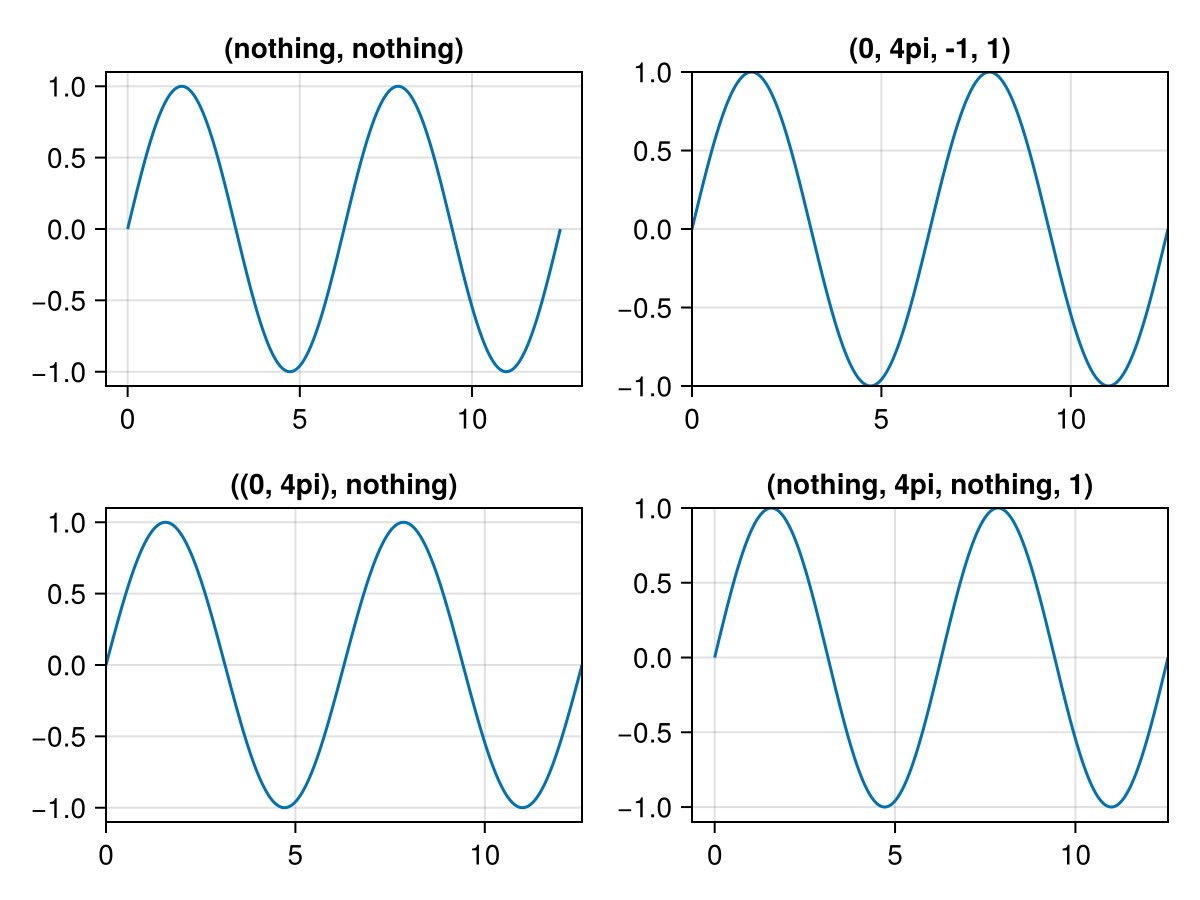
subtitle
Defaults to ""
The content of the axis subtitle. The value can be any non-vector-valued object that the text primitive supports.
using CairoMakie
f = Figure()

Axis(f[1, 1], title = "Title", subtitle = "Subtitle")
Axis(f[2, 1], title = "Title", subtitle = L"\sum_i{x_i \times y_i}")
Axis(f[3, 1], title = "Title", subtitle = rich(
    "Rich text subtitle",
    subscript(" with subscript", color = :slategray)
))

f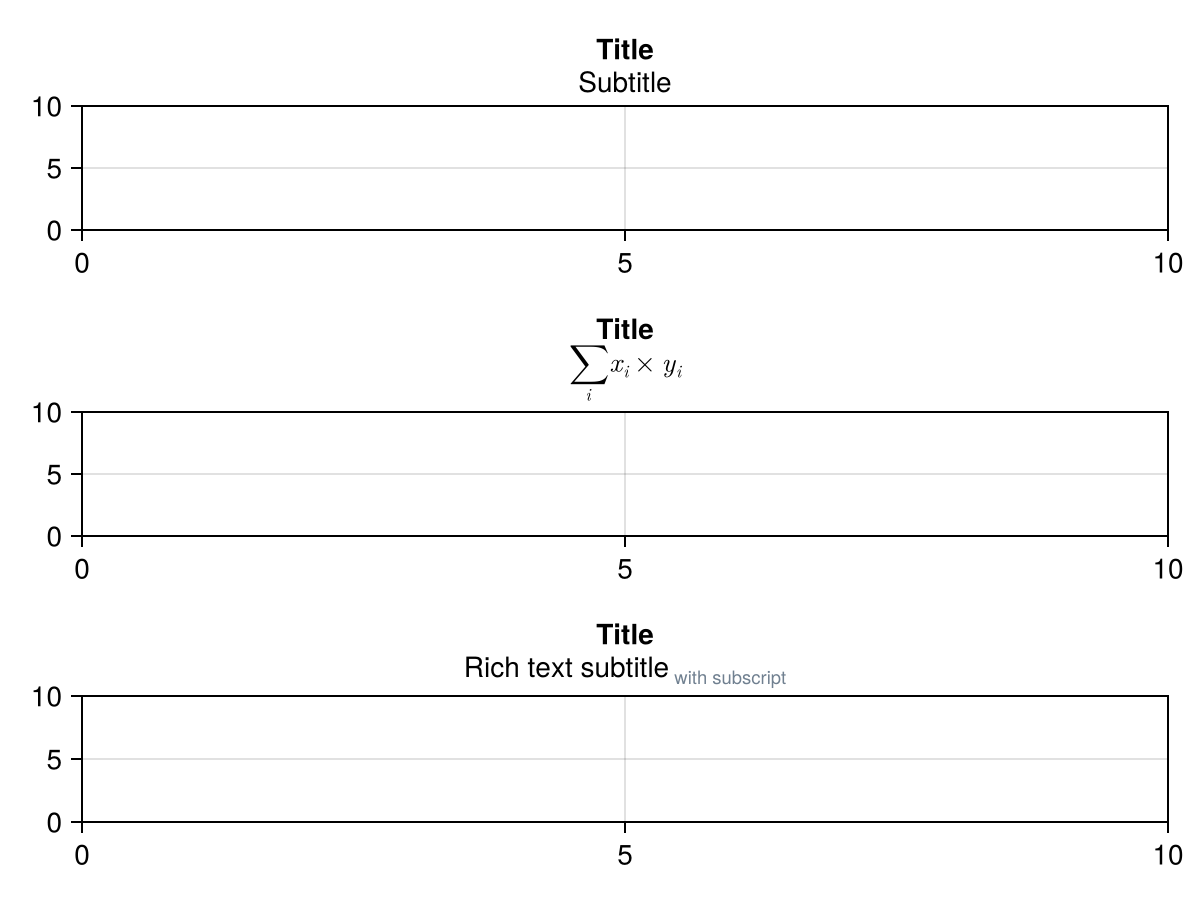
title
Defaults to ""
The content of the axis title. The value can be any non-vector-valued object that the text primitive supports.
using CairoMakie
f = Figure()

Axis(f[1, 1], title = "Title")
Axis(f[2, 1], title = L"\sum_i{x_i \times y_i}")
Axis(f[3, 1], title = rich(
    "Rich text title",
    subscript(" with subscript", color = :slategray)
))

f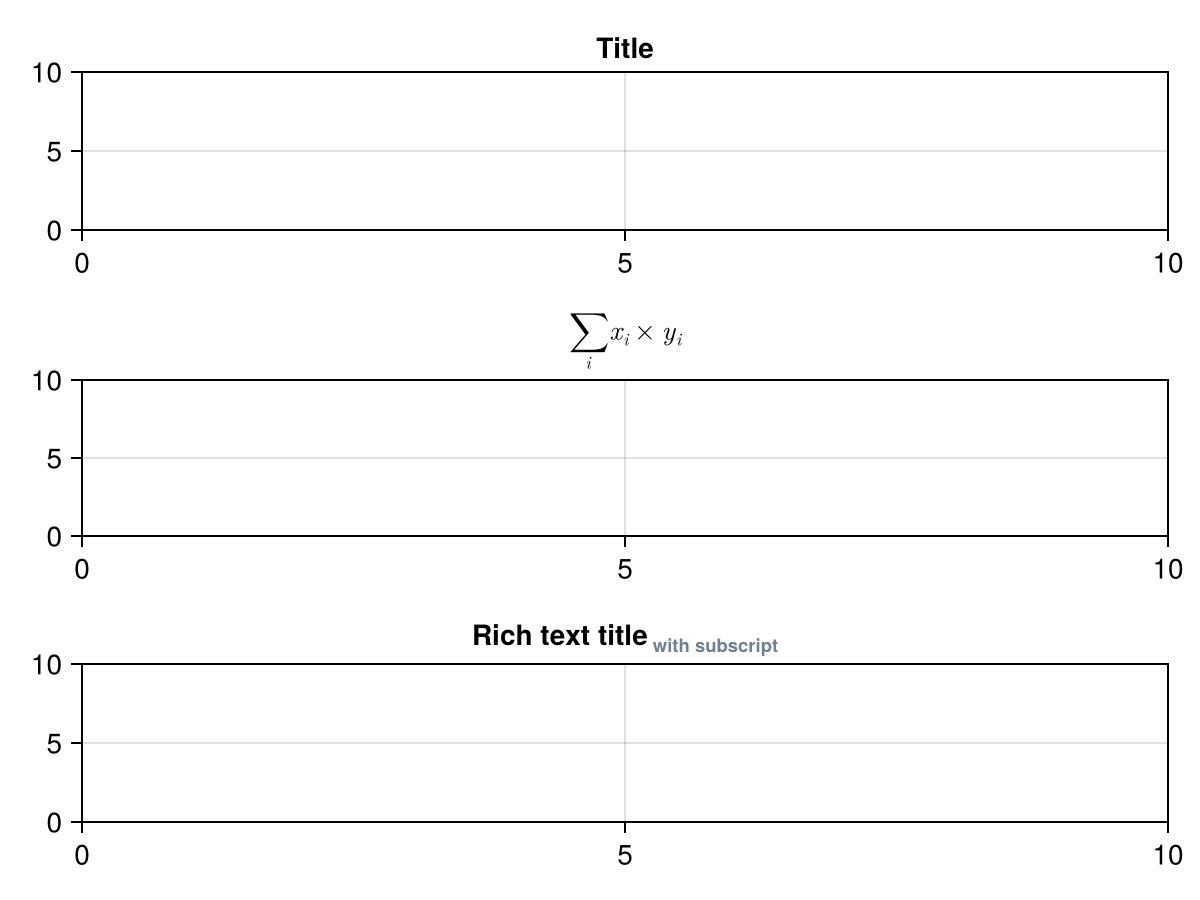
titlealign
Defaults to :center
The horizontal alignment of the title. The subtitle always follows this alignment setting.
using CairoMakie
f = Figure()

Axis(f[1, 1], titlealign = :left, title = "Left aligned title")
Axis(f[2, 1], titlealign = :center, title = "Center aligned title")
Axis(f[3, 1], titlealign = :right, title = "Right aligned title")

f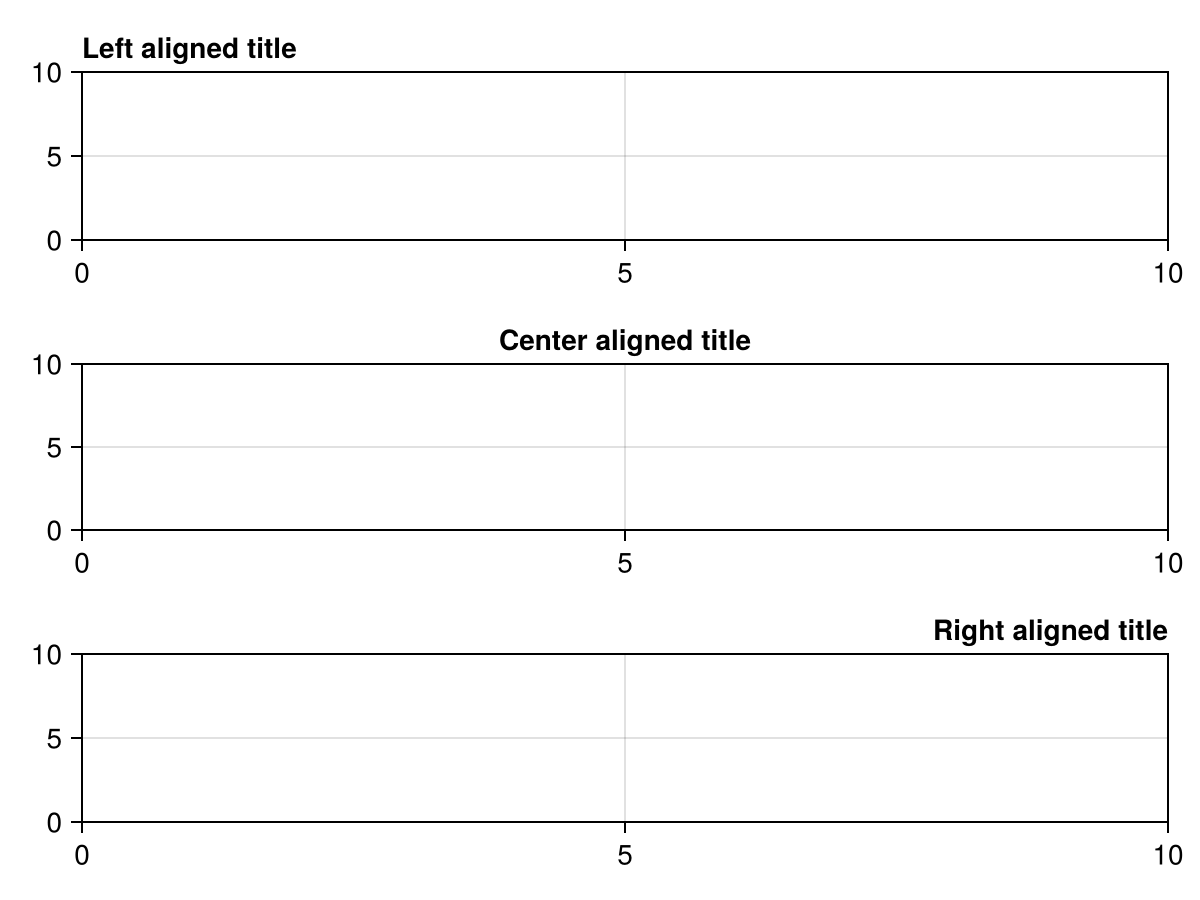
xautolimitmargin
Defaults to (0.05f0, 0.05f0)
using CairoMakie
    f = Figure()

    data = 0:1

    ax1 = Axis(f[1, 1], xautolimitmargin = (0, 0), title = "xautolimitmargin = (0, 0)")
    ax2 = Axis(f[2, 1], xautolimitmargin = (0.05, 0.05), title = "xautolimitmargin = (0.05, 0.05)")
    ax3 = Axis(f[3, 1], xautolimitmargin = (0, 0.2), title = "xautolimitmargin = (0, 0.2)")

    for ax in [ax1, ax2, ax3]
        lines!(ax, data)
    end

    f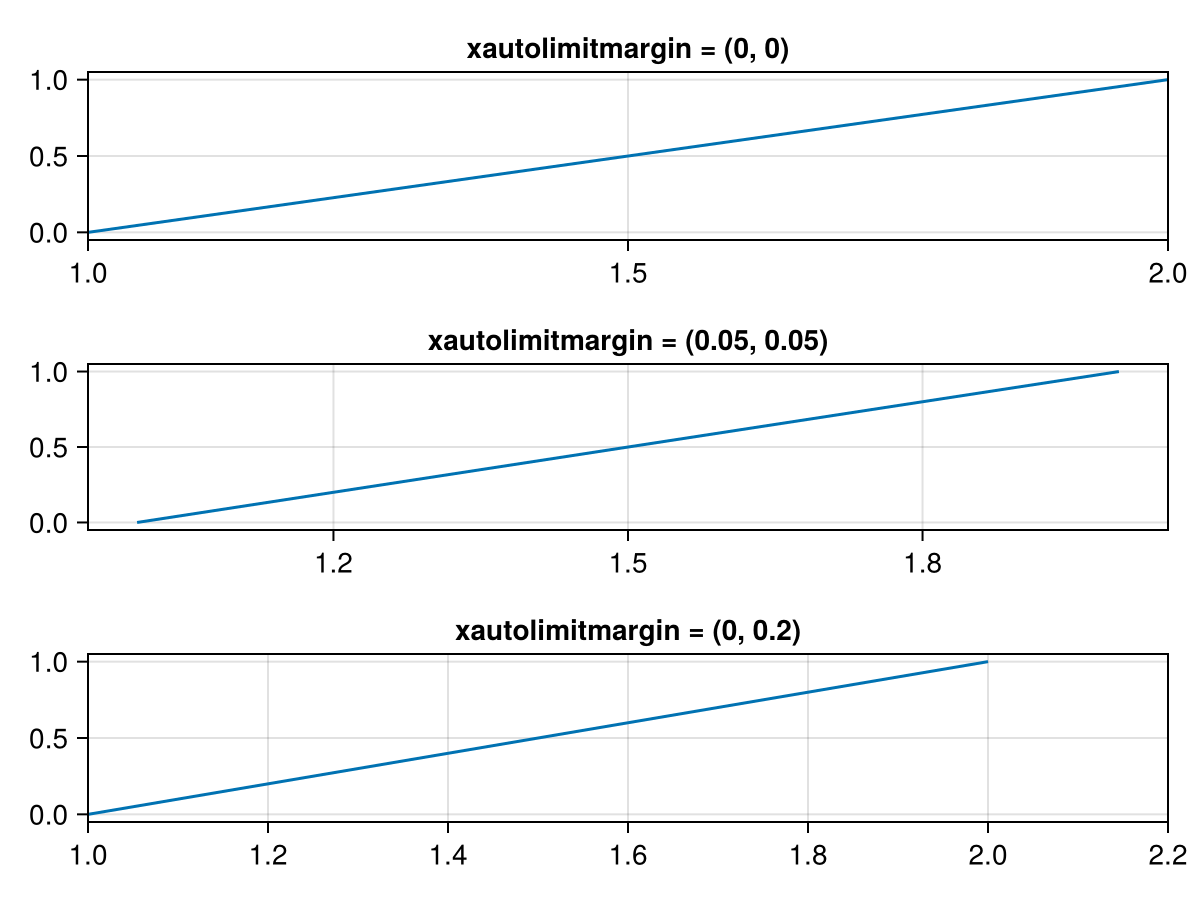
xaxisposition
Defaults to :bottom
using CairoMakie
f = Figure()

Axis(f[1, 1], xaxisposition = :bottom)
Axis(f[1, 2], xaxisposition = :top)

f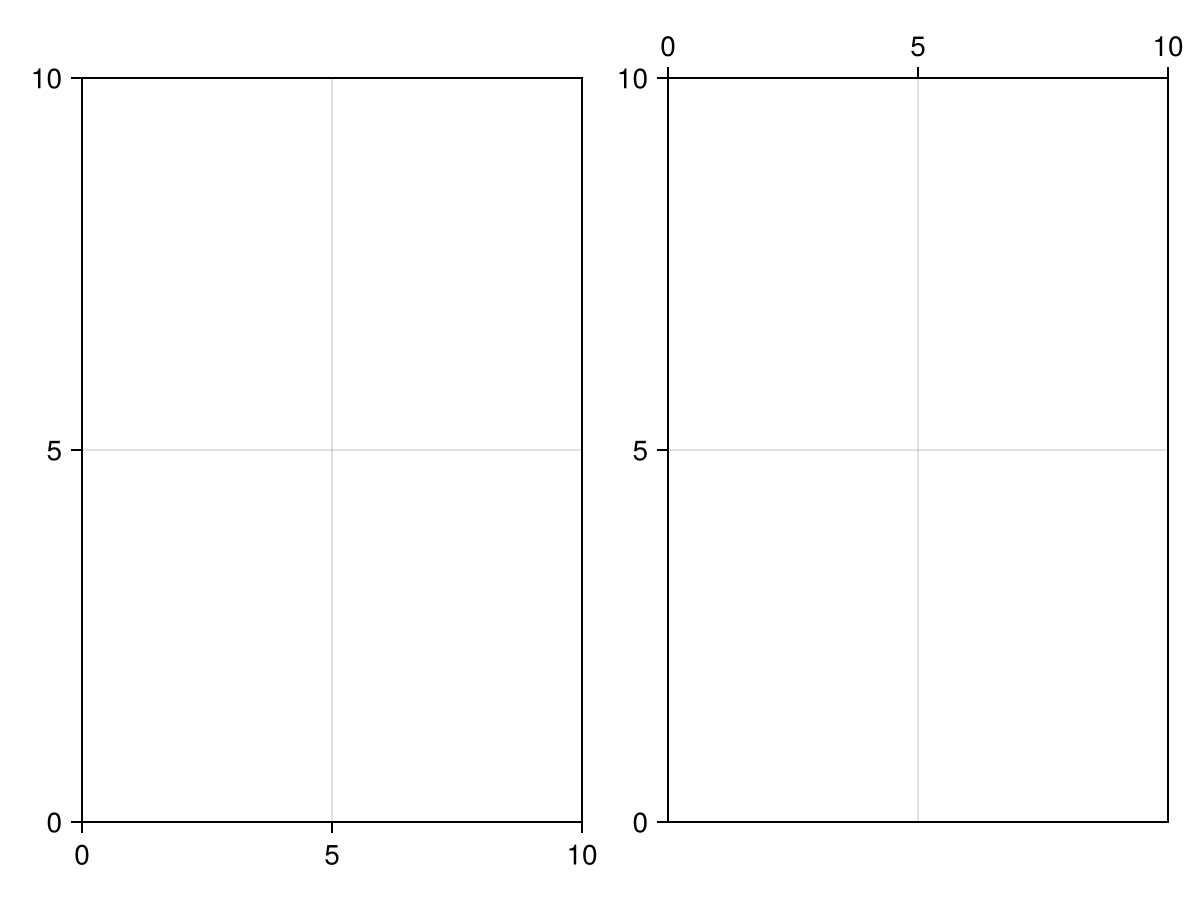
xlabel
Defaults to ""
The content of the x axis label. The value can be any non-vector-valued object that the text primitive supports.
using CairoMakie
f = Figure()

Axis(f[1, 1], xlabel = "X Label")
Axis(f[2, 1], xlabel = L"\sum_i{x_i \times y_i}")
Axis(f[3, 1], xlabel = rich(
    "X Label",
    subscript(" with subscript", color = :slategray)
))

f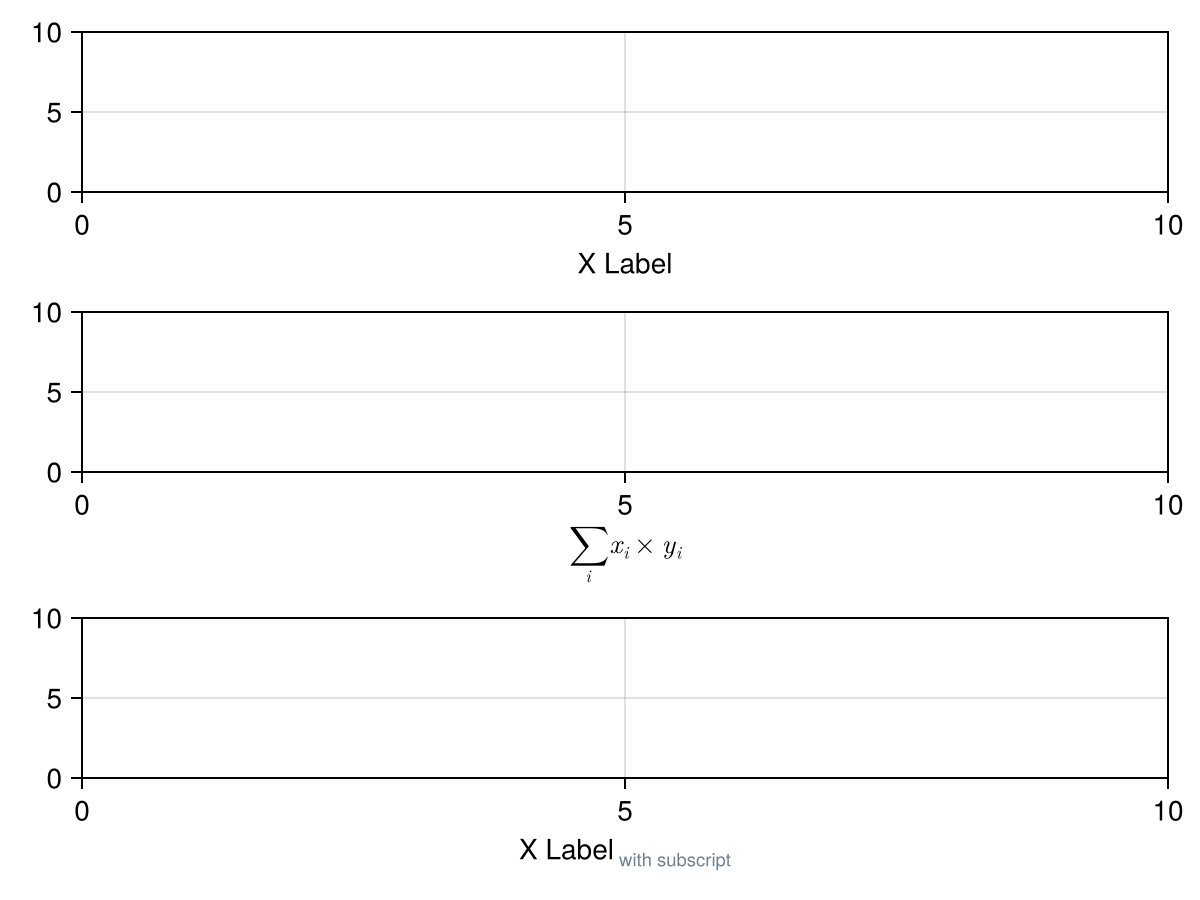
xlabelpadding
Defaults to 3.0
using CairoMakie
    f = Figure()

    Axis(f[1, 1], xlabel = "X Label", xlabelpadding = 0, title = "xlabelpadding = 0")
    Axis(f[1, 2], xlabel = "X Label", xlabelpadding = 5, title = "xlabelpadding = 5")
    Axis(f[1, 3], xlabel = "X Label", xlabelpadding = 10, title = "xlabelpadding = 10")

    f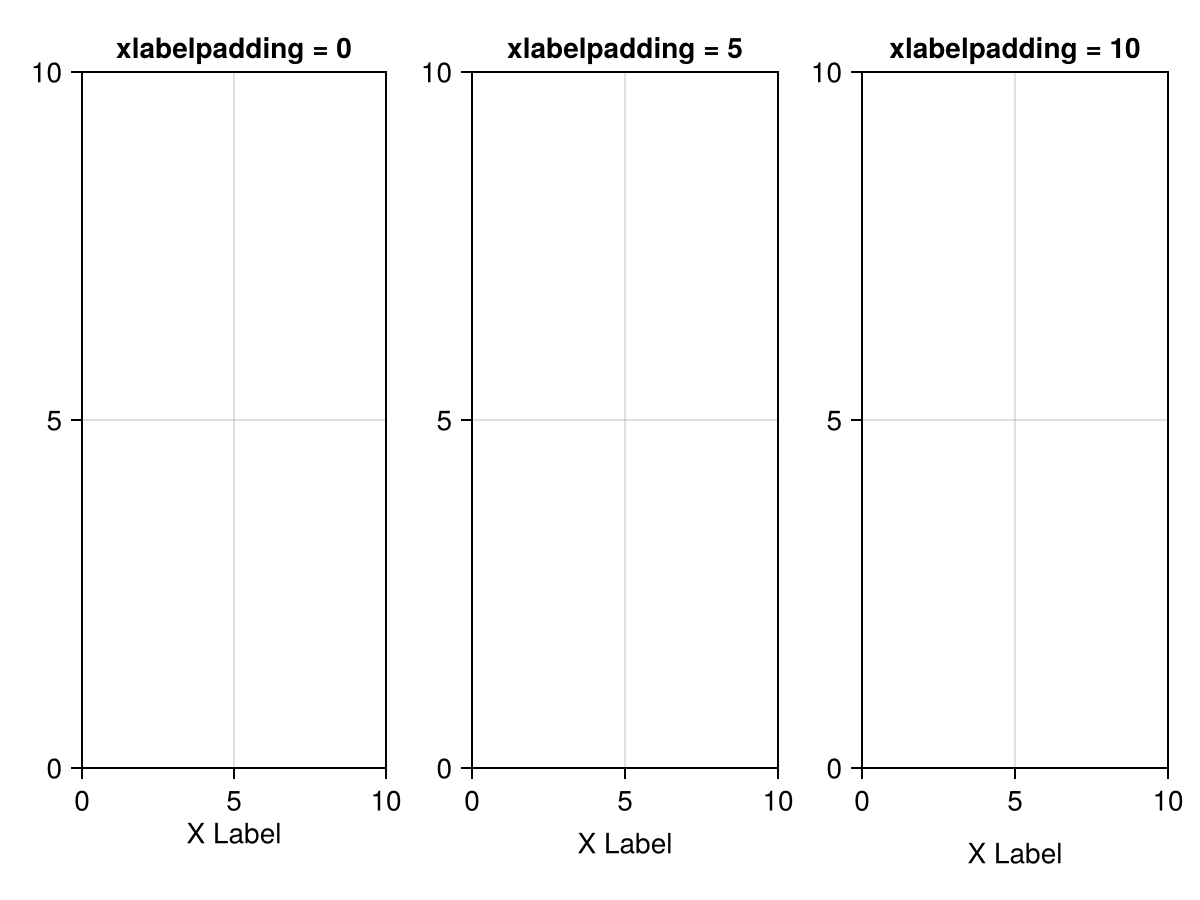
xminorticks
Defaults to IntervalsBetween(2)
The tick locator for the minor ticks of the x axis.
Common objects that can be used are:
-
IntervalsBetween, divides the space between two adjacent major ticks intonintervals forn-1minor ticks -
A vector of numbers
using CairoMakie
f = Figure()

kwargs = (; xminorticksvisible = true, xminorgridvisible = true)
Axis(f[1, 1]; xminorticks = IntervalsBetween(2), kwargs...)
Axis(f[2, 1]; xminorticks = IntervalsBetween(5), kwargs...)
Axis(f[3, 1]; xminorticks = [1, 2, 3, 4], kwargs...)

f
xscale
Defaults to identity
The scaling function for the x axis.
Can be any invertible function, some predefined options are identity, log, log2, log10, sqrt, logit, Makie.pseudolog10 and Makie.Symlog10. To use a custom function, you have to define appropriate methods for Makie.inverse_transform, Makie.defaultlimits and Makie.defined_interval.
If the scaling function is only defined over a limited interval, no plot object may have a source datum that lies outside of that range. For example, there may be no x value lower than or equal to 0 when log is selected for xscale. What matters are the source data, not the user-selected limits, because all data have to be transformed, irrespective of whether they lie inside or outside of the current limits.
The axis scale may affect tick finding and formatting, depending on the values of xticks and xtickformat.
using CairoMakie
f = Figure()

for (i, scale) in enumerate([identity, log10, log2, log, sqrt, Makie.logit])
    row, col = fldmod1(i, 2)
    Axis(f[row, col], xscale = scale, title = string(scale),
        xminorticksvisible = true, xminorgridvisible = true,
        xminorticks = IntervalsBetween(5))

    lines!(range(0.01, 0.99, length = 200), 1:200)
end

f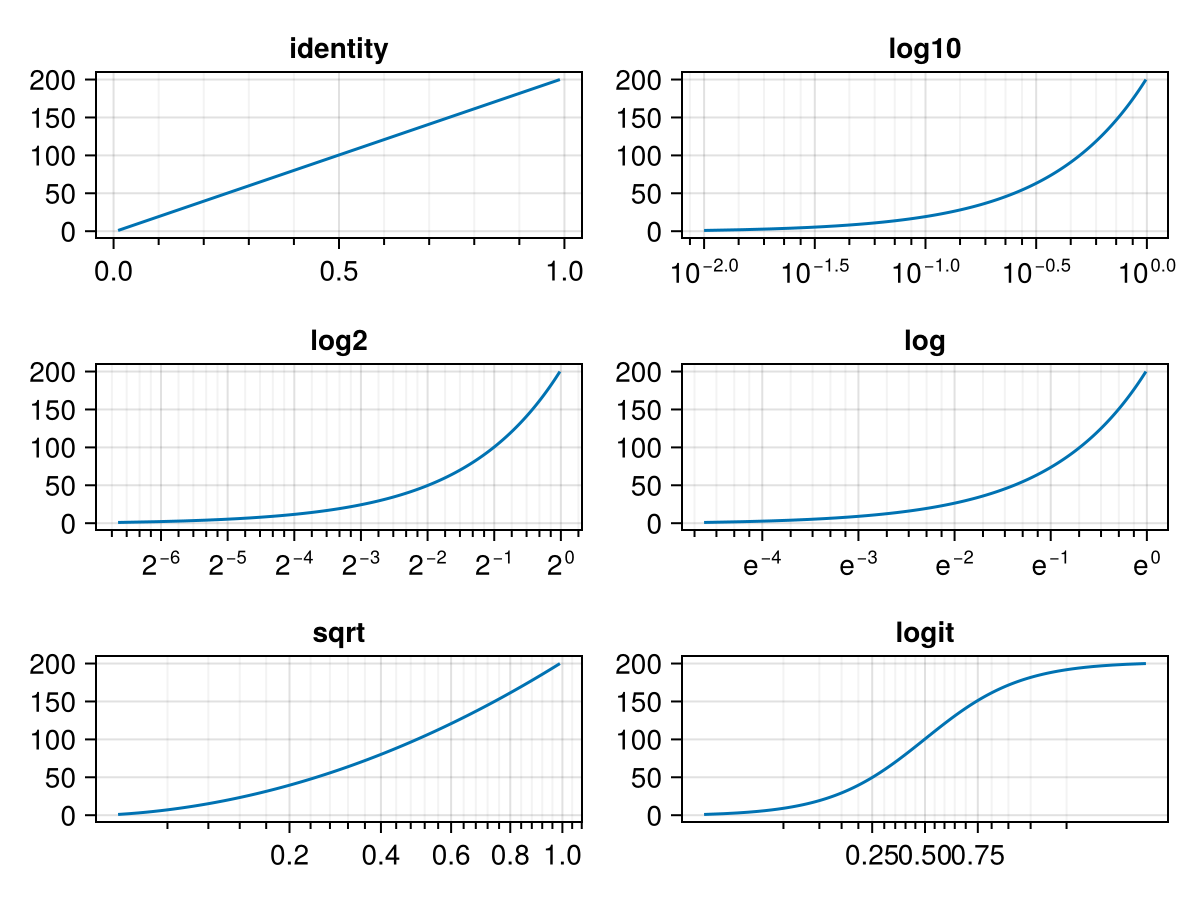
using CairoMakie
f = Figure()

ax1 = Axis(f[1, 1],
    xscale = Makie.pseudolog10,
    title = "Pseudolog scale",
    xticks = [-100, -10, -1, 0, 1, 10, 100]
)

ax2 = Axis(f[1, 2],
    xscale = Makie.Symlog10(10.0),
    title = "Symlog10 with linear scaling
between -10 and 10",
    xticks = [-100, -10, 0, 10, 100]
)

for ax in [ax1, ax2]
    lines!(ax, -100:0.1:100, -100:0.1:100)
end

f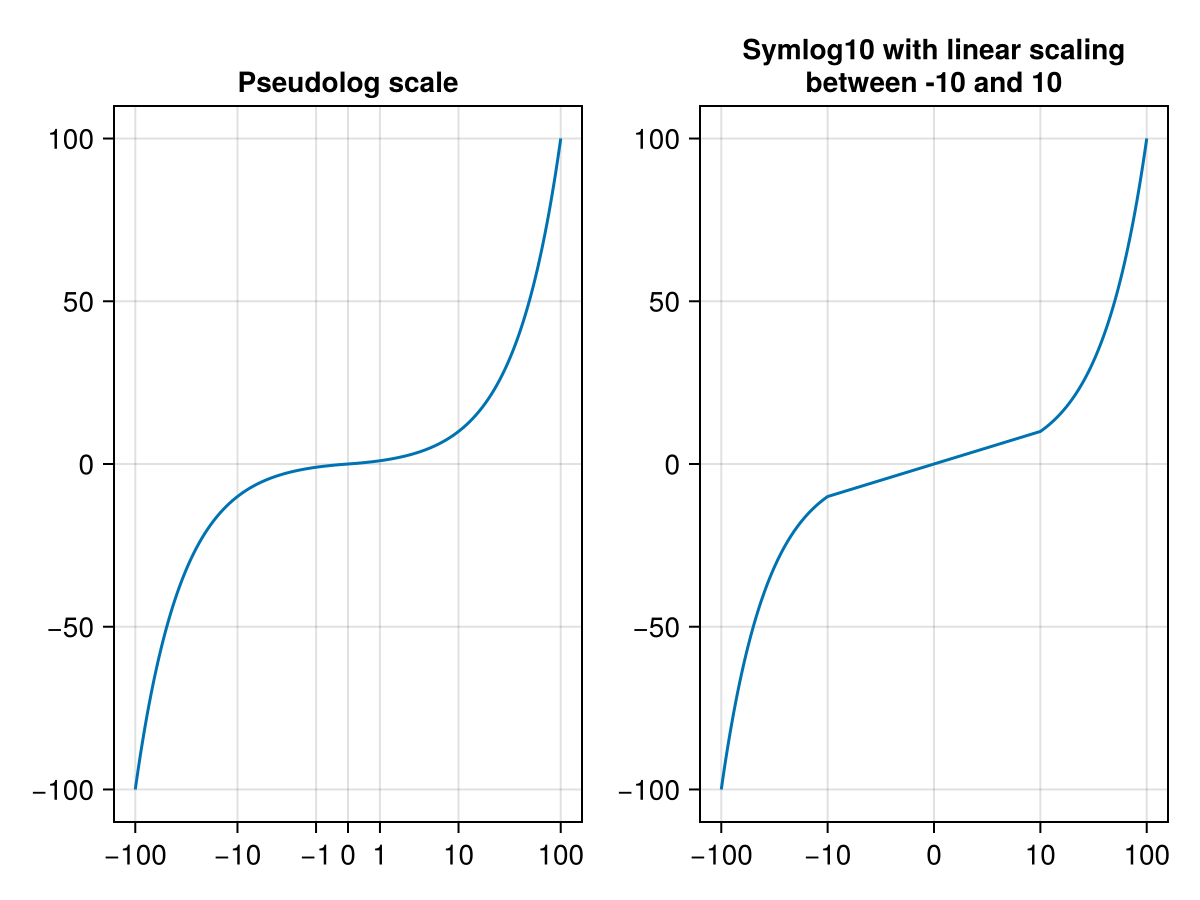
xtickalign
Defaults to 0.0
The alignment of the xtick marks relative to the axis spine (0 = out, 1 = in).
xtickformat
Defaults to Makie.automatic
The formatter for the ticks on the x axis.
Usually, the tick values are determined first using Makie.get_tickvalues, after which Makie.get_ticklabels(xtickformat, xtickvalues) is called. If there is a special method defined, tick values and labels can be determined together using Makie.get_ticks instead. Check the docstring for xticks for more information.
Common objects that can be used for tick formatting are:
-
A
Functionthat takes a vector of numbers and returns a vector of labels. A label can be anything that can be plotted by thetextprimitive. -
A
Stringwhich is used as a format specifier forFormat.jl. For example,"{:.2f}kg"formats numbers rounded to 2 decimal digits and with the suffixkg.
using CairoMakie
f = Figure(figure_padding = 50)

Axis(f[1, 1], xtickformat = values -> ["$(value)kg" for value in values])
Axis(f[2, 1], xtickformat = "{:.2f}ms")
Axis(f[3, 1], xtickformat = values -> [L"\sqrt{%$(value^2)}" for value in values])
Axis(f[4, 1], xtickformat = values -> [rich("$value", superscript("XY", color = :red))
                                       for value in values])

f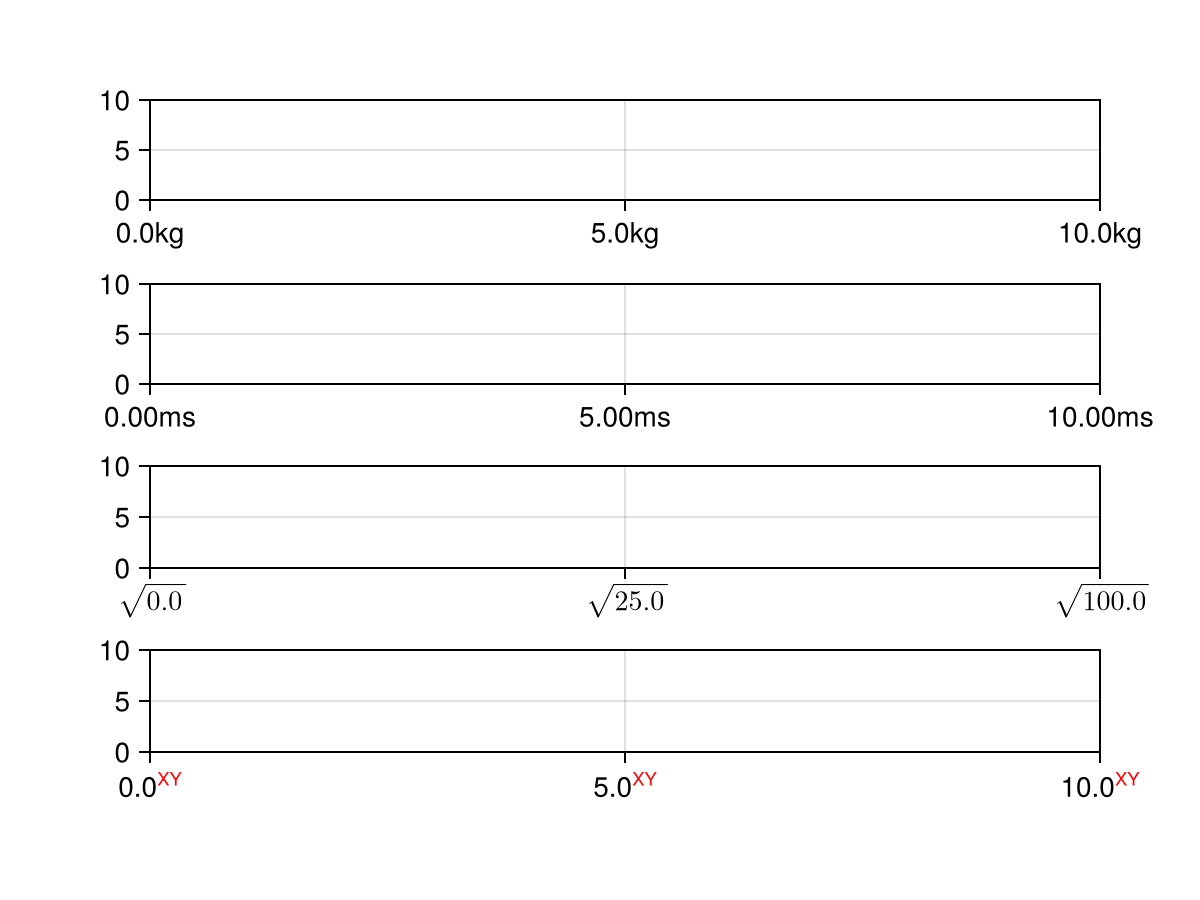
xticklabelalign
Defaults to Makie.automatic
The horizontal and vertical alignment of the xticklabels.
xticklabelpad
Defaults to 2.0
using CairoMakie
    f = Figure()

    Axis(f[1, 1], xticklabelpad = 0, title = "xticklabelpad = 0")
    Axis(f[1, 2], xticklabelpad = 5, title = "xticklabelpad = 5")
    Axis(f[1, 3], xticklabelpad = 15, title = "xticklabelpad = 15")

    f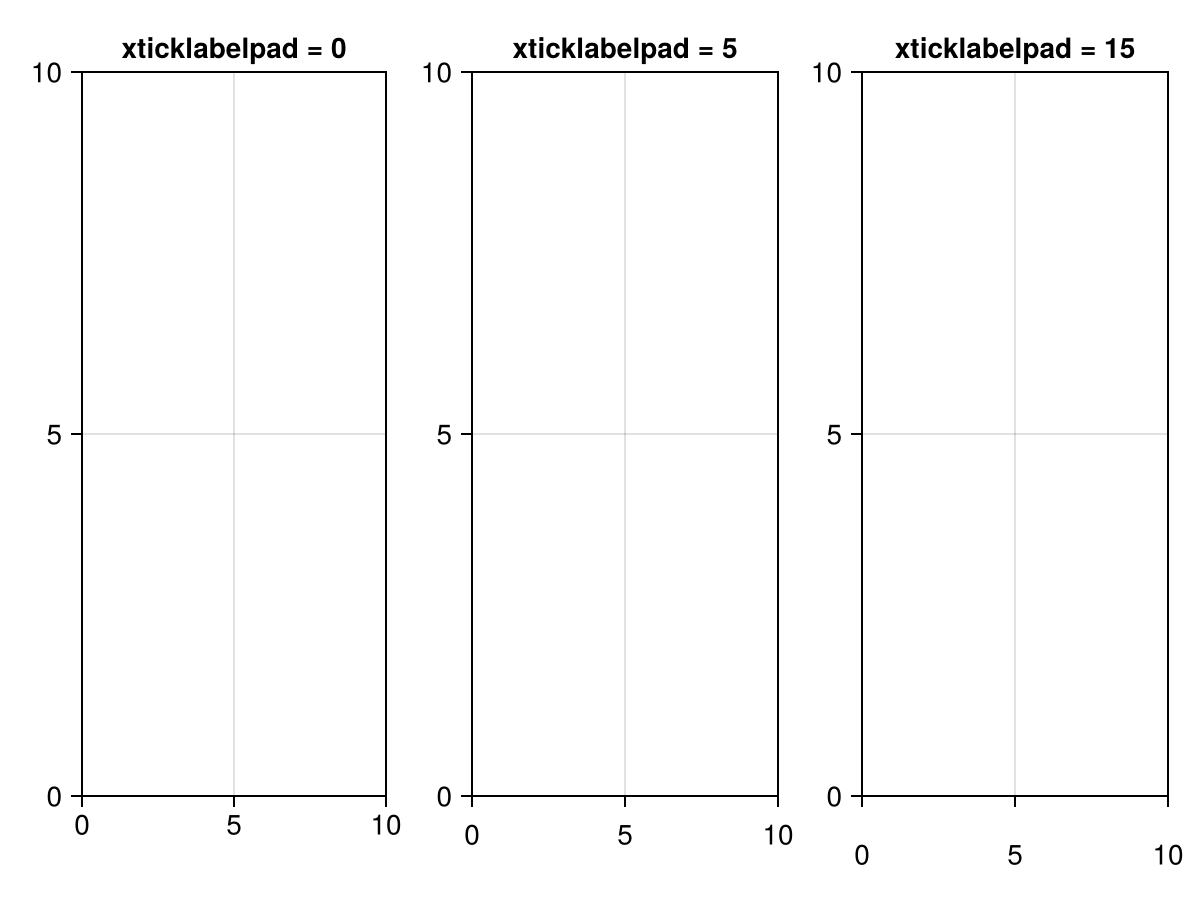
xticklabelspace
Defaults to Makie.automatic
The space reserved for the xticklabels. Can be set to Makie.automatic to automatically determine the space needed, :max_auto to only ever grow to fit the current ticklabels, or a specific value.
using CairoMakie
    f = Figure()

    Axis(f[1, 1], xlabel = "X Label", xticklabelspace = 0.0, title = "xticklabelspace = 0.0")
    Axis(f[1, 2], xlabel = "X Label", xticklabelspace = 30.0, title = "xticklabelspace = 30.0")
    Axis(f[1, 3], xlabel = "X Label", xticklabelspace = Makie.automatic, title = "xticklabelspace = automatic")

    f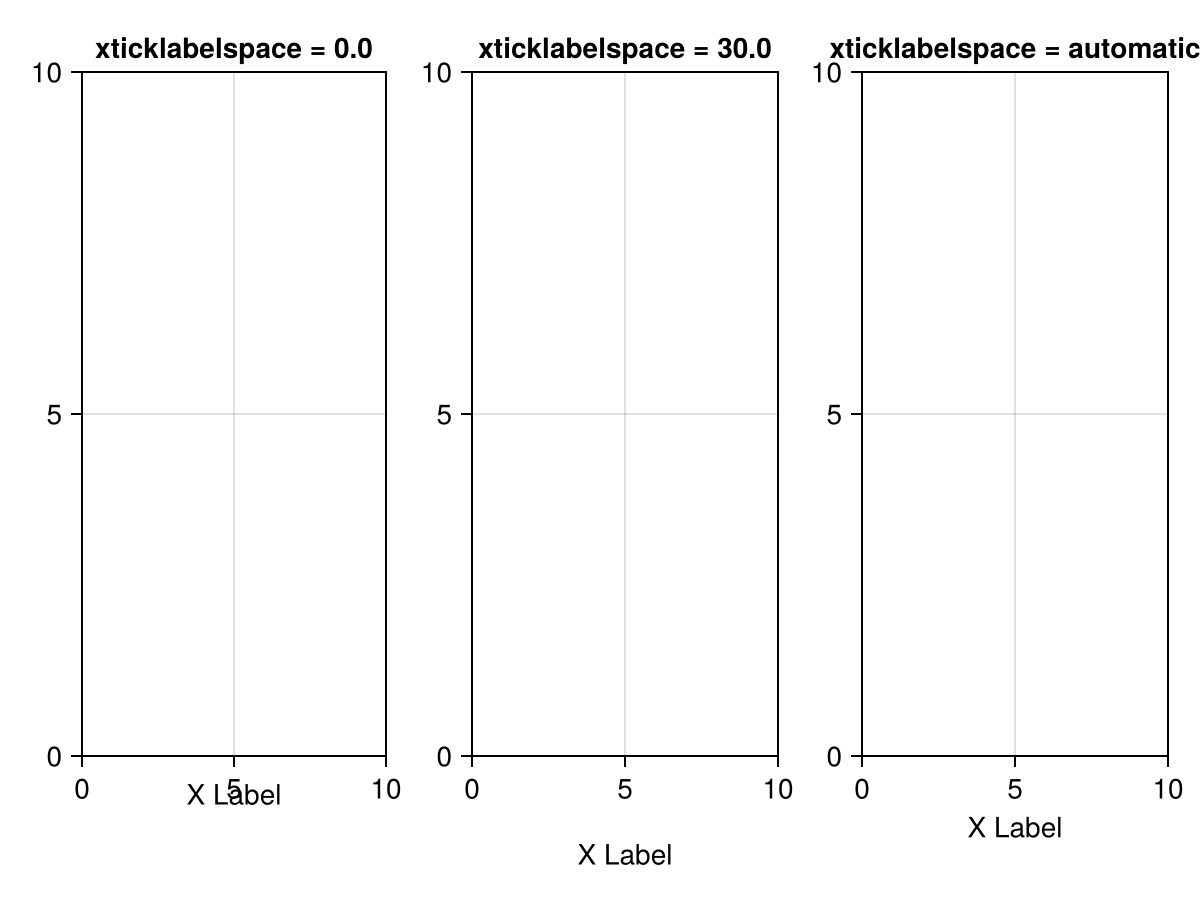
xticks
Defaults to Makie.automatic
Controls what numerical tick values are calculated for the x axis.
To determine tick values and labels, Makie first calls Makie.get_ticks(xticks, xscale, xtickformat, xmin, xmax). If there is no special method defined for the current combination of ticks, scale and formatter which returns both tick values and labels at once, then the numerical tick values will be determined using xtickvalues = Makie.get_tickvalues(xticks, xscale, xmin, xmax) after which the labels are determined using Makie.get_ticklabels(xtickformat, xtickvalues).
Common objects that can be used as ticks are:
-
A vector of numbers
-
A tuple with two vectors
(numbers, labels)wherelabelscan be any objects thattextcan handle. -
WilkinsonTicks, the default tick finder for linear ticks -
LinearTicks, an alternative tick finder for linear ticks -
LogTicks, a wrapper that applies any other wrapped tick finder on log-transformed values -
MultiplesTicks, for finding ticks at multiples of a given value, such asπ
using CairoMakie
fig = Figure()
Axis(fig[1, 1], xticks = 1:10)
Axis(fig[2, 1], xticks = (1:2:9, ["A", "B", "C", "D", "E"]))
Axis(fig[3, 1], xticks = WilkinsonTicks(5))
fig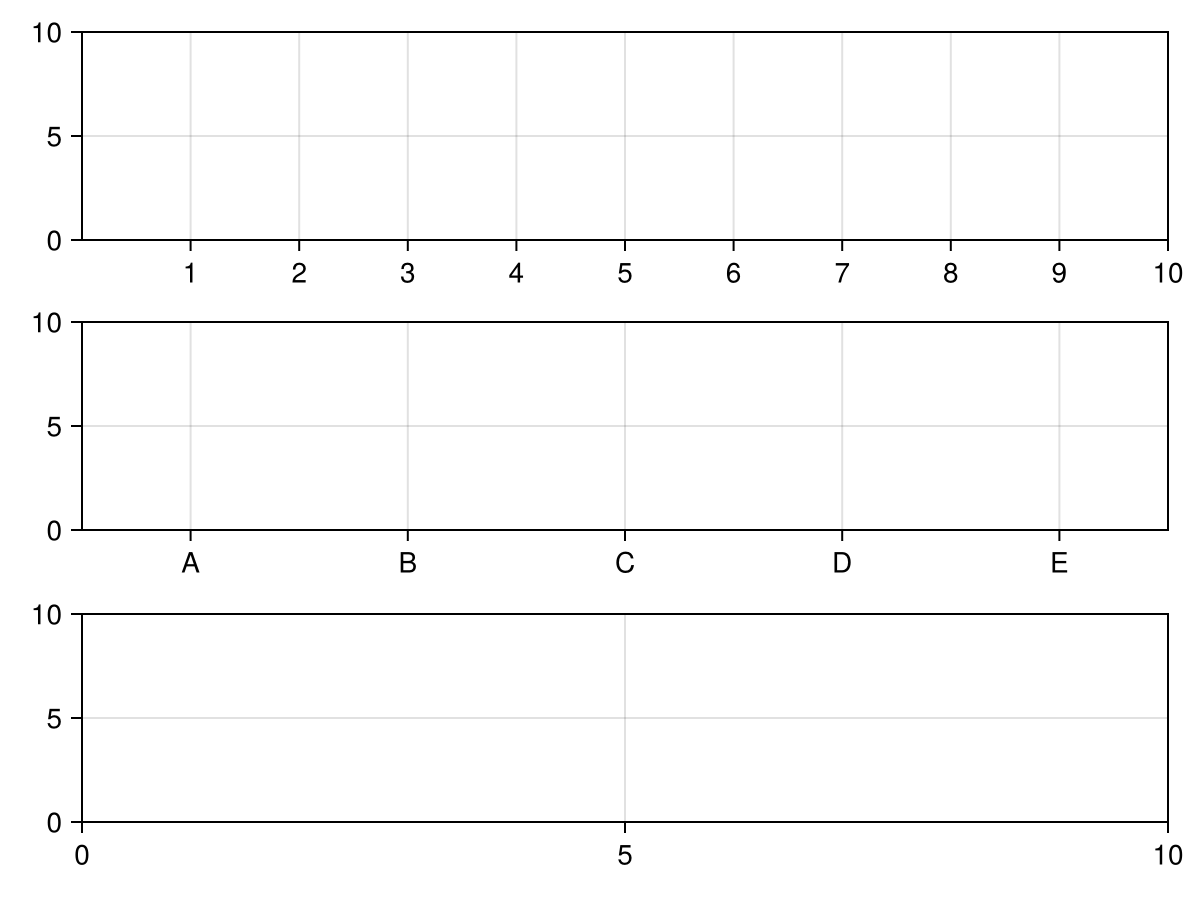
xticksmirrored
Defaults to false
using CairoMakie
f = Figure()

Axis(f[1, 1], xticksmirrored = false, xminorticksvisible = true)
Axis(f[1, 2], xticksmirrored = true, xminorticksvisible = true)

f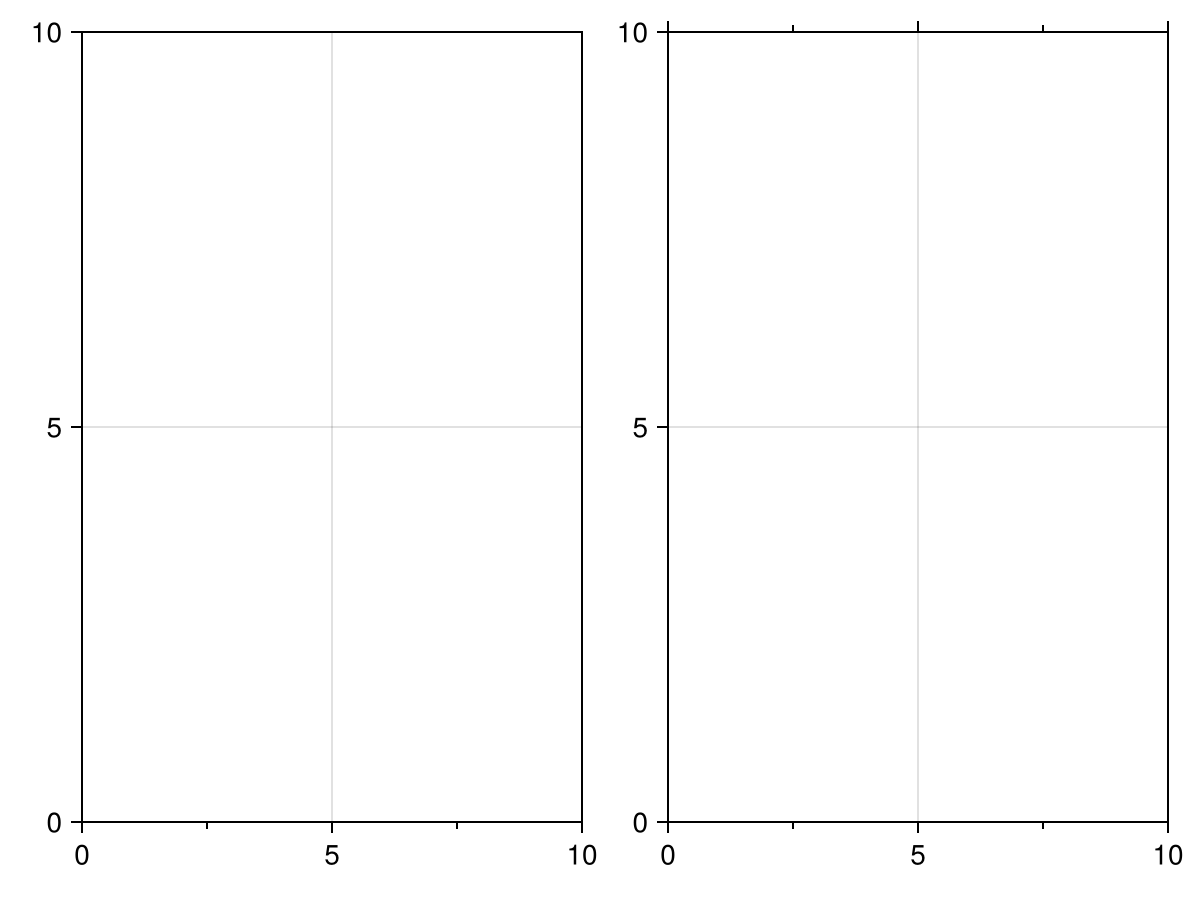
xtrimspine
Defaults to false
If true, limits the x axis spine’s extent to the outermost major tick marks. Can also be set to a Tuple{Bool,Bool} to control each side separately.
using CairoMakie
f = Figure()

ax1 = Axis(f[1, 1], xtrimspine = false)
ax2 = Axis(f[2, 1], xtrimspine = true)
ax3 = Axis(f[3, 1], xtrimspine = (true, false))
ax4 = Axis(f[4, 1], xtrimspine = (false, true))

for ax in [ax1, ax2, ax3, ax4]
    ax.xgridvisible = false
    ax.ygridvisible = false
    ax.rightspinevisible = false
    ax.topspinevisible = false
    xlims!(ax, 0.5, 5.5)
end

f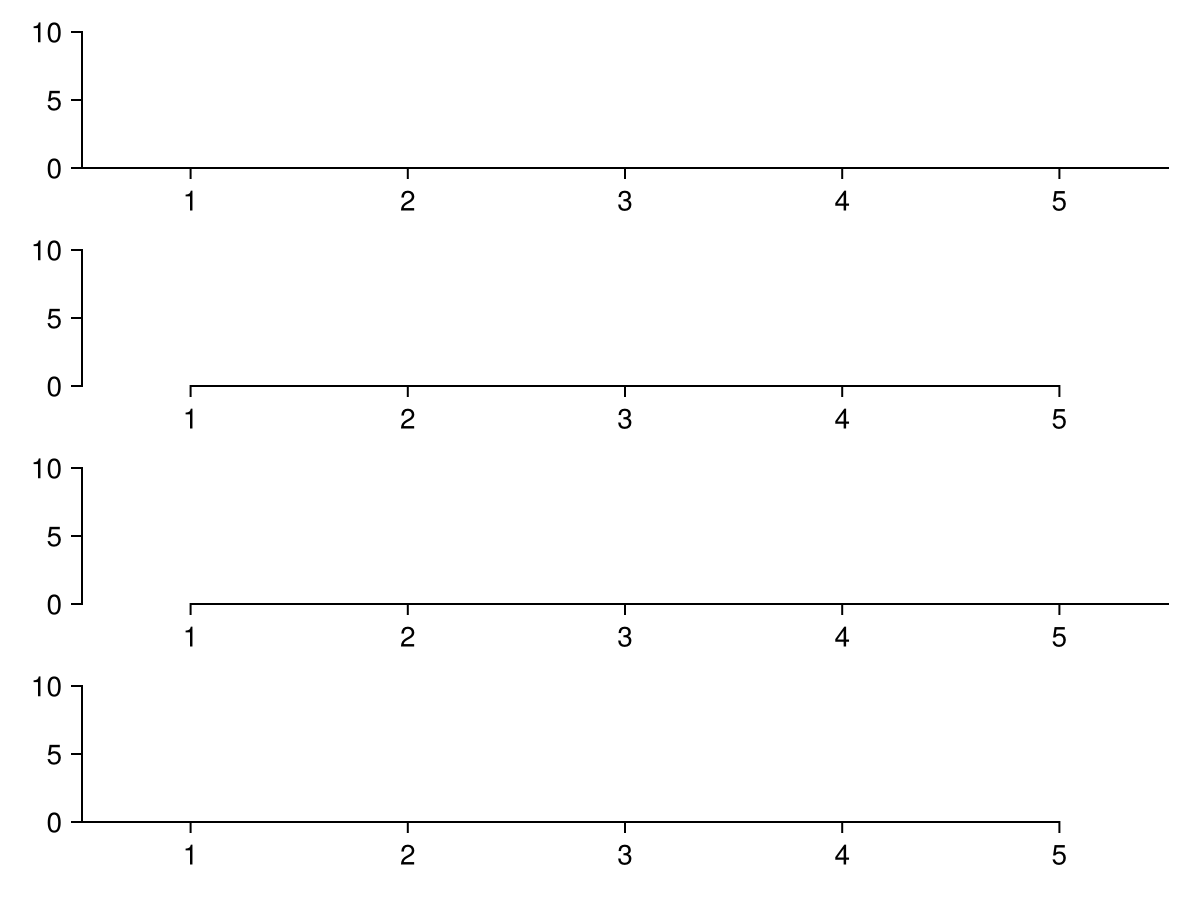
yautolimitmargin
Defaults to (0.05f0, 0.05f0)
using CairoMakie
    f = Figure()

    data = 0:1

    ax1 = Axis(f[1, 1], yautolimitmargin = (0, 0), title = "yautolimitmargin = (0, 0)")
    ax2 = Axis(f[1, 2], yautolimitmargin = (0.05, 0.05), title = "yautolimitmargin = (0.05, 0.05)")
    ax3 = Axis(f[1, 3], yautolimitmargin = (0, 0.2), title = "yautolimitmargin = (0, 0.2)")

    for ax in [ax1, ax2, ax3]
        lines!(ax, data)
    end

    f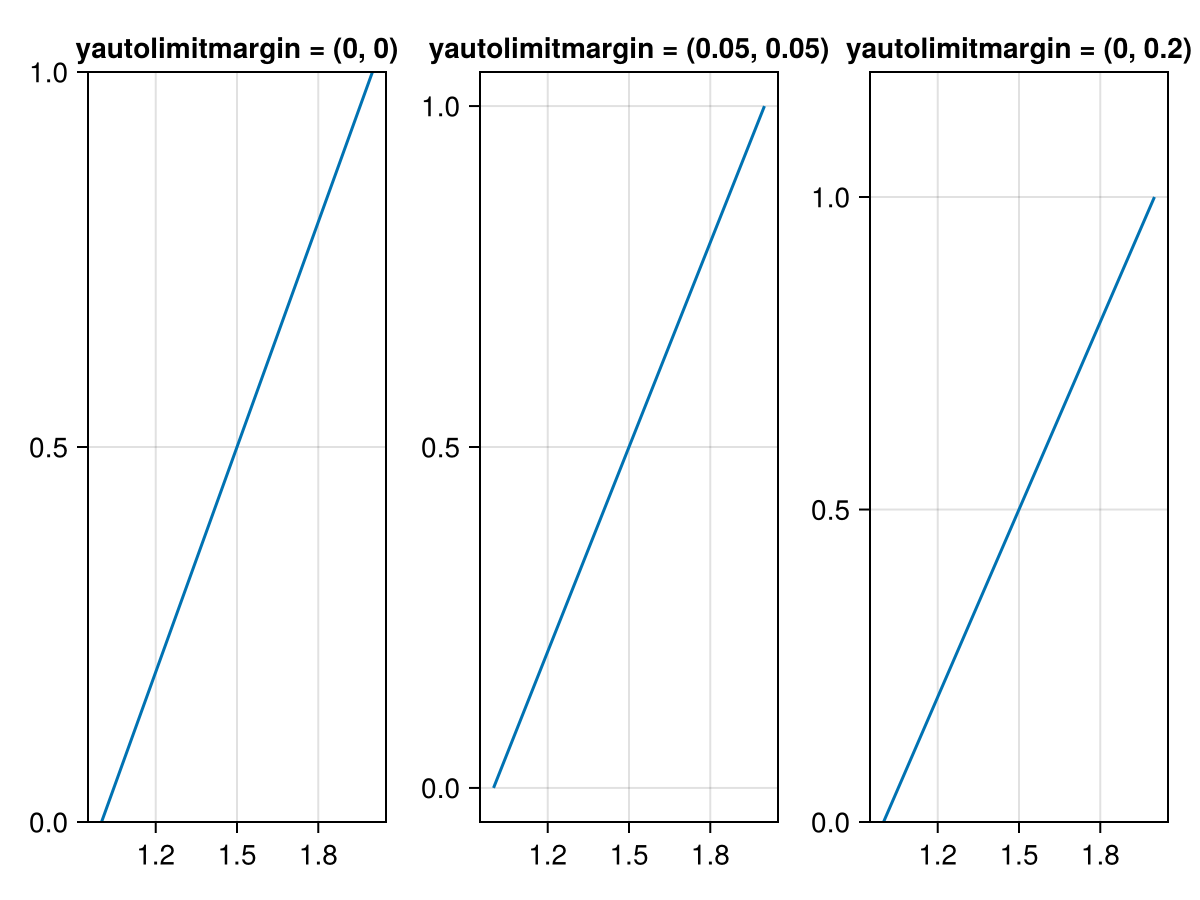
yaxisposition
Defaults to :left
using CairoMakie
f = Figure()

Axis(f[1, 1], yaxisposition = :left)
Axis(f[2, 1], yaxisposition = :right)

f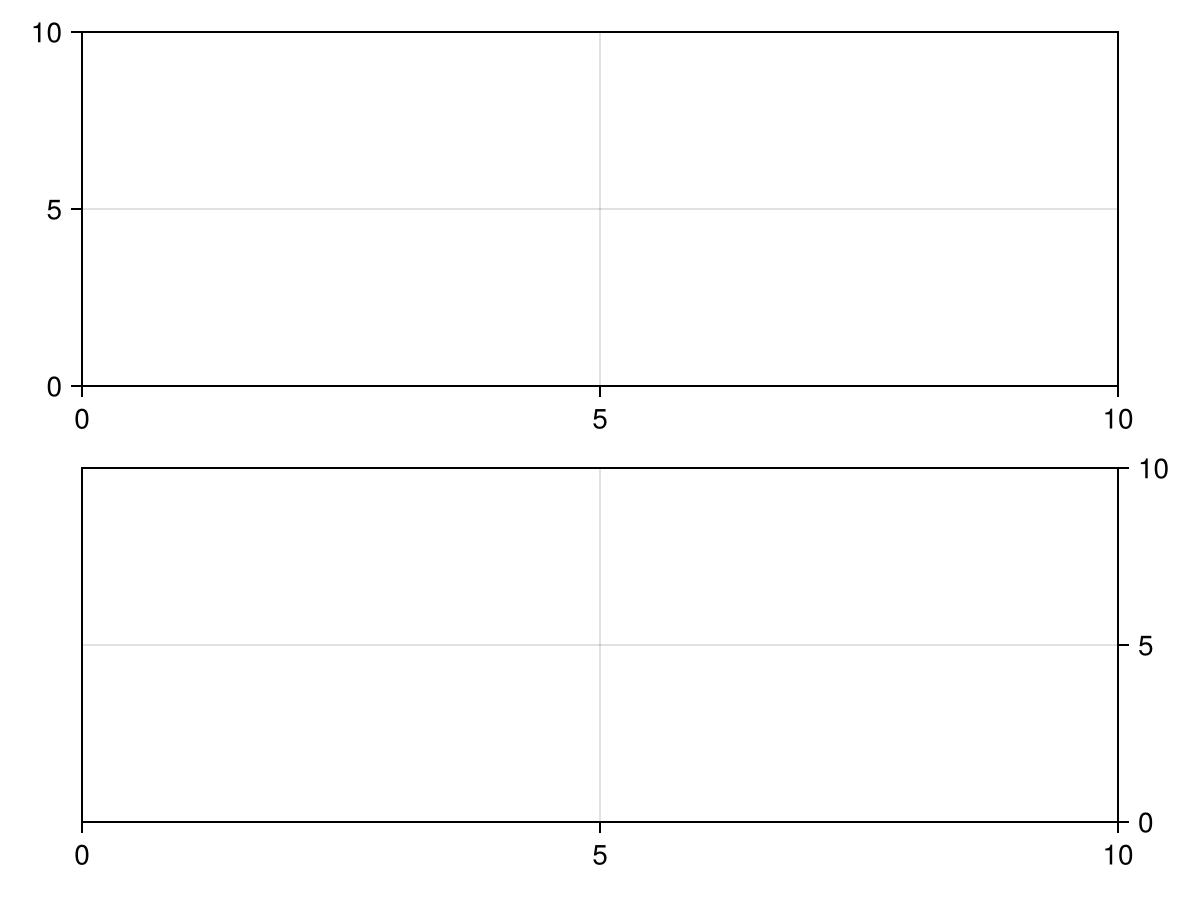
ylabel
Defaults to ""
The content of the y axis label. The value can be any non-vector-valued object that the text primitive supports.
using CairoMakie
f = Figure()

Axis(f[1, 1], ylabel = "Y Label")
Axis(f[2, 1], ylabel = L"\sum_i{x_i \times y_i}")
Axis(f[3, 1], ylabel = rich(
    "Y Label",
    subscript(" with subscript", color = :slategray)
))

f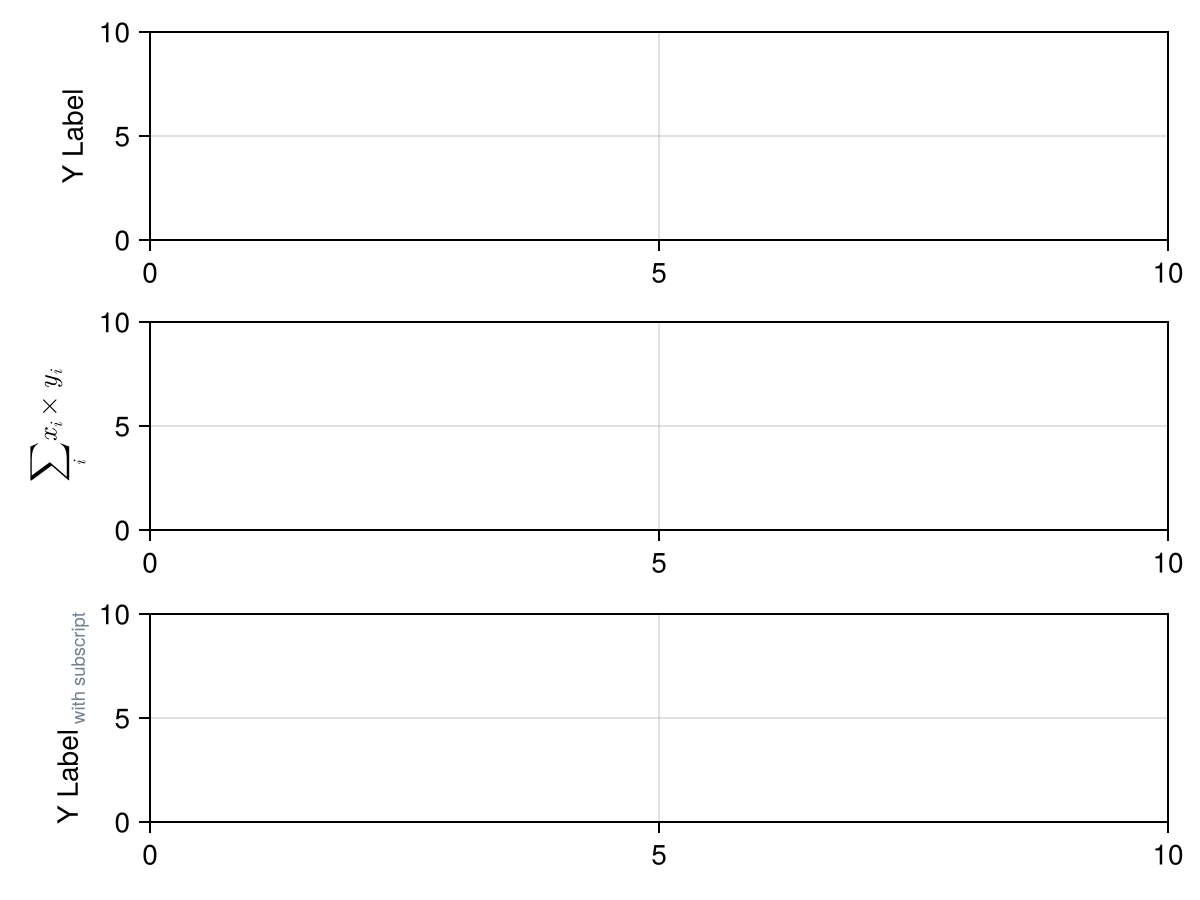
ylabelpadding
Defaults to 5.0
using CairoMakie
    f = Figure()

    Axis(f[1, 1], ylabel = "Y Label", ylabelpadding = 0, title = "ylabelpadding = 0")
    Axis(f[2, 1], ylabel = "Y Label", ylabelpadding = 5, title = "ylabelpadding = 5")
    Axis(f[3, 1], ylabel = "Y Label", ylabelpadding = 10, title = "ylabelpadding = 10")

    f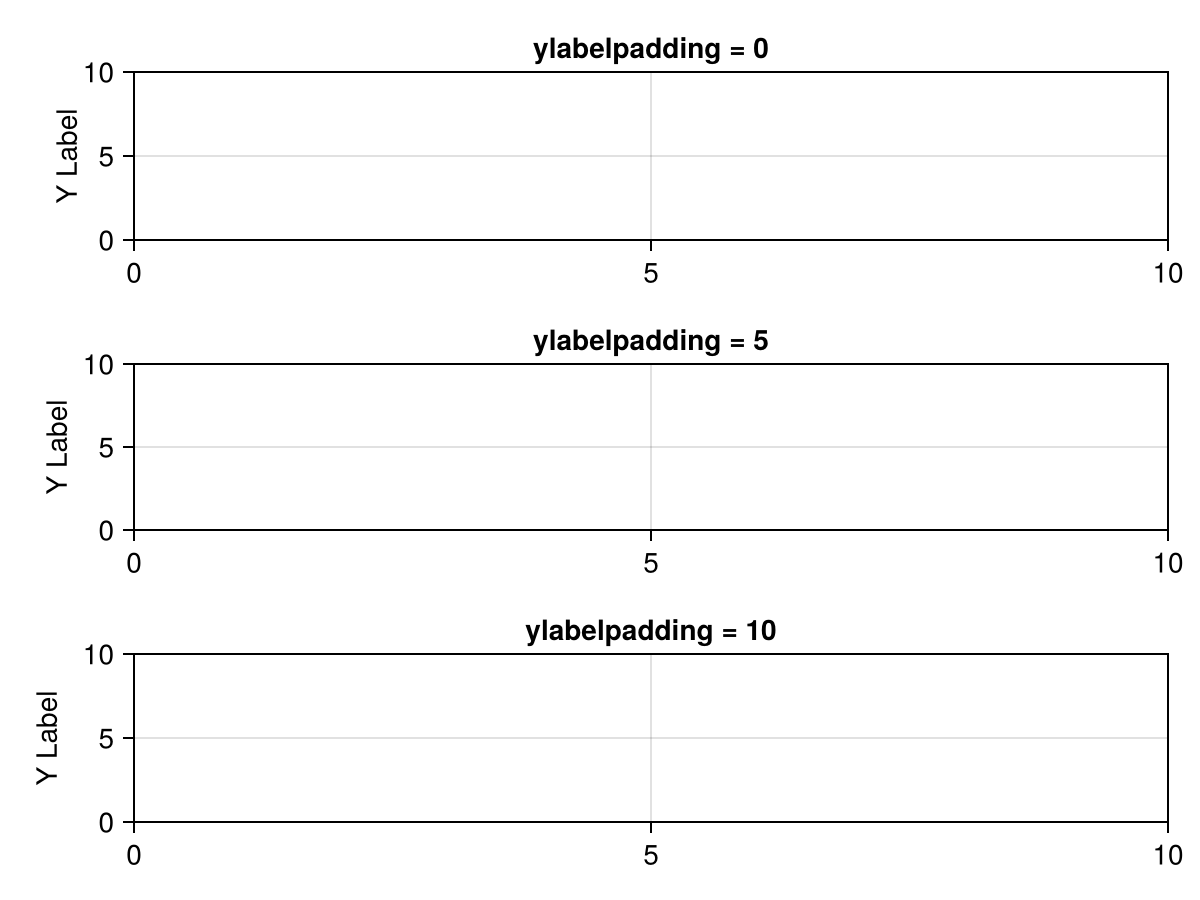
yminorticks
Defaults to IntervalsBetween(2)
The tick locator for the minor ticks of the y axis.
Common objects that can be used are:
-
IntervalsBetween, divides the space between two adjacent major ticks intonintervals forn-1minor ticks -
A vector of numbers
using CairoMakie
f = Figure()

kwargs = (; yminorticksvisible = true, yminorgridvisible = true)
Axis(f[1, 1]; yminorticks = IntervalsBetween(2), kwargs...)
Axis(f[1, 2]; yminorticks = IntervalsBetween(5), kwargs...)
Axis(f[1, 3]; yminorticks = [1, 2, 3, 4], kwargs...)

f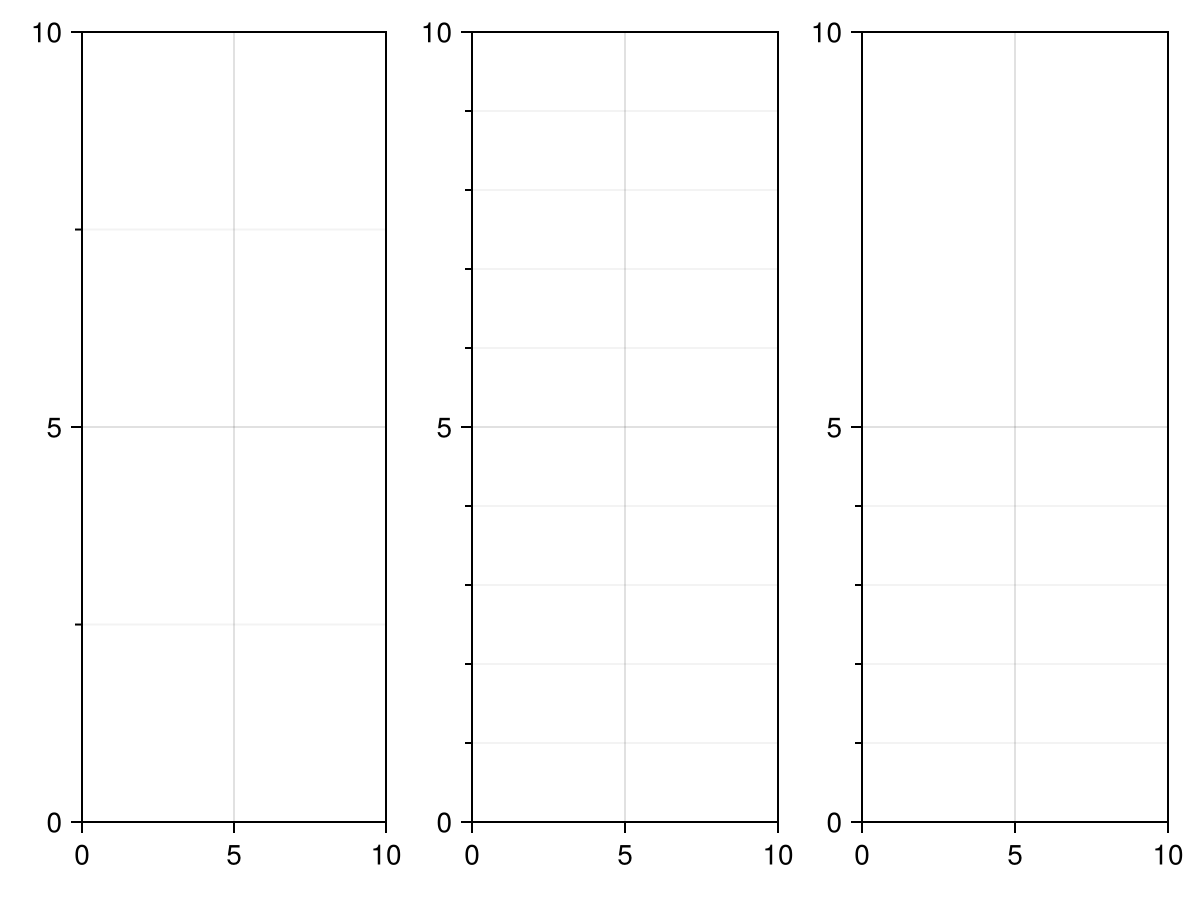
yscale
Defaults to identity
The scaling function for the y axis.
Can be any invertible function, some predefined options are identity, log, log2, log10, sqrt, logit, Makie.pseudolog10 and Makie.Symlog10. To use a custom function, you have to define appropriate methods for Makie.inverse_transform, Makie.defaultlimits and Makie.defined_interval.
If the scaling function is only defined over a limited interval, no plot object may have a source datum that lies outside of that range. For example, there may be no y value lower than or equal to 0 when log is selected for yscale. What matters are the source data, not the user-selected limits, because all data have to be transformed, irrespective of whether they lie inside or outside of the current limits.
The axis scale may affect tick finding and formatting, depending on the values of yticks and ytickformat.
using CairoMakie
f = Figure()

for (i, scale) in enumerate([identity, log10, log2, log, sqrt, Makie.logit])
    row, col = fldmod1(i, 3)
    Axis(f[row, col], yscale = scale, title = string(scale),
        yminorticksvisible = true, yminorgridvisible = true,
        yminorticks = IntervalsBetween(5))

    lines!(range(0.01, 0.99, length = 200))
end

f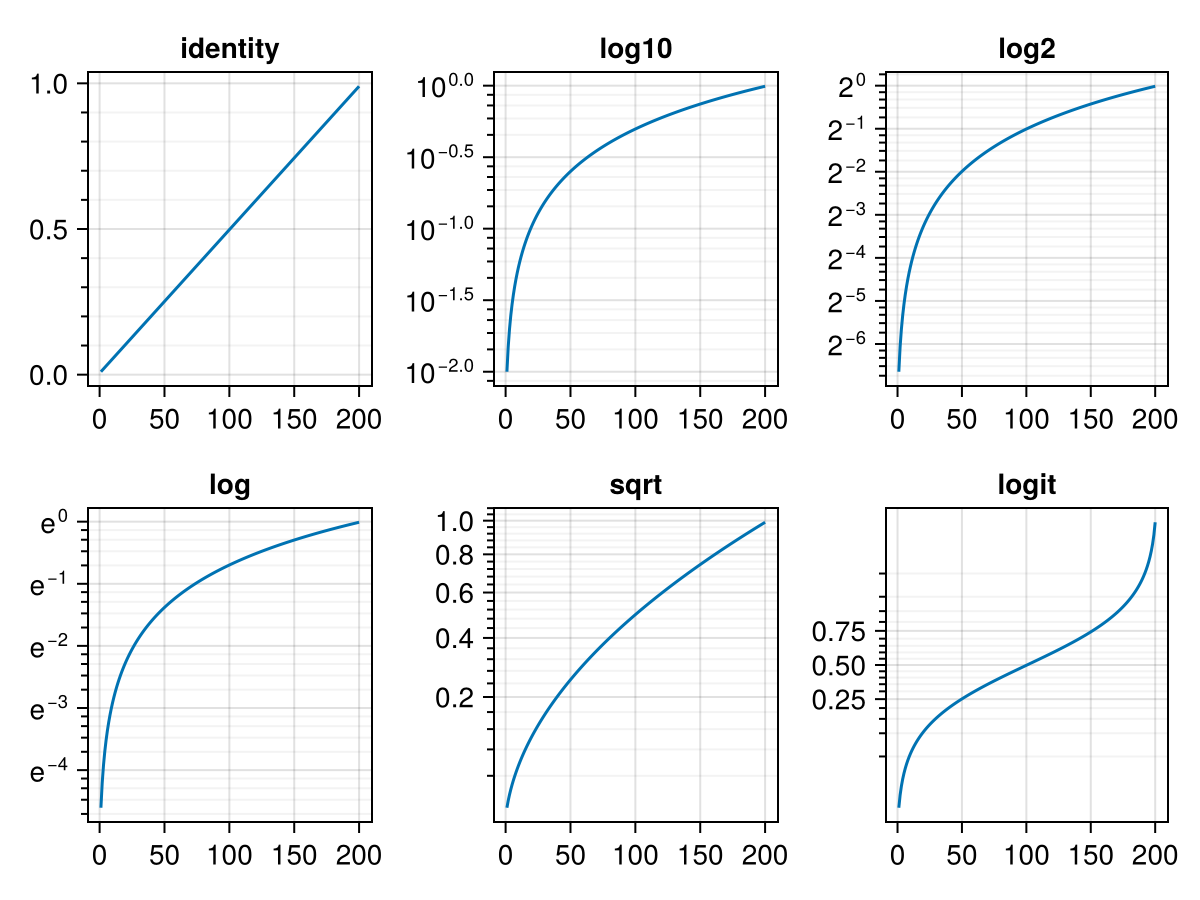
using CairoMakie
f = Figure()

ax1 = Axis(f[1, 1],
    yscale = Makie.pseudolog10,
    title = "Pseudolog scale",
    yticks = [-100, -10, -1, 0, 1, 10, 100]
)

ax2 = Axis(f[2, 1],
    yscale = Makie.Symlog10(10.0),
    title = "Symlog10 with linear scaling between -10 and 10",
    yticks = [-100, -10, 0, 10, 100]
)

for ax in [ax1, ax2]
    lines!(ax, -100:0.1:100)
end

f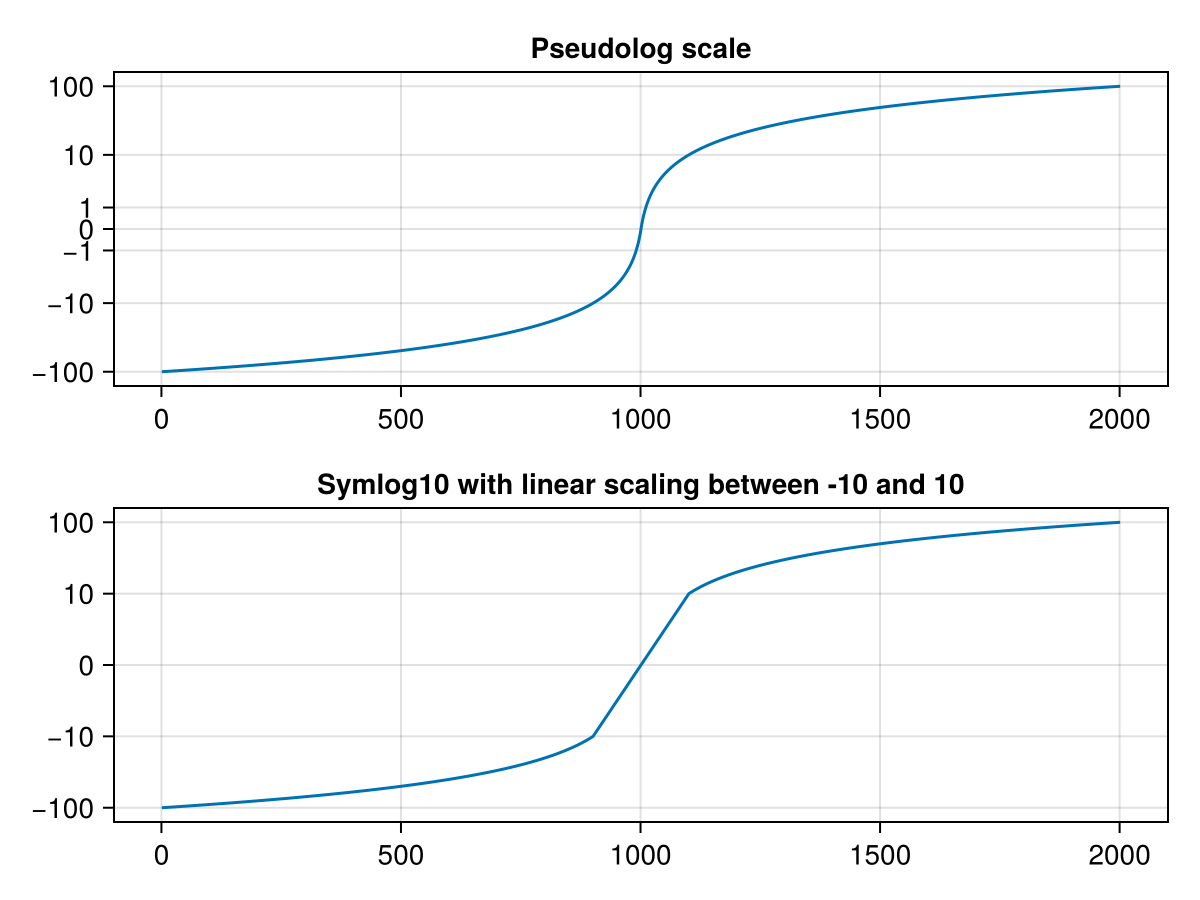
ytickalign
Defaults to 0.0
The alignment of the ytick marks relative to the axis spine (0 = out, 1 = in).
ytickformat
Defaults to Makie.automatic
The formatter for the ticks on the y axis.
Usually, the tick values are determined first using Makie.get_tickvalues, after which Makie.get_ticklabels(ytickformat, ytickvalues) is called. If there is a special method defined, tick values and labels can be determined together using Makie.get_ticks instead. Check the docstring for yticks for more information.
Common objects that can be used for tick formatting are:
-
A
Functionthat takes a vector of numbers and returns a vector of labels. A label can be anything that can be plotted by thetextprimitive. -
A
Stringwhich is used as a format specifier forFormat.jl. For example,"{:.2f}kg"formats numbers rounded to 2 decimal digits and with the suffixkg.
using CairoMakie
f = Figure()

Axis(f[1, 1], ytickformat = values -> ["$(value)kg" for value in values])
Axis(f[1, 2], ytickformat = "{:.2f}ms")
Axis(f[1, 3], ytickformat = values -> [L"\sqrt{%$(value^2)}" for value in values])
Axis(f[1, 4], ytickformat = values -> [rich("$value", superscript("XY", color = :red))
                                       for value in values])

f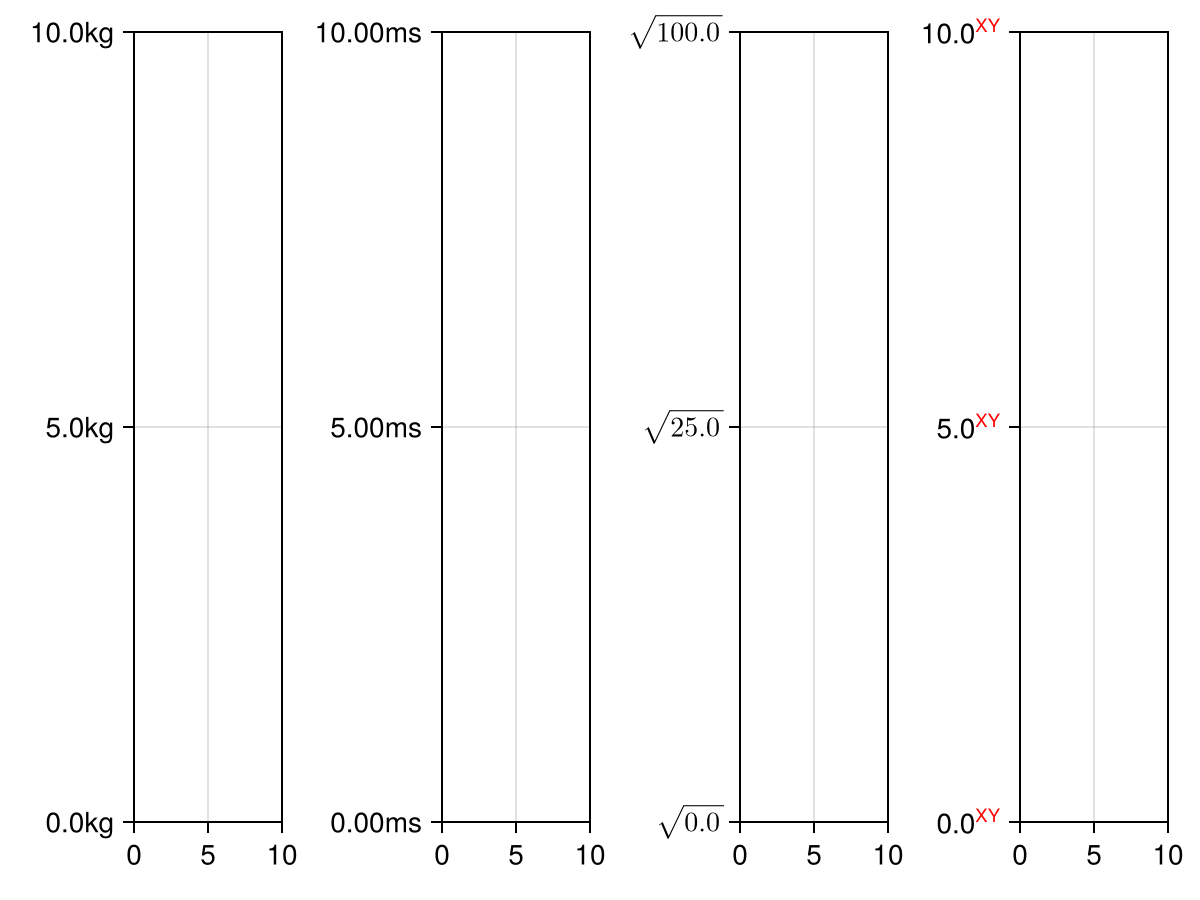
yticklabelalign
Defaults to Makie.automatic
The horizontal and vertical alignment of the yticklabels.
yticklabelpad
Defaults to 4.0
using CairoMakie
    f = Figure()

    Axis(f[1, 1], yticklabelpad = 0, title = "yticklabelpad = 0")
    Axis(f[2, 1], yticklabelpad = 5, title = "yticklabelpad = 5")
    Axis(f[3, 1], yticklabelpad = 15, title = "yticklabelpad = 15")

    f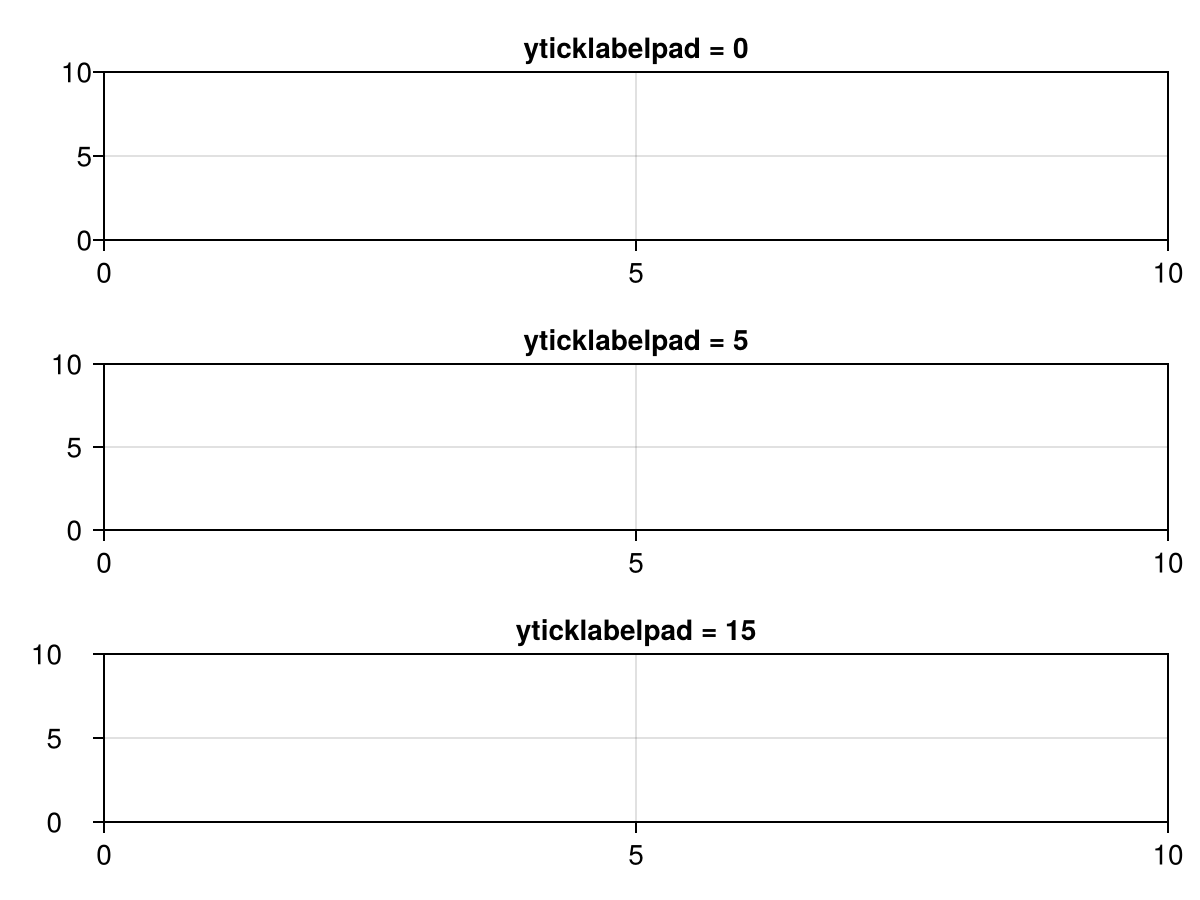
yticklabelspace
Defaults to Makie.automatic
The space reserved for the yticklabels. Can be set to Makie.automatic to automatically determine the space needed, :max_auto to only ever grow to fit the current ticklabels, or a specific value.
using CairoMakie
    f = Figure()

    Axis(f[1, 1], ylabel = "Y Label", yticklabelspace = 0.0, title = "yticklabelspace = 0.0")
    Axis(f[2, 1], ylabel = "Y Label", yticklabelspace = 30.0, title = "yticklabelspace = 30.0")
    Axis(f[3, 1], ylabel = "Y Label", yticklabelspace = Makie.automatic, title = "yticklabelspace = automatic")

    f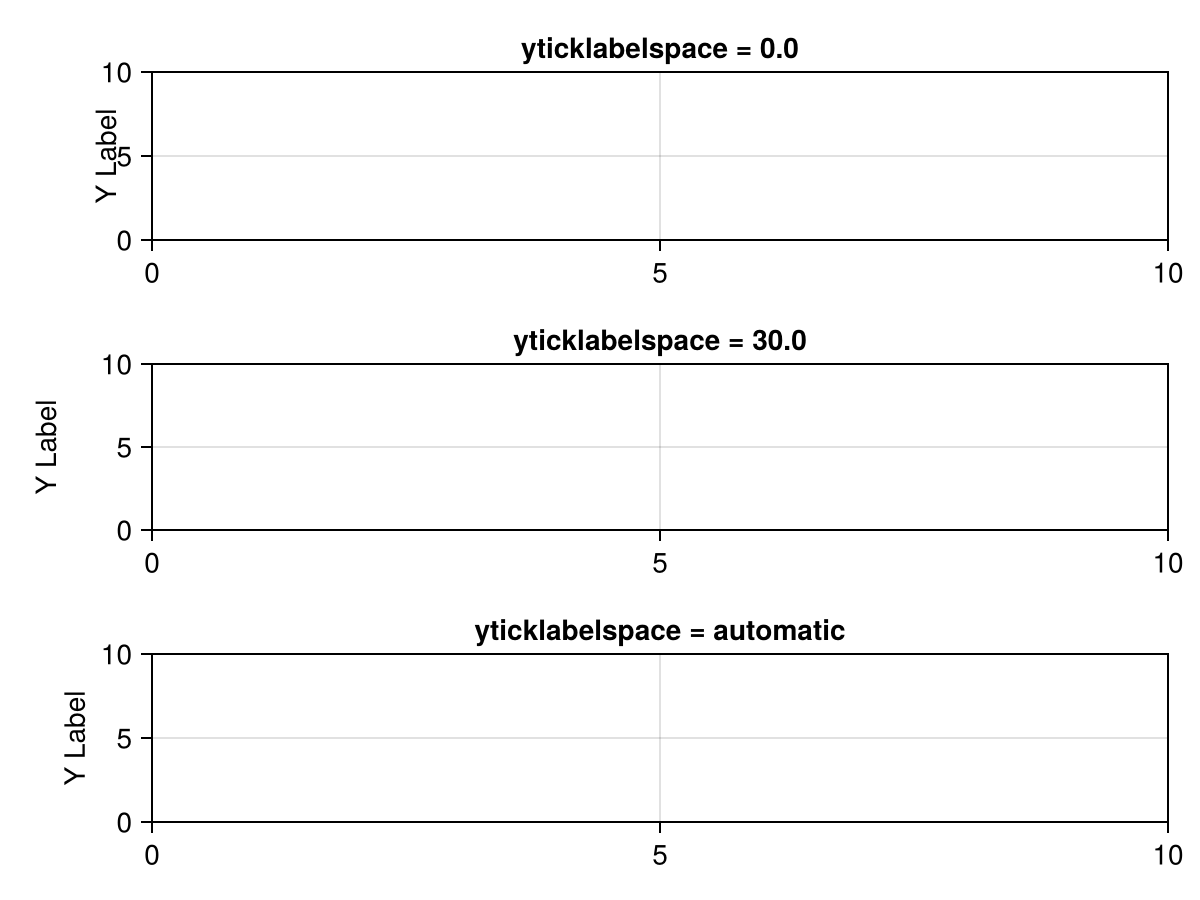
yticks
Defaults to Makie.automatic
Controls what numerical tick values are calculated for the y axis.
To determine tick values and labels, Makie first calls Makie.get_ticks(yticks, yscale, ytickformat, ymin, ymax). If there is no special method defined for the current combination of ticks, scale and formatter which returns both tick values and labels at once, then the numerical tick values will be determined using ytickvalues = Makie.get_tickvalues(yticks, yscale, ymin, ymax) after which the labels are determined using Makie.get_ticklabels(ytickformat, ytickvalues).
Common objects that can be used as ticks are:
-
A vector of numbers
-
A tuple with two vectors
(numbers, labels)wherelabelscan be any objects thattextcan handle. -
WilkinsonTicks, the default tick finder for linear ticks -
LinearTicks, an alternative tick finder for linear ticks -
LogTicks, a wrapper that applies any other wrapped tick finder on log-transformed values -
MultiplesTicks, for finding ticks at multiples of a given value, such asπ
using CairoMakie
fig = Figure()
Axis(fig[1, 1], yticks = 1:10)
Axis(fig[1, 2], yticks = (1:2:9, ["A", "B", "C", "D", "E"]))
Axis(fig[1, 3], yticks = WilkinsonTicks(5))
fig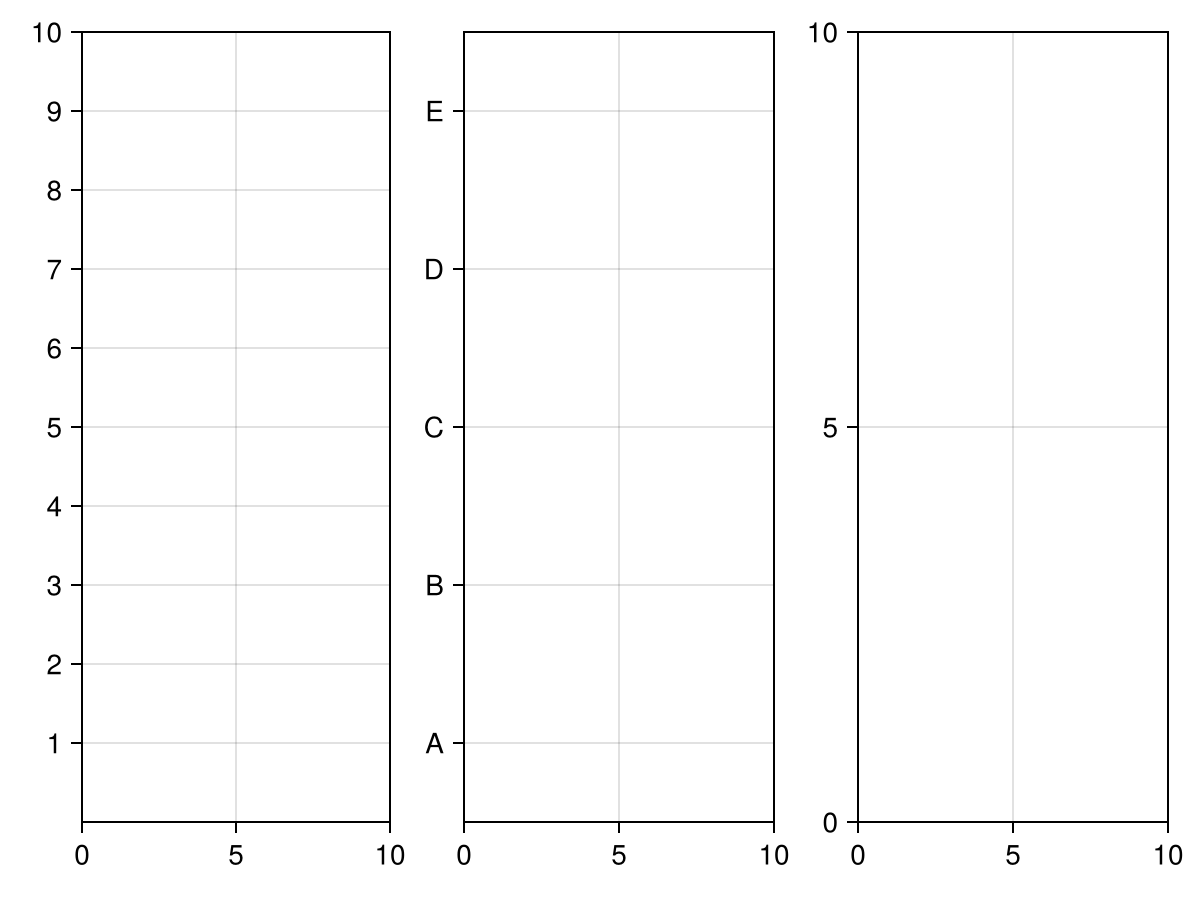
yticksmirrored
Defaults to false
using CairoMakie
f = Figure()

Axis(f[1, 1], yticksmirrored = false, yminorticksvisible = true)
Axis(f[2, 1], yticksmirrored = true, yminorticksvisible = true)

f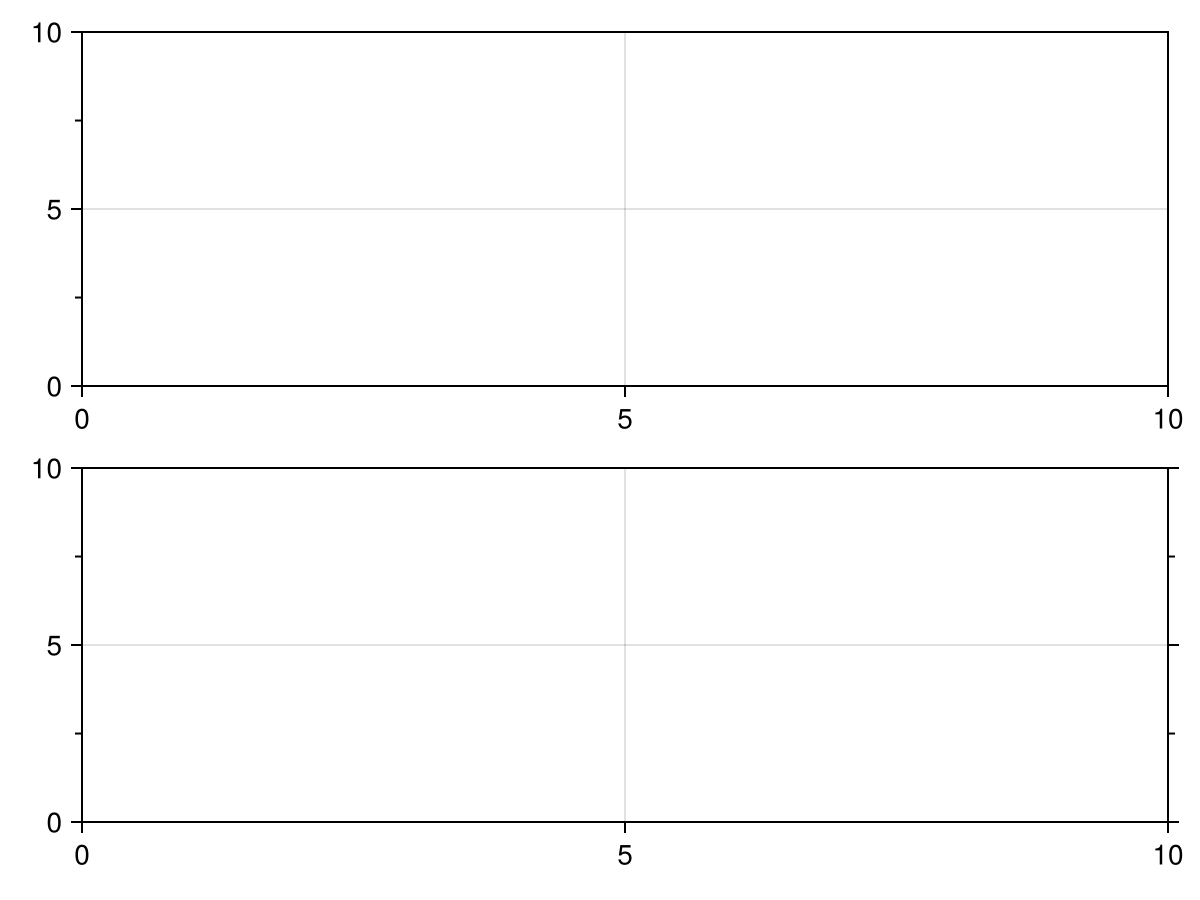
ytrimspine
Defaults to false
If true, limits the y axis spine’s extent to the outermost major tick marks. Can also be set to a Tuple{Bool,Bool} to control each side separately.
using CairoMakie
f = Figure()

ax1 = Axis(f[1, 1], ytrimspine = false)
ax2 = Axis(f[1, 2], ytrimspine = true)
ax3 = Axis(f[1, 3], ytrimspine = (true, false))
ax4 = Axis(f[1, 4], ytrimspine = (false, true))

for ax in [ax1, ax2, ax3, ax4]
    ax.xgridvisible = false
    ax.ygridvisible = false
    ax.rightspinevisible = false
    ax.topspinevisible = false
    ylims!(ax, 0.5, 5.5)
end

f