Sending messages to Telegram from Engee
This example discusses how to use DotEnv packages.jl and Telegram.jl for automating the sending of reports on the progress and results of the simulation via the Telegram bot.
Introduction
We have already considered working with Telegram in Engee, the code generated from the Engee model, embedded on the ESP8266, received commands and sent a report to the Telegram bot. Also, in one of the recent examples, we have provided the necessary materials for managing Engee via API from external applications. However, external API Engee allows you to interact with models only using software control, which may not seem like such a comprehensive, flexible, or simple way to integrate externally.
In this example, we will dive into the Engee model itself - we will give it the opportunity to process the simulation results and report on its work by sending messages to the Telegram channel.
Environment variables
To interact with the bot and the Telegram channel, we will need two variables, respectively, the bot token, which is issued when it is created, and the channel id, which is easy to obtain inside the application. Both of these variables will be correctly defined in the environment configuration file - .env. It is not displayed in the Engee file browser, but it is there. Engee does not display files starting with a dot in the file browser.
In order for the example to work, you need to get your own bot tokens and channel id, and add them to the .env file.
]add DotEnv # installing the package for working with the .env file
Download the contents of the file .env from the file:
using DotEnv
cd(@__DIR__) # go to the example folder
isfile(".env") && DotEnv.load!() # downloading .env from the current folder
Adding the necessary variables to the workspace:
BOT_TOKEN = ENV["BOT_TOKEN"];
CHAT_ID = ENV["CHAT_ID"];
If you have difficulties working in the .env file, you can define the token and id here.:
# BOT_TOKEN = '8555970365:AAF0fcmjsJxWIjVUFUmyKrVYv6TtjCT1jeI'
# CHAT_ID = '-1003547189719'
Be extremely careful - using the bot token can lead to loss of control over the bot.
The token and id specified above and in the file .env they were intentionally edited after preparing the example.
Test message sending
Let's get to work with Telegram. Let's install the Telegram.jl package, which gives us several methods for working with the Telegram API.
]add Telegram
Let's prepare the data for sending: add screens for punctuation marks so that they are correctly processed by the parser before sending.
EV = engee.version()
EV = replace(EV, r"([.-])" => s"\\\1")
Send a message to the channel:
using Telegram, Telegram.API

TelegramClient(BOT_TOKEN; chat_id = CHAT_ID) # creating a Telegram bot client with channel access
sendMessage(text = "*Привет из [Engee](https://engee.com/account/)\\!*\n\n`engee.version()`:\n>$EV",
            parse_mode = "MarkdownV2") # sending a message with Markdown markup support
As a result, we will see the following message in the channel:
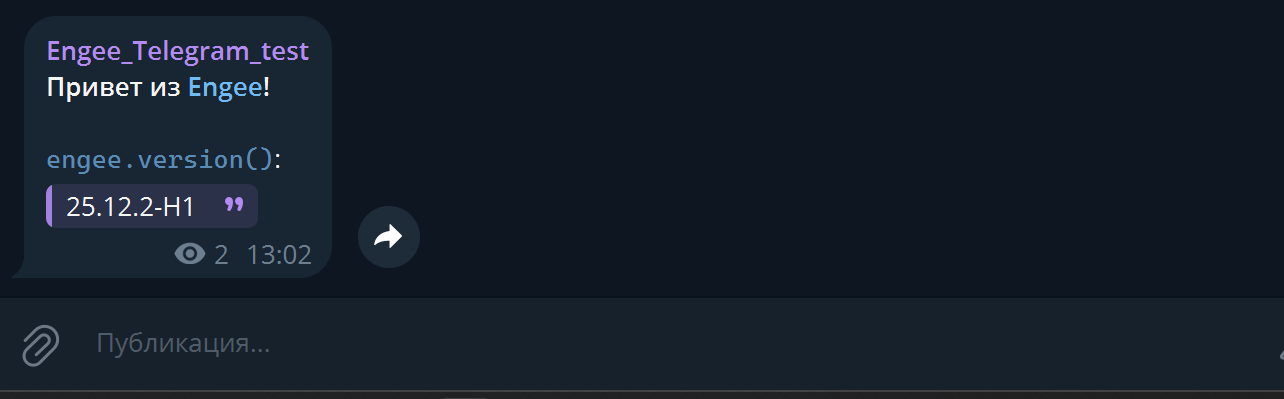
Pay attention to the markup support, as well as punctuation escaping in the sent message.
Using the Telegram API in modeling
Now let's move on to a more interesting integration of Engee and Telegram from the point of view of model-oriented design. Consider the following user cases:
- you run a model with execution time control - that is, in conditional real time,
- you run a model for a long execution time,
- you run a "heavy" model.
In all these cases, you will most likely have to wait a long time before receiving the results. In order not to waste your working time watching the movement of the charts, you can add sending messages to the Telegram bot in callbacks, and in the free time, take a break to read the latest release-notes or interesting проекты in the Engee community. You will return to the model when you receive a notification from the bot.
The model of this example is a sinusoidal signal generator. Execution time control is defined in its settings. Engee tries to execute the model with a time that is almost equal to the real one.
Its callbacks are of interest to us now. Open the tab PreLoadFunc:
.png)
It contains lines of code that are already familiar to us. Next, in the tab PostLoadFunc We'll see:
.png)
That is, after opening the model, a notification about opening the model with its data will be sent to the Telegram channel. Next, the tab StartFunc:
.png)
The most interesting thing is on the tab StopFunc :
.png)
Let's run the model and see how it works.:
Everything is working as planned. Let's put on a model and go to lunch.
Conclusion
Further, it is possible to implement "feedback" - for example, managing the Engee account, calculations and modeling through bot commands. You can use this model as a template for automating reports in your projects. Just don't forget to add your bot tokens and Telegram channel ID.