Development of a hardware support package for Engee.Integrations
Inventory is always useful, because you can find a lot of unexpected things. For example, I found the Analog Discovery 2 data collection platform. This is an extremely interesting piece of hardware, and I thought it would be nice to make friends with Engee. Fortunately, Engee.Integration allows you to write your own extensions to support the hardware, which I used. In this project, using the example of Analog Discovery 2, I will show you how to write your own extensions for Engee.Integration.
What is Analog Discovery?
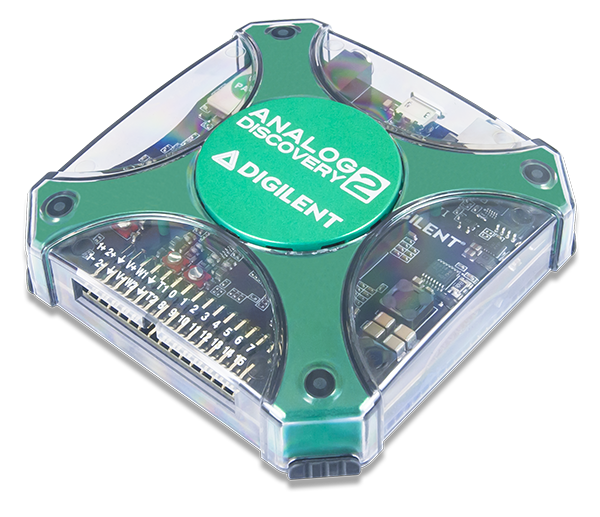
Analog Discovery is a series of devices from Digilent for data acquisition, signal generation, logic analyzers and protocols. At the same time, it is literally a pocket device that runs on USB! Here it is:
What will you need to install?
In order for my extension to work, I will need to install WaveForms from Digilent. If I had Linux, I would need an additional Adept2 runtime. I will also need the Engee client program.Integration.
In Engee itself, I will need to install the main Engee support package.Integration, universal for any equipment. After installing it, a download link for the client will be available. These steps are described in документации
Writing an extension - where to start?
Many hardware manufacturers release SDK sets of libraries and various tools for working with hardware in a user application. Digilent has also made its own SDK, which is just a header file for the dwf library. However, extensions for Engee.Integrations are created in Python, and the header file is simply not applicable here. But Python can load dll files directly using the ctypes module. Let's remember this.
Expansion Architecture
The extension is a class that inherits from the built-in BaseDevice class from the devices module.base_device. This module is already included in the client program, there is no need to search for it. Next, in Engee itself, we need to “register” this class and restart the Engee core. For more information about this mechanism, see документации.
To write an extension, you can either call SDK functions directly from the methods of this class, or create a wrapper over the SDK and call the wrapper from the methods.
However, in the first case, we will have to restart the extension every time we make changes, and in the second case, we will just have to restart the client program. The second option looks preferable.
*** IMPORTANT! In order for the extension to be "visible" at the time of uploading to Engee, a special folder structure must be followed. I added an archive with my extension to the project in compliance with this structure.***
Extension development - what to pay attention to
The development of an extension is not too different from regular development, but I would like to draw attention to some features of writing and debugging code.
Perhaps the most important thing is the complete specification of the extension class methods: argument types, return value types. This is a requirement for extension methods. Let's look at an example of a fully specified method.:
def get_sample(self,channel:int) -> float:
	c_channel = c_int(int(channel))
	measure = float()
	measure =float(acq_single(self.hDevice,c_channel))
	return measure
As you can see, we explicitly specify that the channel input is an integer, and the output will be strictly a float.
The second is debugging. To see what's going on inside the code, you need to add output, but print() won't work. To organize the output of information to the logs window of the client program, you need to use the main_logger module.:
from main_logger import MainLogger
logger = MainLogger()
Using this mechanism is very simple. Let's look at the code that ensures connection to the device.:
dwf.FDwfDeviceOpen(devid_c,byref(hdwf))
dwf.FDwfGetLastError(byref(error))

match error.value:
    case 0:
        logger.info(f"Device with id {devid} connected" )

    case 3:
        logger.info(f"Device with id {devid} is already connected, skipping" )

    case _:
        dwf.FDwfGetLastErrorMsg(szerr)
        logger.error(f"Error occured: {szerr.value}")
        hdwf = c_int(-1)
return hdwf
Here we output information using the methods of the logger object and the output gets into the log of the client program.:
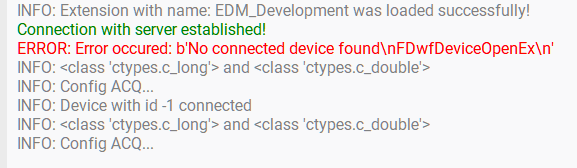
Then Python surprised me by saying that even if the function argument is set as int, then when trying to pass in this argument float the interpreter will perform this operation silently. Therefore, I had to do explicit type conversion in the class methods.:
def start_sine(self, channel:int,freq:float,amp:float) -> None:
	c_chan = c_int(int(channel))
	c_freq = float(freq)
	c_amp = float(amp)
	sinewavegen_config(self.hDevice,c_chan, c_freq, c_amp)
	pass
Testing the extension
After writing the code, you can download your own extension. To do this, run the following commands in Engee:
module_path = "/path/to/module"
using Main.EngeeDeviceManager.Devices.UTILS
using Main.EngeeDeviceManager.UTILS_API
utils = UTILS.Utils()
UTILS_API.loadExtension(utils, module_path)
It is important to remember the following here:
- The client program must be running and the connection to Engee has been established.
- For Python, Windows paths are separated by a double slash. For example:
C:\\srcs\\EDM_Development" - After successfully downloading the extension, restart the kernel using the command
engee.clear_all()and restart the server program by running the commandengee.package.start("Engee-Device-Manager")and re-establish the connection in the client program
Let's check that my extension is working. To do this, you first need to prepare the Analog Discovery itself: Connect the first analog output to the plus of the first analog input, and connect the minus of the first analog input to ground. For clarity, let's look at the pinout picture of the device.:
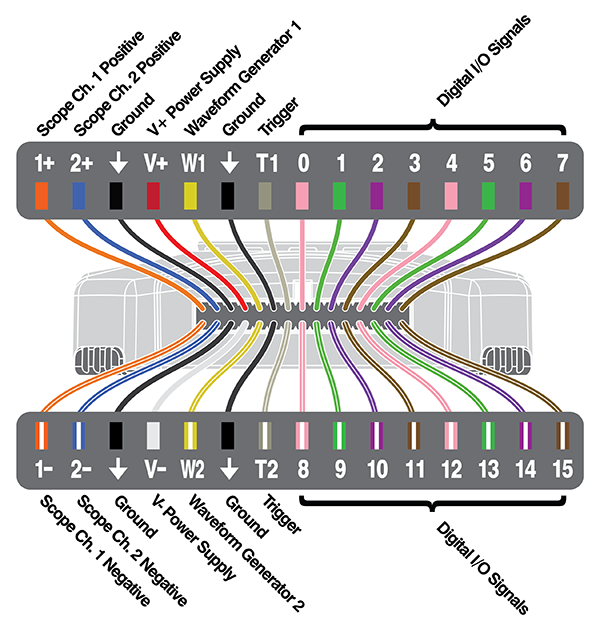
That is, W1 connects to 1+, and 1- connects to Ground.
Now go to Engee and execute the following code (it is assumed that the client is running and communication with Engee is established):
Now we can create an object to work with the device.:
using Main.EngeeDeviceManager.Devices.DIGILENT
mydig = DIGILENT.Digilent()
Please note that the device was named after our class and converted to uppercase, and the constructor is named the same as the class.
Finally, you can start testing. To do this, we will generate a sinusoid with a frequency of 2 Hz and an amplitude of 1 V. We will set up data capture with a frequency of 10 kHz, and we will get one sample.:
mydig.connect(-1)
mydig.start_sine(0,2.0,1.0)
mydig.start_acq(0,10000.0)
sample = mydig.get_sample(0)
println("Received data: $sample" )
The ADC count has been received, which means the extension is working. Let's try to get a large number of samples and output a graph.:
using Plots
ACQ = Vector{Float64}()
for i in range(1,30)
   sleep(0.01)
   push!(ACQ,mydig.get_sample(0))
end
plot(ACQ, xlabel=" Reference Number", ylabel = "Voltage, V", seriestype = :steppre)
If the graph is not visible, then an example of such a graph is shown below.:
.png)
Conclusions
Engee.Integrations are a user-extensible platform that allows you to work with any hardware. To create a custom extension, you need an SDK from the manufacturer and Python skills.