User buses in finite automata
This project demonstrates the possibility of using custom buses in the Chart block.
Custom buses - structured signals of the type BusSignal. This type allows you to combine logically related signals into a single structure, a bus, each element of which corresponds to a specific name, data type, and dimension.
Using a macro @__DIR__ to define a path containing an interactive script:
demoroot = @__DIR__;
Description of the model
Let's consider a simple model with a finite state machine implementing block logic Saturation limiting the input signal from above and below:
#[PIPE]
[PIPE][PIPE]
Input signal
[PIPE]
Output signal
[PIPE][PIPE]
[PIPE][PIPE]
Lower limit <= Input signal <= Upper limit
[PIPE]
The input signal
[PIPE][PIPE]
[PIPE][PIPE]
Input signal < Lower limit
[PIPE]
Lower limit
[PIPE][PIPE]
[PIPE][PIPE]
Input signal > Upper limit
[PIPE]
Upper limit
[PIPE][PIPE]
[PIPE]#
Let the user bus be sent to the input of the Chart block InputBus containing the signals:
signalthe type of dataFloat64- input signal;limitsthe type of dataLimitBus(embedded bus):upperthe type of dataFloat64- upper limit;lowerthe type of dataFloat64- the lower limit.
And at the output of the Chart block, a custom bus is formed. OutputBus containing the signals:
signalthe type of dataFloat64- output signal;is_saturatedthe type of dataBool- a sign of saturation.
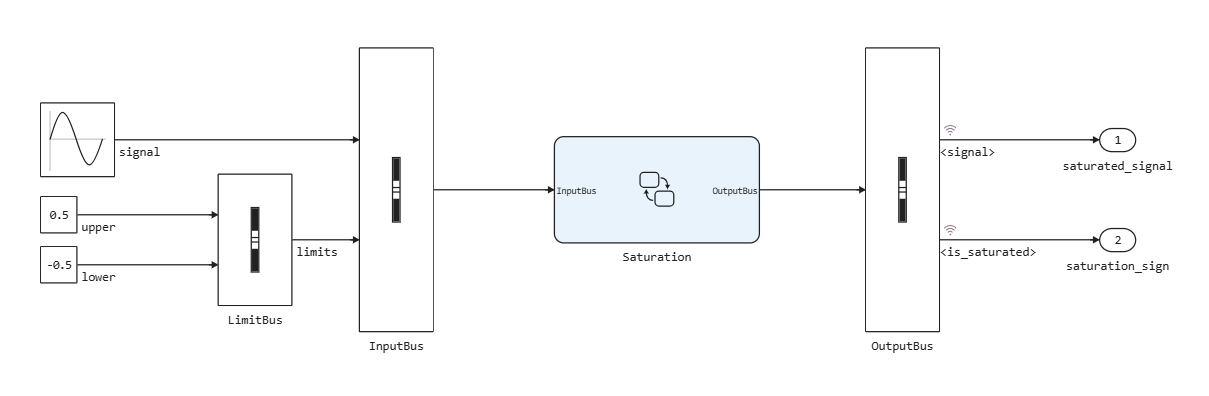
Define custom buses in the workspace:
LimitBus = BusSignal((:upper, :lower), (Float64, Float64), ((), ()), :LimitBus);
InputBus = BusSignal((:signal, :limits), (Float64, LimitBus), ((), ()), :InputBus);
OutputBus = BusSignal((:signal, :is_saturated), (Float64, Bool), ((), ()), :OutputBus);
And specify the correct data types in the Bus Creator block settings (LimitBus and InputBus) and Bus Selector (OutputBus):
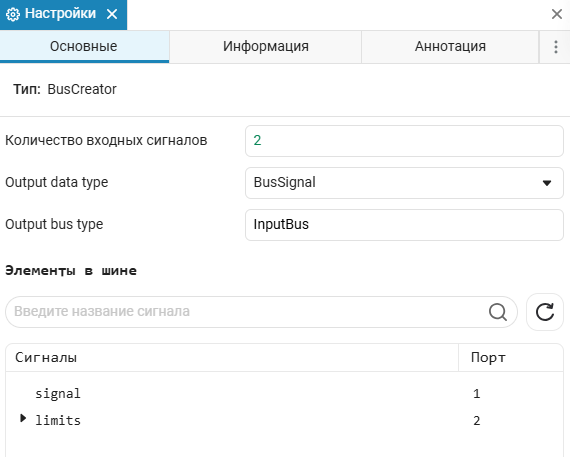
Let's go to the Chart block and create the input and output signals in the model data editor (on the "Finite Automata" tab).:
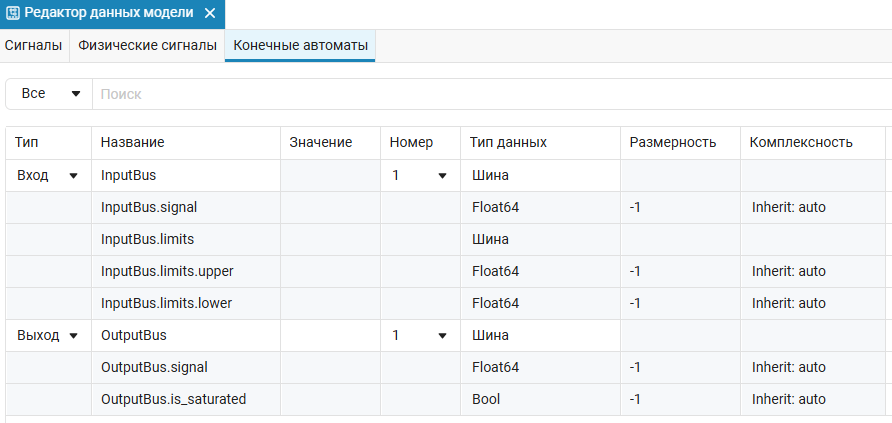
We will set the data types using custom buses as follows:
.png)
We will represent the block logic in the form of a transition graph.:
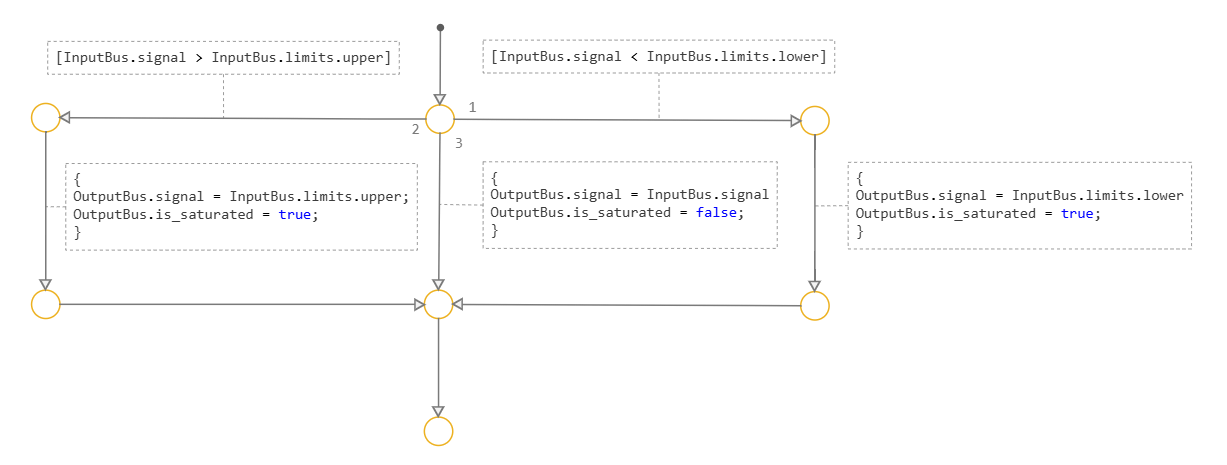
To access the bus elements inside the Chart block, a dot entry is used, for example:
InputBus.signal > InputBus.limits.upperOutputBus.is_saturated = true
Running the simulation
Loading the model buses_chart.engee:
buses_chart_model = engee.load("$demoroot/buses_chart.engee");
And let's run her simulation.:
simulation_results = engee.run(buses_chart_model);
We will close the model after the end of the simulation:
engee.close(buses_chart_model, force = true);
Simulation results
Importing the simulation results:
buses_chart_model_signal_t = simulation_results["signal"].time;
buses_chart_model_signal_y = simulation_results["signal"].value;
buses_chart_model_is_saturated_t = simulation_results["is_saturated"].time;
buses_chart_model_is_saturated_y = simulation_results["is_saturated"].value;
And let's build graphs:
plot(buses_chart_model_signal_t, buses_chart_model_signal_y, label = "Output signal")
plot!(buses_chart_model_is_saturated_t, buses_chart_model_is_saturated_y, label = "A sign of saturation")
Conclusions
This project demonstrates the use of custom buses in the development of models based on the Finite Automata library:
- Tire declaration in the workspace;
- Setting up the characters of the Chart block;
- Accessing user buses in the state machine.