Installing an offline client Engee with a virtualization application
The article describes the installation of an offline client. Engee with a virtualization application. About the work of an offline client Engee and for the necessary system requirements, see article.
|
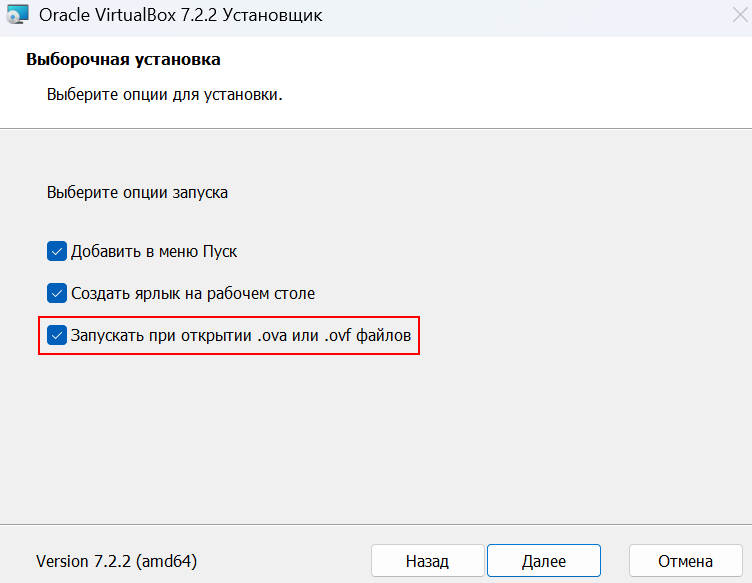
The offline client is available on Linux and on Windows with WSL (Windows Subsystem for Linux) support. For the offline client to work, you need to install a virtualization application, such as VirtualBox (it is recommended to install the latest version). For further correct operation with the virtualization application:
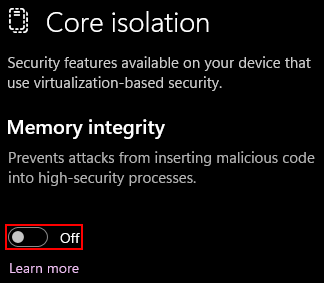
If you experience poor performance or startup errors when starting the VM, you must disable the kernel isolation feature in the Windows security settings.:
Disabling kernel isolation allows VirtualBox to work correctly with hardware virtualization. |
Downloading and installing an offline client
Switch the translation toggle switch Engee  to offline mode on main page of your personal account:
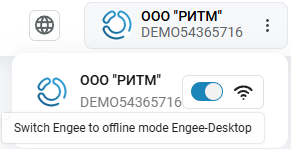
After switching the toggle switch, a window for downloading and authorizing the offline client will be added.:
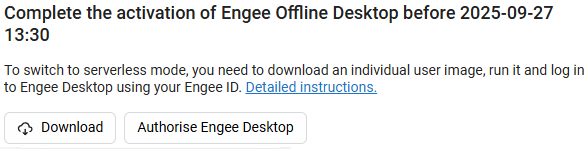
Click the Download button to download the format file.an ova containing the necessary data to start the VM.
Run the downloaded file and the process of importing configurations for the VM will begin. Click Done:
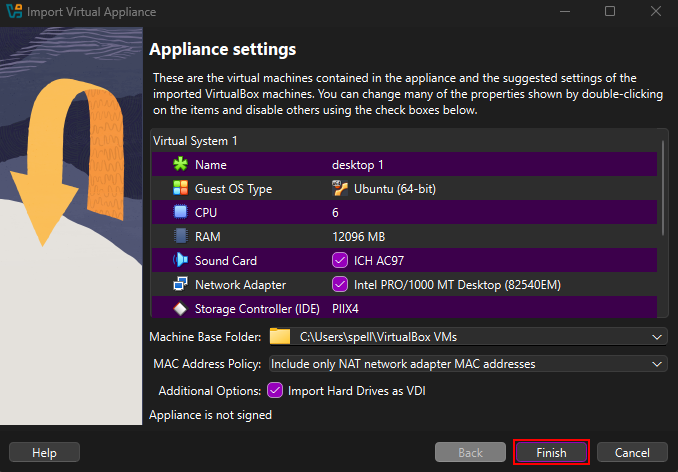
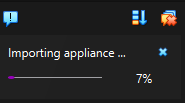
Importing the configuration takes different time depending on the power of the computer. You can track the import process in the virtualization application.:
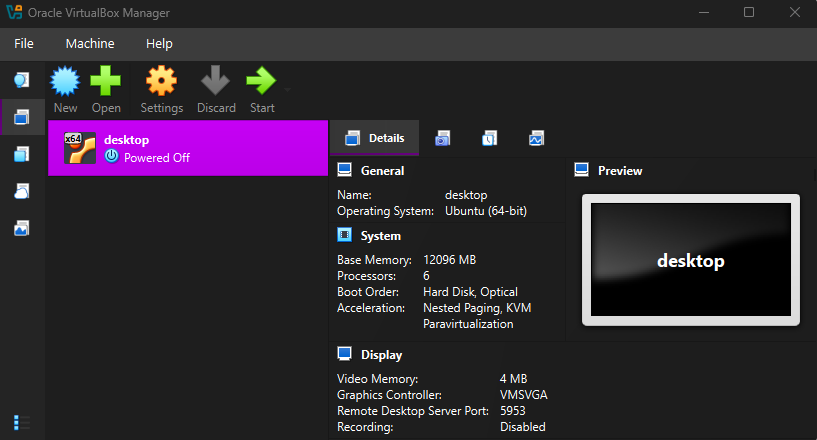
Upon completion of the import, the file will automatically create a ready-to-run virtual machine (named desktop by default).:
|
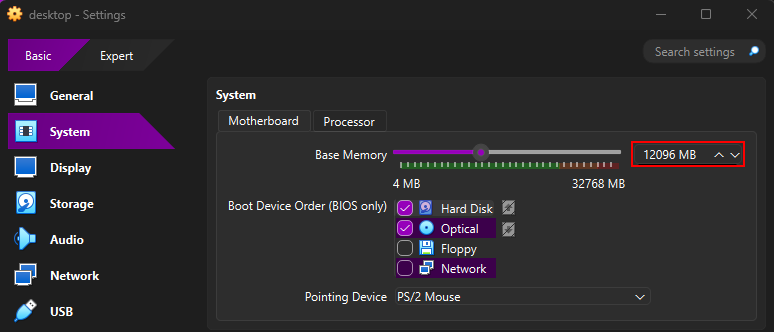
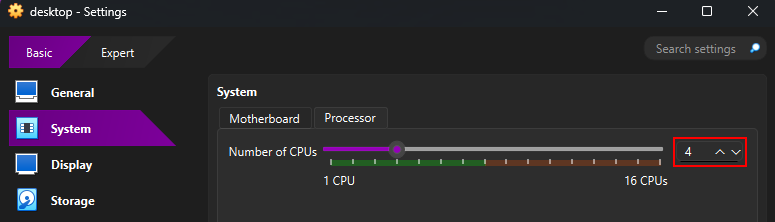
After importing, you need to open the settings of the imported virtual machine in the «System»:
Make sure that at least 130 GB of free space on the SSD is available for the VM. |
Start the virtual machine by clicking the Start button in the virtualization application. After installation Engee the address for further launching of the offline client will be displayed in the virtual machine console.:
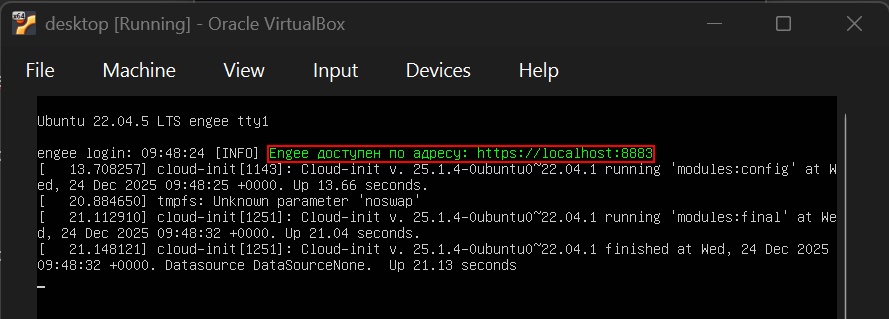
| The Authorize button Engee Desktop opens this link automatically in the virtualization application — you don’t need to copy it manually. The appearance of a link in the console means that the virtualization application has worked correctly. |
Offline client authorization
After installing the offline client, it must be authorized. To do this, go back to the main page of your personal account. Engee and click the Authorize button Engee Desktop. Alternatively, you can enter the link you received in the VM in the browser’s address bar.
A window opens to log in to the Engee Desktop. In the window, enter the name of the domain you downloaded it from.ova file of the offline client. Recording is allowed with or without the http/https protocol. For example, the domain for https://engee.com/account/ you can specify as https://engee.com/account or engee.com/account. After entering the server domain, click Log in using Engee ID:
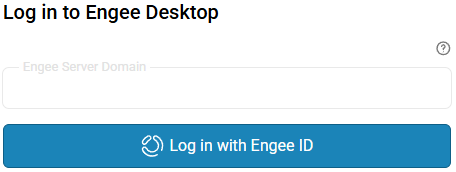
Then select the version Engee, the offline client of which you want to launch, and wait for its installation:
 →
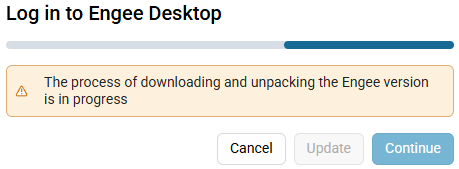
|
If the activation of the offline client has not been completed, but the toggle switch is switched back, the system will issue a warning.:
|
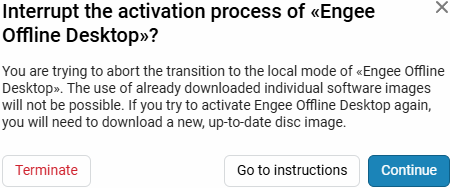
After successful activation of the offline client Engee A simplified version of the personal account will be opened. By analogy with an online client, you can use it start the session and get started.