Data dictionaries
A data dictionary is a variable storage represented by a file with the extension .edd (Engee Data Dictionary), which may contain model variables or libraries.
The dictionary is connected to the model or library. Thanks to this, variables are saved between sessions and become part of the model configuration: before launching, they do not need to be recreated in the workspace or initialized with a separate script.
Why do I need a data dictionary?
Model variables can be created directly in the workspace. Engee. As an example, consider a model consisting of two blocks.: Sine Wave and Terminator.
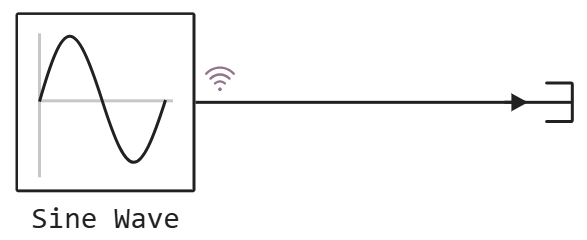
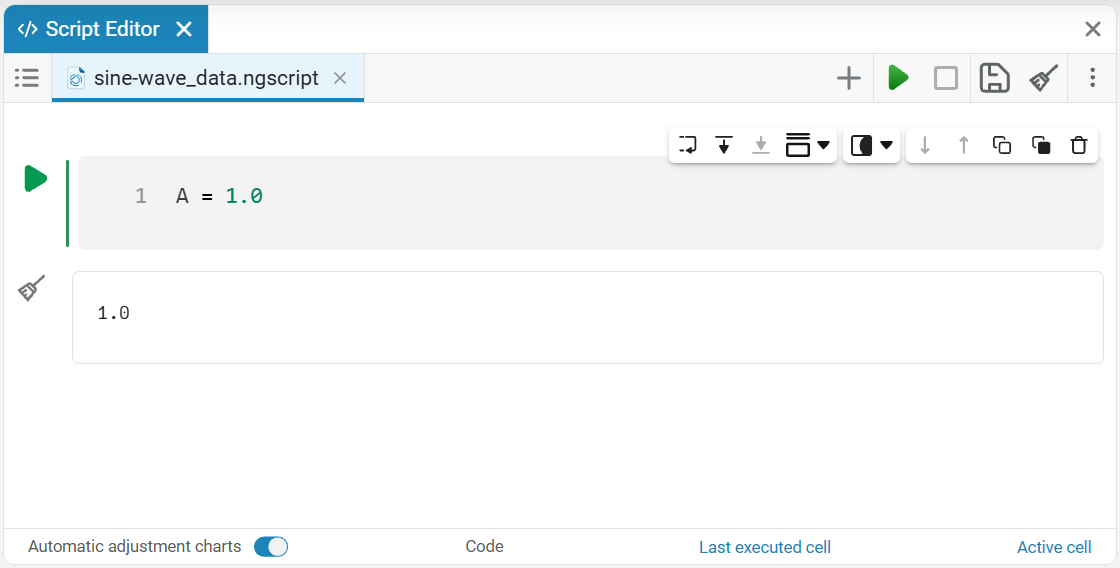
Let the amplitude of the sine wave be given by a variable A. This variable can be created in the workspace via the command line, and then used in the block parameters. You can also change the value of this variable on the command line or in the variables window.
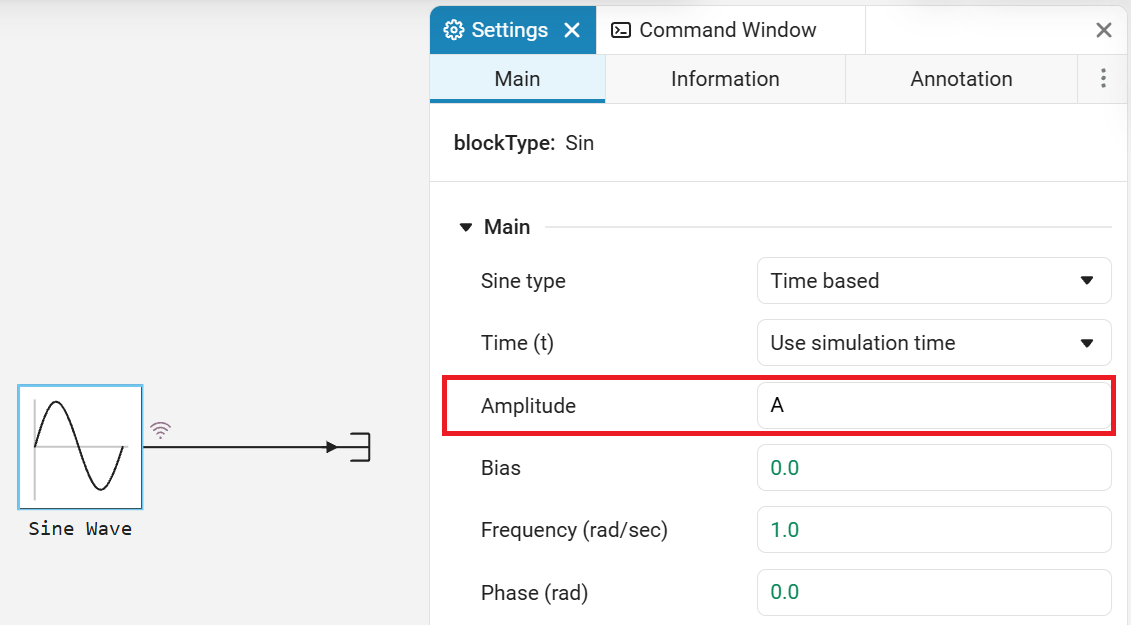
This method is convenient for working with a simple model in the current session. However, after clearing the workspace or starting a new session, the variable will need to be recreated. To ensure reproducibility of the model between sessions, variables can be initialized using scripts and callbacks (for more information, see Callbacks).
Another way is to connect a dictionary to the model and save variables in it.
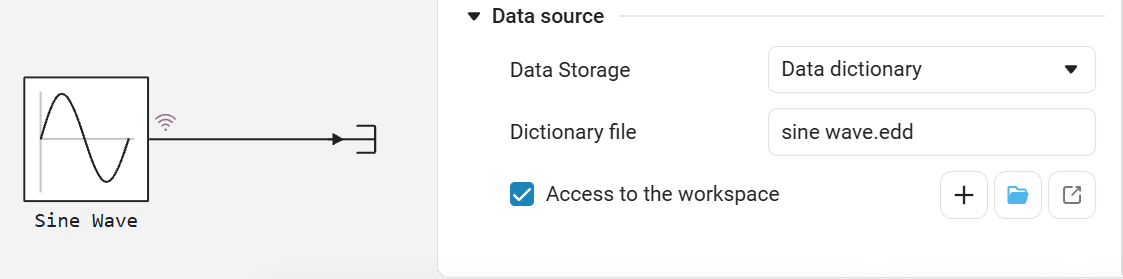
In this case, the variables become part of the model configuration, rather than the temporary contents of the workspace. Before modeling, you do not need to manually create them or run a preparatory script.
The data dictionary is especially useful for large models and collaboration, as it provides more opportunities for organizing, storing, and managing data.
Creating and connecting a dictionary
- There are three ways to create a dictionary
-
-
from the file browser;
-
from the model or library settings;
-
from the app Data dictionaries.
-
Creating from a file browser
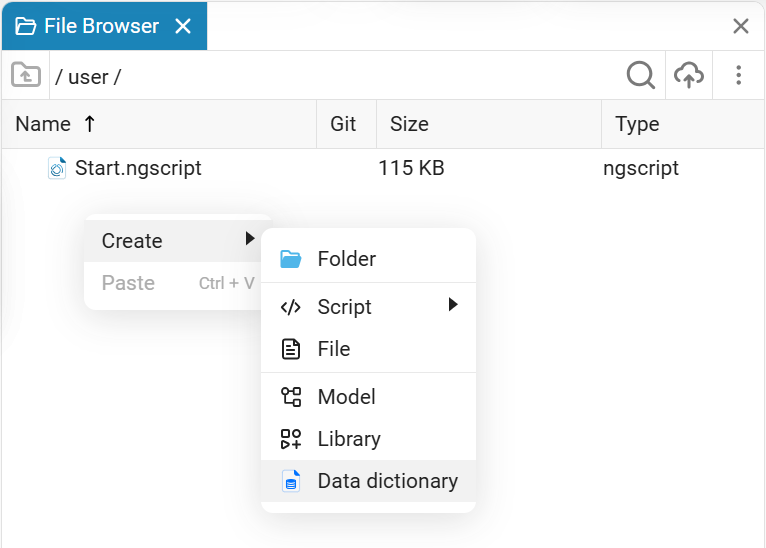
Open a file browser in the main window Engee, right-click → Create → Data dictionary and set a name for the dictionary.
Creating a model or library from settings
Open the model or library settings window.
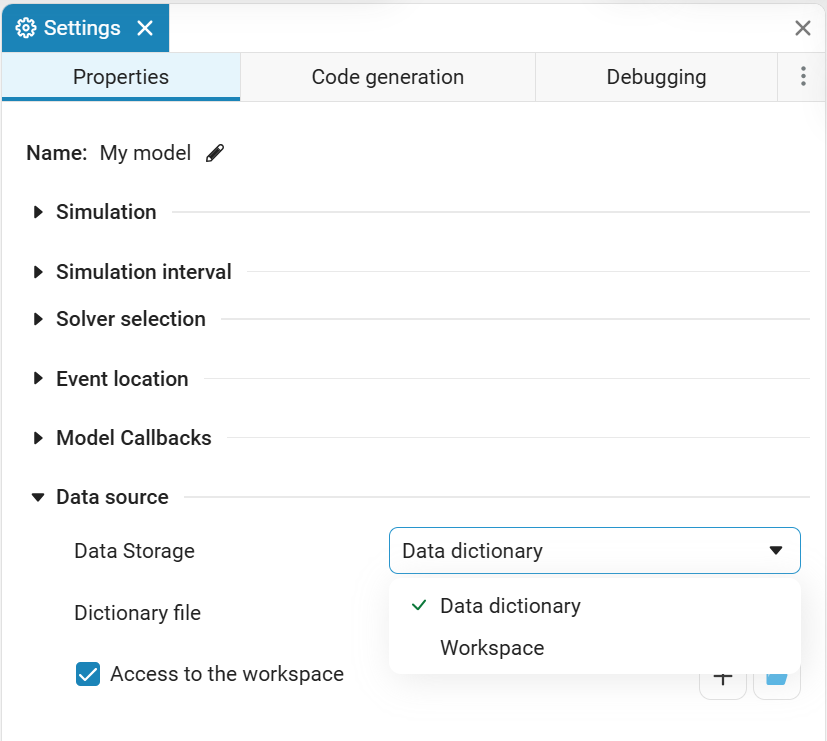
By default for the property Data Storage value selected Workspace. When selecting a value Data dictionary The field appears Dictionary file, check box Access to the workspace, as well as the following buttons:
-
Create dictionary
 : by clicking this button, in the window that opens, enter the name of the dictionary and select the desired directory to store it, click Save.
 -
Open dictionary
 : by clicking this button, select the desired dictionary file in the file window that opens and click Select.
 -
Edit
 (appears if the dictionary is already selected): launches the application Data dictionaries with a focus on the connected dictionary.
When selecting a value Data dictionary in the lower left corner of the canvas Engee a button appears  . She opens the dictionary application.
Creating from the app Data dictionaries
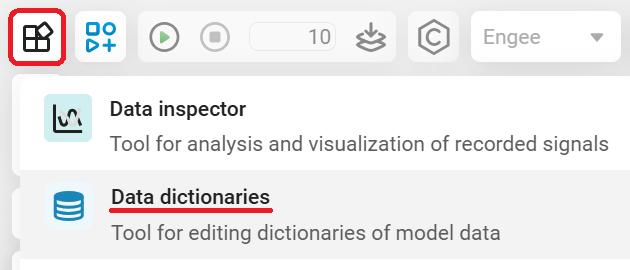
You can open the application through the workspace. Engee: in the upper left corner in the section Engee Applications  choose Data dictionaries
  :
:
On the panel «Dictionaries» There are buttons for creating and opening dictionaries.
To create a dictionary, click Create in the window that opens, enter the name of the dictionary, select the desired directory to store it, and click Save. To open the dictionary, click Open in the file window that opens, select the desired dictionary file and click Select.
For more information about the app, see the An application for working with dictionaries section.
Connection
The dictionary is connected to the model in the settings of the model or library.
Only one dictionary file can be connected to one model or library. However, the connected dictionary may have links to other dictionaries.
| Linked dictionaries can have several levels of nesting, but they should not form a cycle. For more information, see Recursive nesting. |
For example, when using a part of another model, you can connect a dictionary with the variables necessary for it to the dictionary of your model.
Thus, the model’s own variables and shared variables can be stored separately, but used together.
Using the dictionary in the model
Let’s return to the model of a sine wave generator and a plug, in which the amplitude of the sine wave is set by a variable A.
Creating a variable A in the workspace via the command line:
A = 1.0and we will specify it in the block parameters.:
Let’s create a dictionary using one of the methods described above and connect it to the model through the settings window.
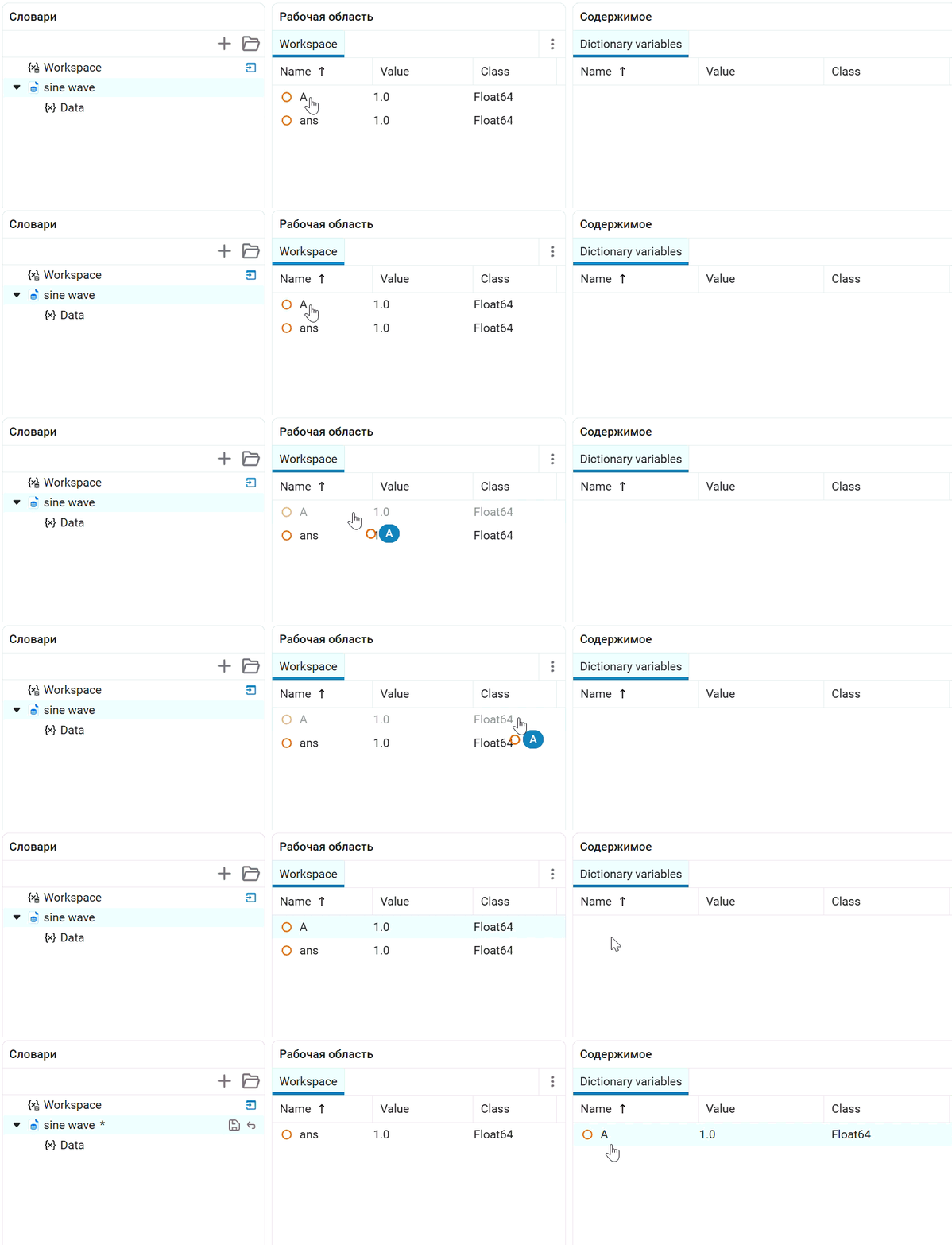
Open the dictionary in the application and move the variable A from the workspace to the dictionary.
The variable can be moved from the panel «Workspace» to the panel «Content» by dragging and dropping. For more information, see the Moving variables in an application section.
Let’s clear the workspace and run the model. The value of the amplitude A it will be obtained from the connected dictionary.
This way, the variable does not need to be recreated every time the model is opened or before each simulation run.
Dictionary application scenarios
Using different sets of parameters
You can use different dictionaries with different sets of values for the same model.
When switching the dictionary, the model will use a different set of parameters. This allows you to change the configuration of the model without reconfiguring variables in the workspace.
| If necessary, the model can also access variables from the workspace, if such access is enabled in the model settings. In this case, for proper operation with data dictionaries, see the [limits] section. |
An application for working with dictionaries
An application is used to work with data dictionaries. Data dictionaries . It allows you to centrally store, view, and modify data used in models.
To open the application, go to the workspace Engee and in the upper left corner in the section Engee Applications choose Data dictionaries .
The application opens in a separate browser tab and by default looks like this:
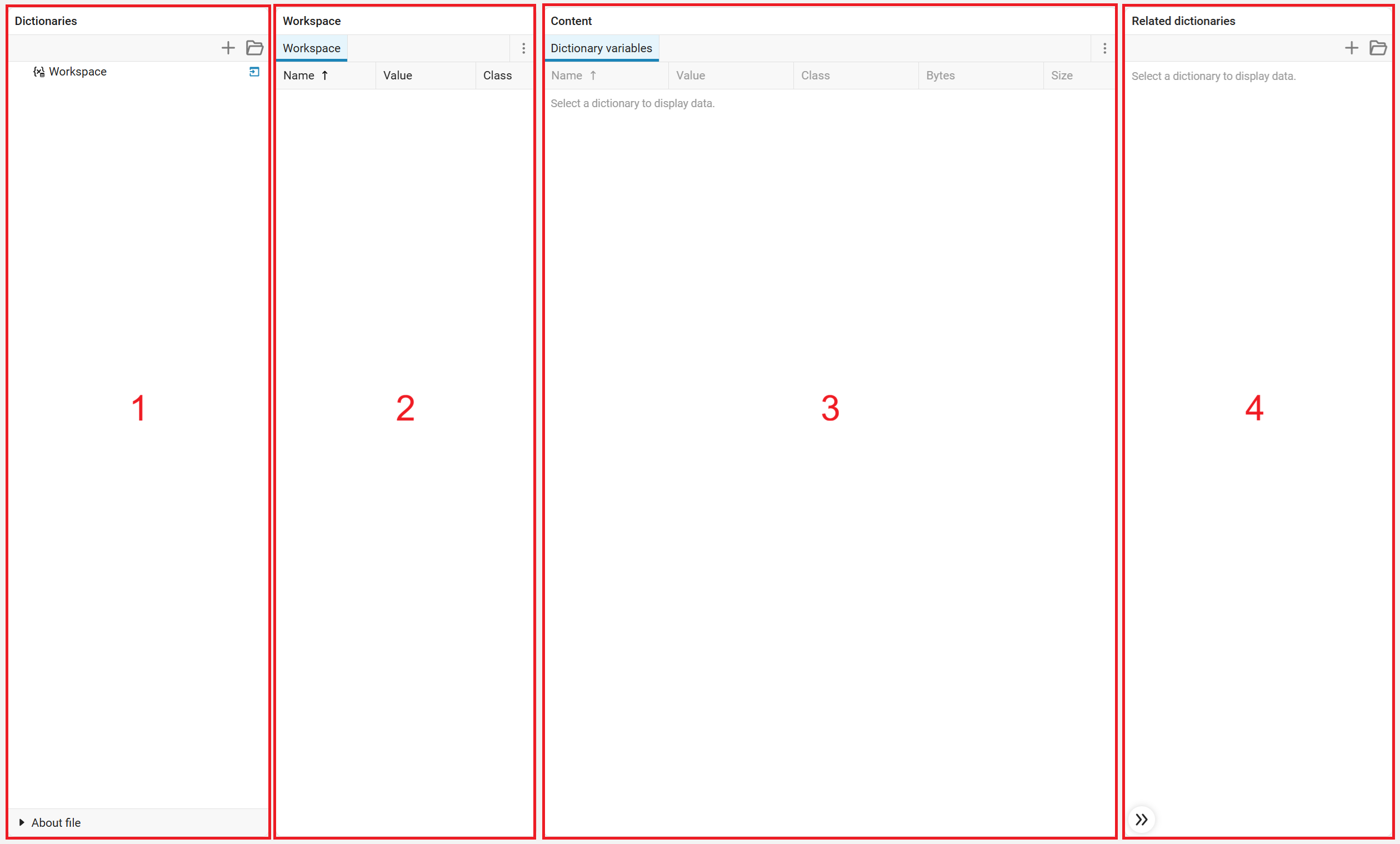
The window consists of four panels: Dictionaries (1), Workspace (2), Content (3) and Related dictionaries (4). Let’s look at them in more detail.
The panel «Dictionaries»
The panel is used to navigate through data items, as well as to display information about the dictionary file.
The first element displays the string «Workspace», next to which the button is located «Unpin the workspace», which allows you to hide the panel «Workspace». The dictionaries that have been opened for editing and their contents are displayed next.
The panel also contains buttons for creating and opening dictionaries; and when a dictionary is selected, information about the properties of the dictionary file is displayed at the bottom of the panel.:
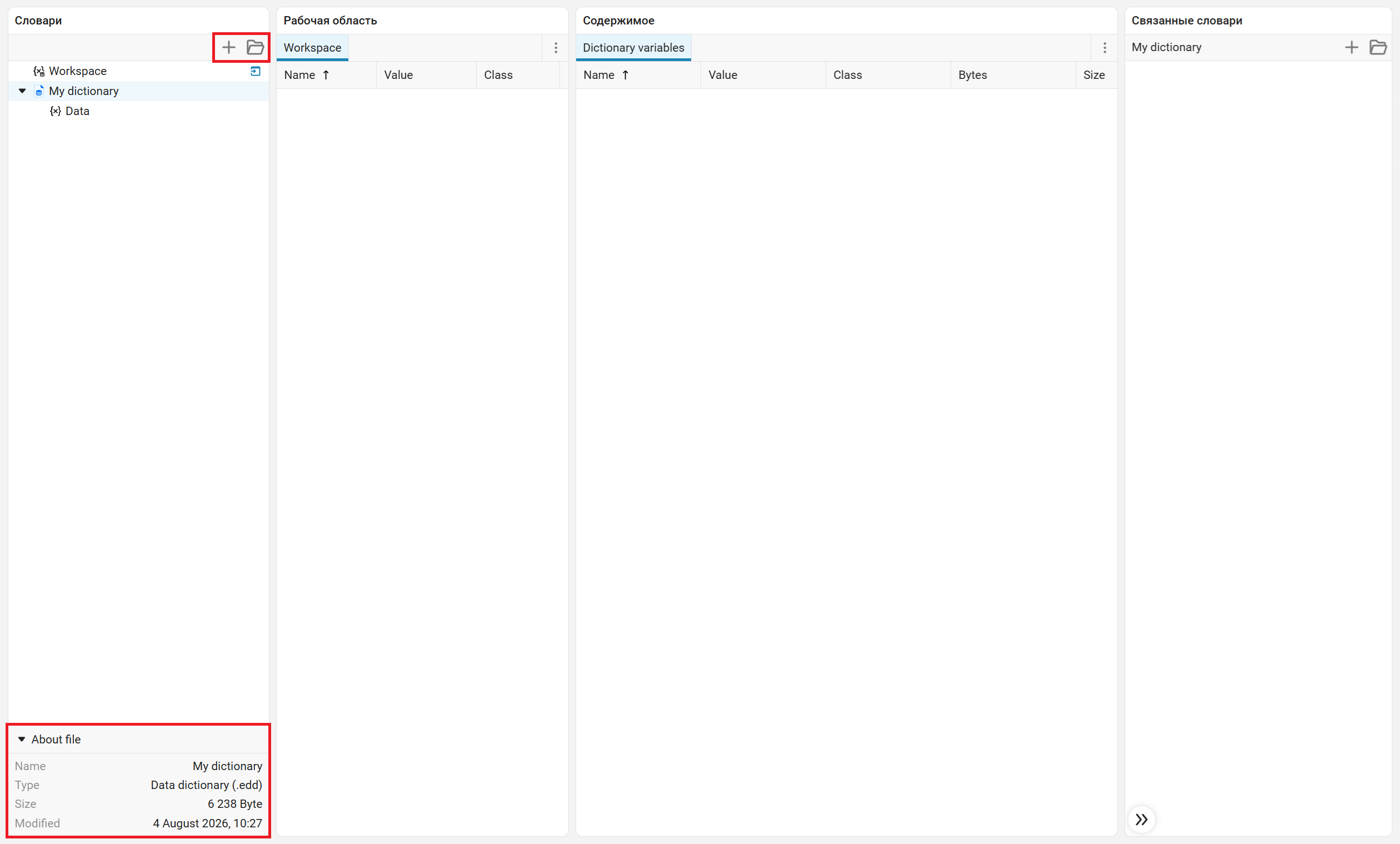
When variables are added to the dictionary (see Moving variables in an application), save and undo buttons appear for the selected dictionary.:
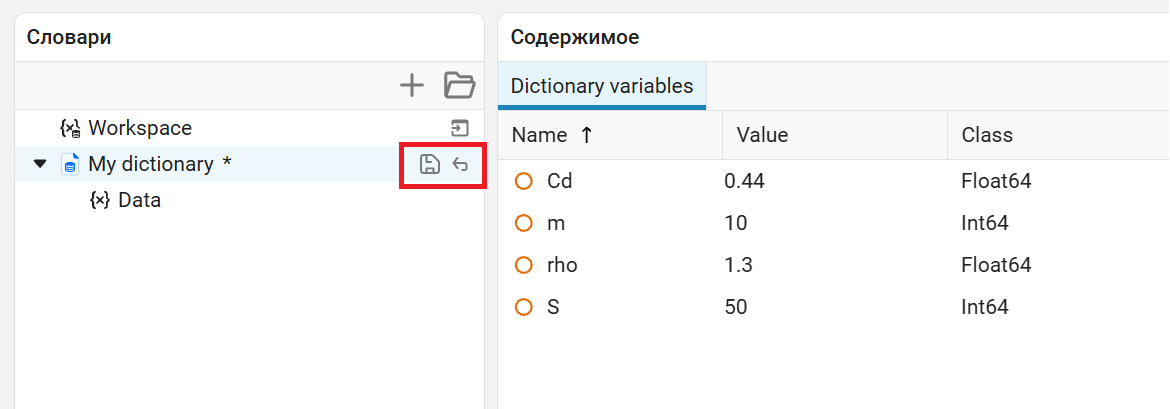
| When you save the selected dictionary, all unsaved changes in related dictionaries are also saved. However, canceling the changes only applies to the selected dictionary. |
In addition, by right-clicking on the dictionary file, you can open the context menu.:
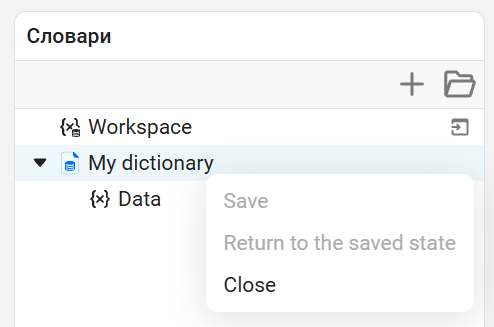
Options «Save» and «Return to the saved state» active only for modified dictionaries.
The panel «Workspace»
This panel displays variables from the workspace. It is optional and is displayed when the button is active. «Pin the workspace». To hide the panel, click «Unpin the workspace».
The panel «Content»
The panel displays the contents of the selected dictionary. All variables stored in the selected dictionary and its associated dictionaries are displayed here.
The variables in this panel are presented in the same way as in the panel «Workspace», the exception is the column «Data source», where the name of the dictionary to which the variable belongs is indicated.
To edit the values of variables, double-click the row with the desired variable.
| Making changes to the dependent dictionary causes the top-level dictionaries to be considered changed as well. |
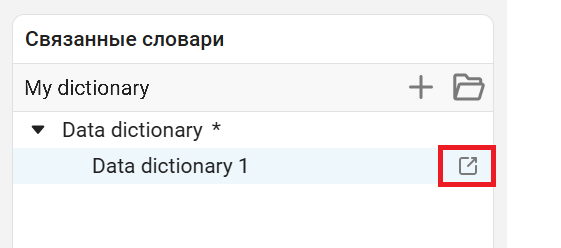
The panel «Related dictionaries»
The panel displays the dependencies of the current (selected) dictionary, i.e. links to other dictionaries.
By default, the panel is maximized, but you can collapse it using the button  .
.
The name of the selected dictionary is displayed directly under the name of the panel, next to the buttons for creating and opening dictionaries.:
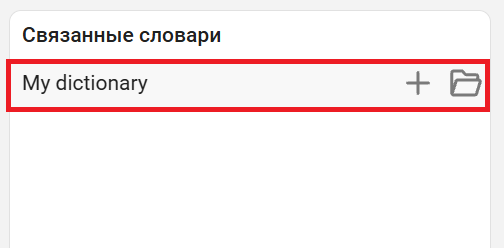
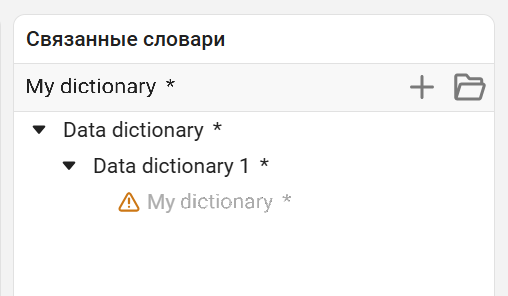
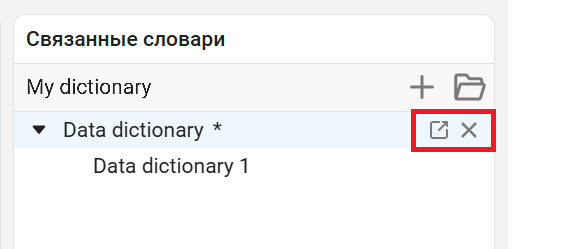
When selecting a dependent dictionary, a dependency removal button appears for the dictionary of the first level of nesting and an edit button for the dictionary of any level of nesting.:
Moving variables in an application
One of the ways to transfer variables is to drag-and-drop interactively from the workspace to the contents of the dictionary. You can move several variables at once by selecting them with the left mouse button and holding the key Ctrl:
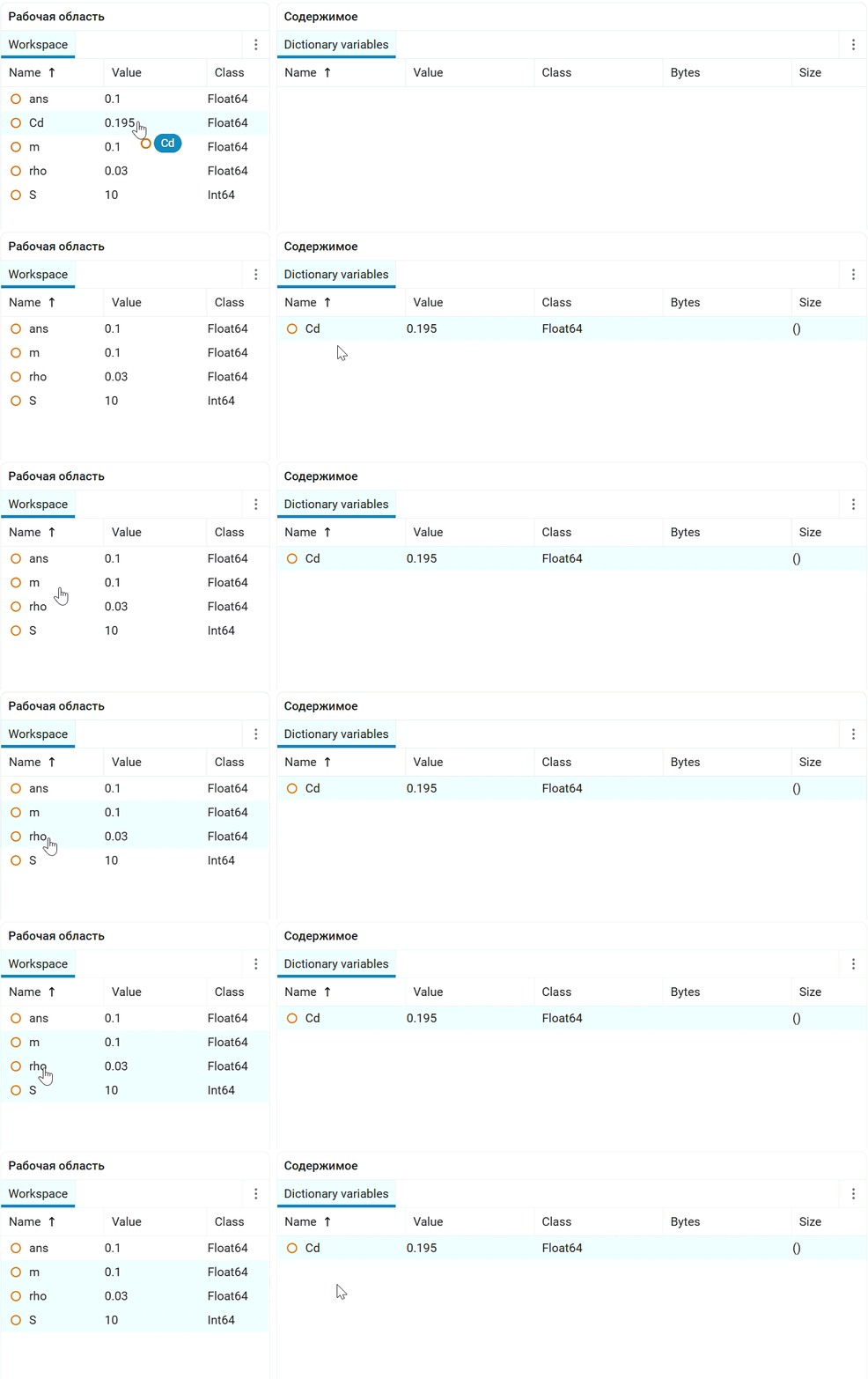
This way you can move the data.:
-
From the panel «Workspace» to the panel «Content» open dictionary and back;
-
From the panel «Workspace» to the section «Data» any dictionary on the panel «Dictionaries»;
-
From the panel «Content» Add an open dictionary to the section «Data» another dictionary on the panel «Dictionaries»;
Section «Data» indicates the location of data storage inside a specific dictionary. When you move variables to this section, they will be added to the corresponding dictionary and displayed on the panel. «Content» if you open or select this dictionary. -
From the panel «Content» an open dictionary in an element «Workspace» panels «Dictionaries». This action is equivalent to moving data to the panel. «Workspace».
In addition to interactive movement, you can use the usual methods of copying, cutting and pasting elements using the context menu that opens with the right mouse button, or using keyboard shortcuts.: Ctrl+C, Ctrl+X and Ctrl+V accordingly.
Limitations
The same variables
If you use a dictionary, then the same variable cannot be defined in both the dictionary and the workspace. This will lead to a simulation error.
To avoid collisions, you can disable access to the workspace by unchecking the box. Access to the workspace in the model settings.
Also, the same variable cannot be defined in multiple related dictionaries.