Example of data exchange between Engee and Prosys OPC Simulation Server over OPC UA
Introduction
This example shows how to organize data exchange over the OPC UA protocol between a model in Engee and an external OPC UA server using the example of Prosys OPC UA Simulation Server.\ The
scenario demonstrates two-way operation:
- reading values from the OPC UA server in Engee;
- writing values from the Engee model back to the server.
The standard Prosys simulation server is used as the test data source, and Engee uses the OPCUA Client block, which connects to the server and reads the variable Triangle and writes the value to a variable MyVar.
This example is useful as a basic template for integrating the Engee model with industrial systems, controllers, SCADA, and other OPC UA-enabled data sources/receivers.
A brief reference
What is OPC UA?
OPC UA (Open Platform Communications Unified Architecture) is an industrial data exchange protocol designed for reliable and standardized interaction between various programs and devices.
Main Features of OPC UA:
- platform independence;
- client-server architecture;
- the presence of an address space with nodes (nodes);
- support for reading, writing, subscribing to changes;
- built-in security mechanisms.
How the exchange works in this example
In the example under consideration:
- Prosys OPC UA Simulation Server acts as a server;
- Engee acts as client of OPC UA;
- the OPCUA Client Ports block in Engee:
- receives data from the server node
Triangle; - sends data to the server node
MyVar.
Nodes and NodeID
Each variable on the OPC UA server has a node identifier NodeID.
The example uses the following nodes:
- for reading:
Trianglens=3;i=1006
- for the record:
MyVarns=3;i=2
Here:
ns— namespace index;i— the numeric ID of the node.
The logic of the model
The Engee model implements a typical scheme:
- Data is generated for recording in OPC UA;
- The OPCUA Client block sends this value to the server;
- The variable read from the server is extracted from the block.
Triangle; - The result is displayed further according to the scheme for observation.
Prosys OPC UA Simulation Server
A test OPC UA server that provides a set of simulated variables.
At startup, the server generates and uses a connection address like:
opc.tcp://alexevs:53530/OPCUA/SimulationServer
The host name and port may differ on a specific system.
For your own startup, you need to use the address displayed in the Prosys OPC UA Simulation Server window.
Description of the setting
1. Configuring Prosys OPC UA Simulation Server
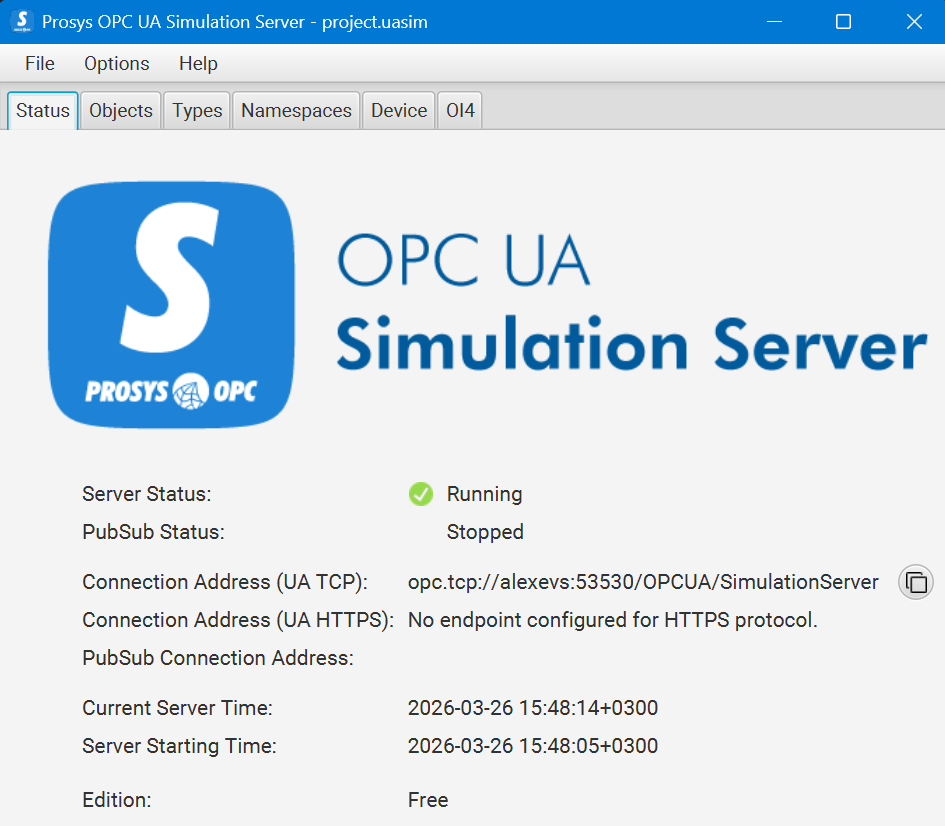
First, the Prosys OPC UA Simulation Server is started and its status is checked.
After launching, it can be seen that:
- the server is in the Running state;
- The UA TCP protocol is used for connection;
- connection address:
opc.tcp://alexevs:53530/OPCUA/SimulationServer.
You can also see the test variables in the folder in the server object tree. Simulation, among which are available, for example:
ConstantCounterMyVarRandomSawtoothSinusoidSquareTriangle
For a variable Triangle It's visible:
NodeId = ns=3;i=1006- data type:
Double
For a variable MyVar It's visible:
NodeId = ns=3;i=2
In the parameters tab Triangle It can be seen that the signal is of the Triangle type, and its range and period are set on the side of the simulation server.
.png)
2. Configuring the OPCUA Client block in Engee
The OPCUA Client block is added to the Engee model and its parameters are opened.
For correct operation, the following basic block settings must be set:
Connection parameters
- Server address:
opc.tcp://alexevs:53530/OPCUA/SimulationServer - Security policy:
None - Message security:
None - Timeout, s:
2.0
Setting up Reading
A dictionary is set for reading Read variables, to which the variable is added:
:Triangle=>("ns=3;i=1006", Float64)
That is, the block should read the node value. Triangle as a number type Float64.
Recording Settings
A dictionary is set for recording Write variables, where it is specified:
MyVar=>("ns=3;i=2", Float64)
This means that the node MyVar the value from the model will be transmitted to the server.
3. Configuring simulation and connection parameters in Engee
The following modeling parameters are defined in the properties of the model:
- a fixed pitch is used;
- solver: Euler;
- integration step:
1e-3seconds; - simulation time:
30seconds.
To establish a connection between Engee and servers, the PC is installed and Engee.Integration.
4. Assembling the circuit in Engee
The following structure is assembled in the model for testing communication.
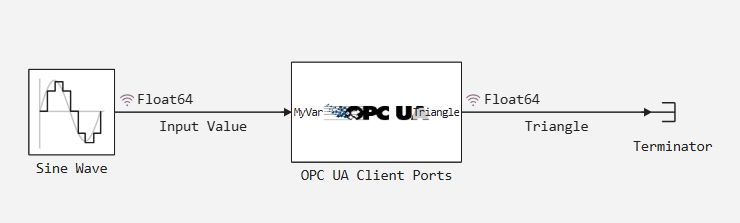
The OPCUA Client Ports block
Prepared data - segal Input Vlaue connects to the input of the OPC UA Client Ports block.\ The
block performs two functions simultaneously:
- accepts data for writing to the server;
- returns values read from the server.
If we need to write or send several variables, then, for example, a dictionary of the following type is created:
Dict(:Triangle => ("ns=3;i=1006", Float64), :Sinusoid=> ("ns=3;i=1004", Float64), :Counter=> ("ns=3;i=1001", Int32))
In this case, the number of output and/or input ports will change according to the specified number of specific character keys in the dictionary.
Description of the work process
Step 1. Launch the OPC UA Server
First, the Prosys OPC UA Simulation Server is started.
It checks that the server is active and the simulation variables are available in the object tree.
At this stage, it's convenient to look at it right away.:
- server connection address;
- necessary variables;
"themNodeId; - data types.
The example uses nodes:
Trianglefor reading;MyVarfor the record.
Step 2. Connecting Engee to the server
In Engee, the server address is specified in the OPCUA Client block parameters and security settings are configured.
Since the demo uses a local test server, the following options are selected:
Security policy = NoneMessage security = None
After that, the following are added to the block:
- a readable variable
Triangle; - a recordable variable
MyVar.
Step 3. Launching the model
After running the simulation, Engee establishes a connection to the server.
In the Engee client program.The successful connection status is displayed for integration:
- the connection to the server is established;
- the client reconnects/connects to Engee;
- after that, the model switches to execution mode.
Step 4. Verifying data exchange
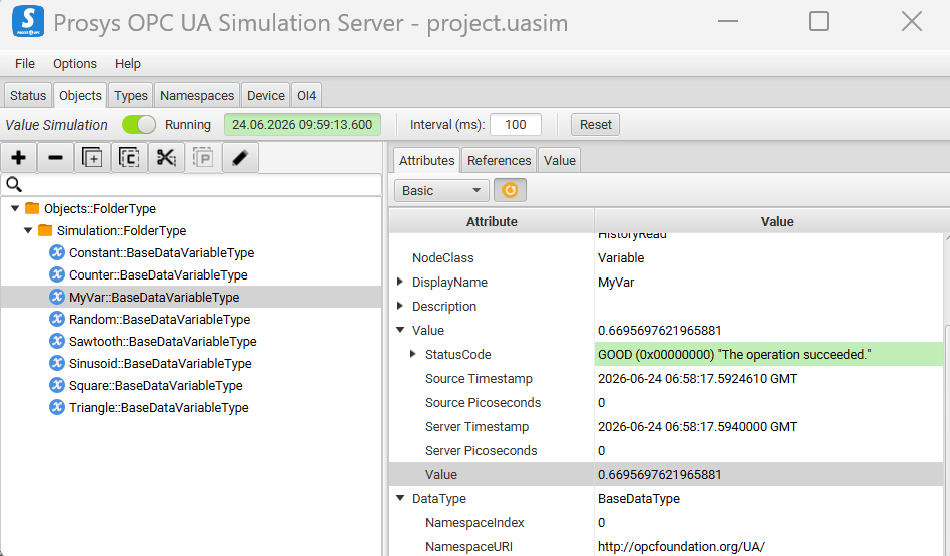
After starting the simulation, the Prosys OPC UA Simulation Server window shows a change in variable values.
During the simulation, you can notice. what:
- for the variable
Trianglethe current value changes according to the triangular signal; - for the variable
MyVarthe actual value written from Engee also appears.; - the operation status is successful.
This confirms that the exchange works both ways.:
- server → Engee: read
Triangle; - Engee → server: record
MyVar.
In addition, the process supports the ability to change data on the fly - changing the parameters for generating a triangular signal on the server leads to a corresponding change in the displayed signal in Engee.
.png)
Conclusion
As a result of the configuration, a working two-way exchange between Engee and the OPC UA server has been implemented.:
- Engee successfully connects to Prosys OPC UA Simulation Server;
- reads the node value
Triangle; - generates and writes the value to the node
MyVar.
This example can be used as a basis for more complex tasks.:
- connections to real OPC UA servers;
- exchange of several variables at the same time;
- integration of Engee models with external automation systems;
- testing control algorithms on simulation data.
The example demonstrates a basic and visual scenario for integrating Engee with OPC UA.
Its key value is that it shows the full cycle:
- Launching and checking the OPC UA server;
- search for the necessary variables and their
NodeId; - configuring the OPCUA Client block in Engee;
- Run the model and verify the actual exchange.
For training and demonstration tasks, this example is convenient because Prosys OPC Simulation Server already contains a ready-made set of test variables, which means you can focus on the mechanics of connecting and exchanging data over OPC UA.