How the step-by-step execution of the model works
By default, Engee performs simulation of the model continuously — this is the main mode that is almost always used. A step-by-step model execution mode is available for debugging the model: it allows you to advance the simulation step by step. solver and focus on points of interest to analyze the signals and model states.
-
Normal (continuous) simulation — Engee performs the simulation of the model automatically until it is completed (or forced to stop). The mode is suitable for most tasks: check the model, get graphs, perform a series of runs. If you just need to get the result of the simulation "entirely", then use a regular (continuous) simulation.
-
Step-by-step execution (debugging simulation) — you control the progress of the simulation manually: you follow the steps of the solver and can stop at points of interest in order to analyze the signals and states of the model in detail.
In the step-by-step execution mode Engee allows:
-
Advance the simulation forward or backward by a set number of steps using the options "{frontendEngeePP_stepForward}" and "{frontendEngeePP_stepBack}»;
-
To go back due to the saved snapshots of the working point of the model - a state sufficient to continue the simulation from the selected point in time.
Getting started
By default, the step-by-step model execution option is disabled. To turn it on, go to the window Settings and on the "Debugging" tab, in the "Step-by-step execution" section, select the Step-by-step execution checkbox.:
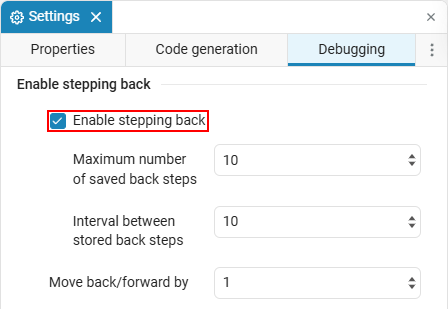
In this section, you can configure the parameters for step-by-step execution.
After enabling the option, the simulation control panel changes: elements for step—by-step debugging are added to the usual start/stop buttons - step back and step forward.
Normal simulation (step-by-step execution option is disabled)
|
Step-by-step execution (option enabled)
|


By "step" is meant the time step of the solver. Between the steps, the solver can perform internal (intermediate) calculations; they are important, for example, for the operation of breakpoints (see Pause at breakpoints).
-
Maximum number of saved back steps — the total number of snapshots that Engee stores for taking a step back.
-
Interval between stored back steps — how many steps of the solver to skip between saving snapshots.
-
Move back/forward by — how many steps of the solver to advance (or roll back) the simulation when pressed Step forward / Step back.
|
Simulation snapshots are stored in Engee memory and may slow down the execution of the model. Start with small values (for example, dozens or the first hundreds of images) and increase them only if necessary: the optimal value depends on the size of the model. |
When you step forward, Engee continues the simulation. However, when stepping back, Engee does not simulate the system "backwards". To provide a step back, Engee saves snapshots of the model’s operating point as the simulation runs. When you click Step back*Engee* restores the working point of the model from one of these snapshots.
|
Engee collects simulation snapshots for step-back only when step-by-step execution is enabled and step-back is active. If you have already enabled a step back during the simulation, then you need to take a step forward at least once before taking a step back. You cannot step back to the moment of the simulation, which was before the step back was turned on. |
Step forward
For how many steps of the solver the simulation progresses when pressed Step forward, responds to the parameter Move back/forward by. It sets the number of solver steps (in time) by which Engee moves the simulation forward in one click.
For example, let’s imagine a timeline of the simulation; the state at each step of the solver in time is shown as a green circle, and curved arrows illustrate the progress of the simulation:

The image shows how the simulation progress changes if the value Move back/forward by equally 1 or 2:
-
At the beginning of the simulation (State 0), the parameter value is
2. When you click Step forward the simulation goes through State 1 and stops at State 2. -
While the simulation is on pause after the second step of the time solver, let’s say you have changed the parameter value to
1. Now when you click Step forward the simulation will advance to State 3 — one next time solver step. -
Let’s say you changed the parameter value back to
2while the simulation is on pause after the fourth main step of the time solver. Now when you click Step forward the simulation will advance to State 6.
Simulation snapshots
Simulation snapshots (saved steps) — needed for a step back: they contain a state sufficient to continue the simulation from a selected point in time. The snapshots are stored in the Engee memory and are not saved to the file system. Taking snapshots requires memory and can affect simulation performance.
The parameters are used to control how much data is stored for a step back.:
-
Maximum number of saved back steps — the total number of snapshots to save;
-
Interval between stored back steps — how many time steps of the solver to skip between saving snapshots.
The options for saving snapshots are independent of the option Move back/forward by: the interval and number of snapshots determine how often and how many states are saved, and Move back/forward by — how many steps of the solver does the simulation move when pressed Step forward or Step back.

The image shows how snapshots are saved with the value Interval between stored back steps = 3. Engee saves a snapshot at the beginning of the simulation, after the third main step of the time solver and after the sixth.
You can change the interval between images during the simulation when you need to advance in smaller increments in order to analyze the point of interest. For example, the image shows how the simulation from the previous example would save snapshots if you changed the interval between snapshots from 3 on 1:

-
Engee saves a snapshot State 0 at the beginning of the simulation;
-
After three steps by time solver Engee saves snapshot State 3;
-
While the simulation is paused at State 3, you change the parameter value Interval between stored back steps with
3on1; -
Engee saves a snapshot of the simulation state for each time step of the solver up to State 6.
Step back
When taking a step back, Engee relies on saved snapshots of the model’s operating point. Depending on whether there is a snapshot for the desired time solver step, Engee acts differently.:
-
If there is a snapshot for the required step — Engee will restore it;
-
If there is no snapshot — Engee will restore the nearest previous snapshot and run the simulation forward to the desired moment.
For example, you are on pause after the sixth step of the time solver in the simulation, which:
-
Saves a snapshot every three time steps;
-
When you click Step back goes back one step.
When you click Step back then Engee restores the snapshot taken after the third step of the time solver and runs the simulation forward two steps to stop after the fifth step of the time solver.
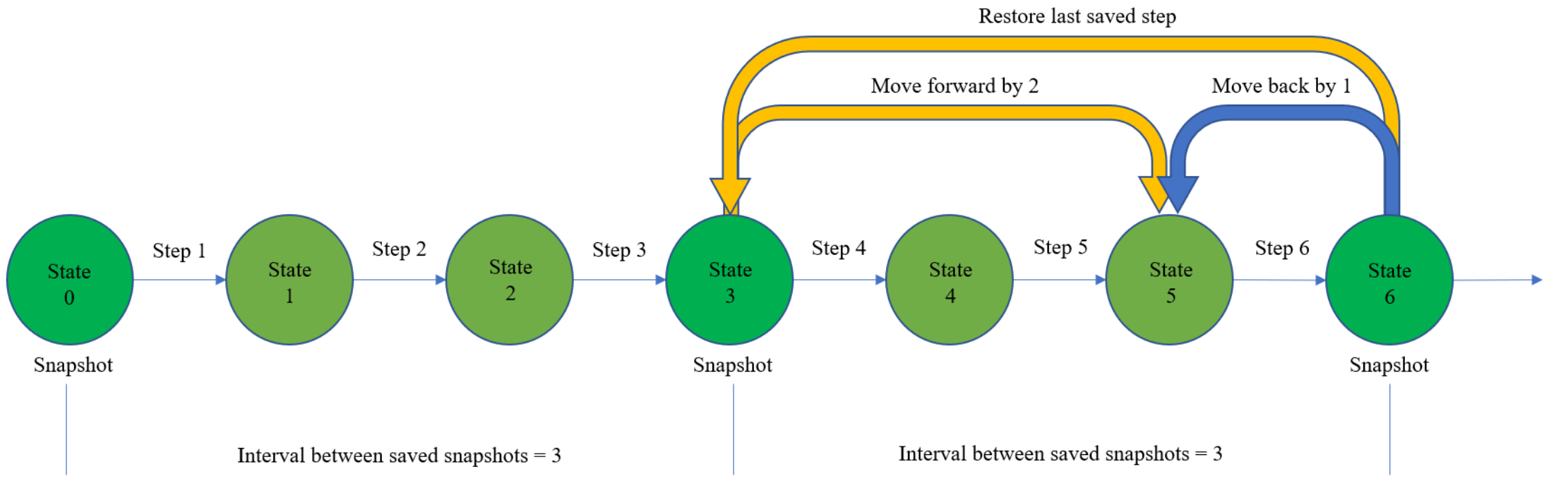
The figure shows the timeline of the simulation; the state is shown by a green circle, the shade of green is darker for each state saved as a snapshot. A solid curved arrow shows the progress of the simulation when pressed Step back. The yellow curved arrows illustrate how Engee performs a step back.
While the simulation is on pause, you can change the settings. The new values are applied the next time the simulation moves forward. Depending on the settings of the simulation steps, this may happen immediately after pressing Step back.
Pause at breakpoints
If the model contains active breakpoints, then the simulation can stop when the breakpoint condition is met. When stepping back, Engee ignores breakpoints.
By default, Engee pauses the simulation at the nearest computing point, which is determined by the solver. If the breakpoint condition is triggered between the main time steps, then the stop will occur at the internal (intermediate) step of the solver within the current time step.
When you click Step forward when paused due to the breakpoint, the simulation will continue and complete the current time step. When you click Step back, then Engee returns to the beginning of the current time step.
Additional considerations when performing the simulation step by step
Not all blocks, functions, and configurations of the model support the step back option. The lack of backward step support does not interrupt the simulation: Engee issues a warning if there is an unsupported block in the model with backward step enabled.
The table shows other considerations related to stepping back for a number of blocks and modeling designs.
| A function or a modeling template | Considerations for taking a step back |
|---|---|
If you change the step-by-step simulation parameters for the connected model during the simulation, the same parameters change in the top-level model. When the simulation is completed, the step-by-step parameters for the connected models will return to the values they were before the simulation. The step-by-step parameters for the top-level model will remain the same as they were at the end of the simulation. |
|
The state of the simulation after a step back may be incorrect for models containing C Function blocks that invoke C code with static variables or with side effects (for example, writing to a file). |