Entering information from a USB joystick
We are figuring out how to connect a USB joystick to the Engee model in order to be able to test the control of the model or hardware from a real input device.
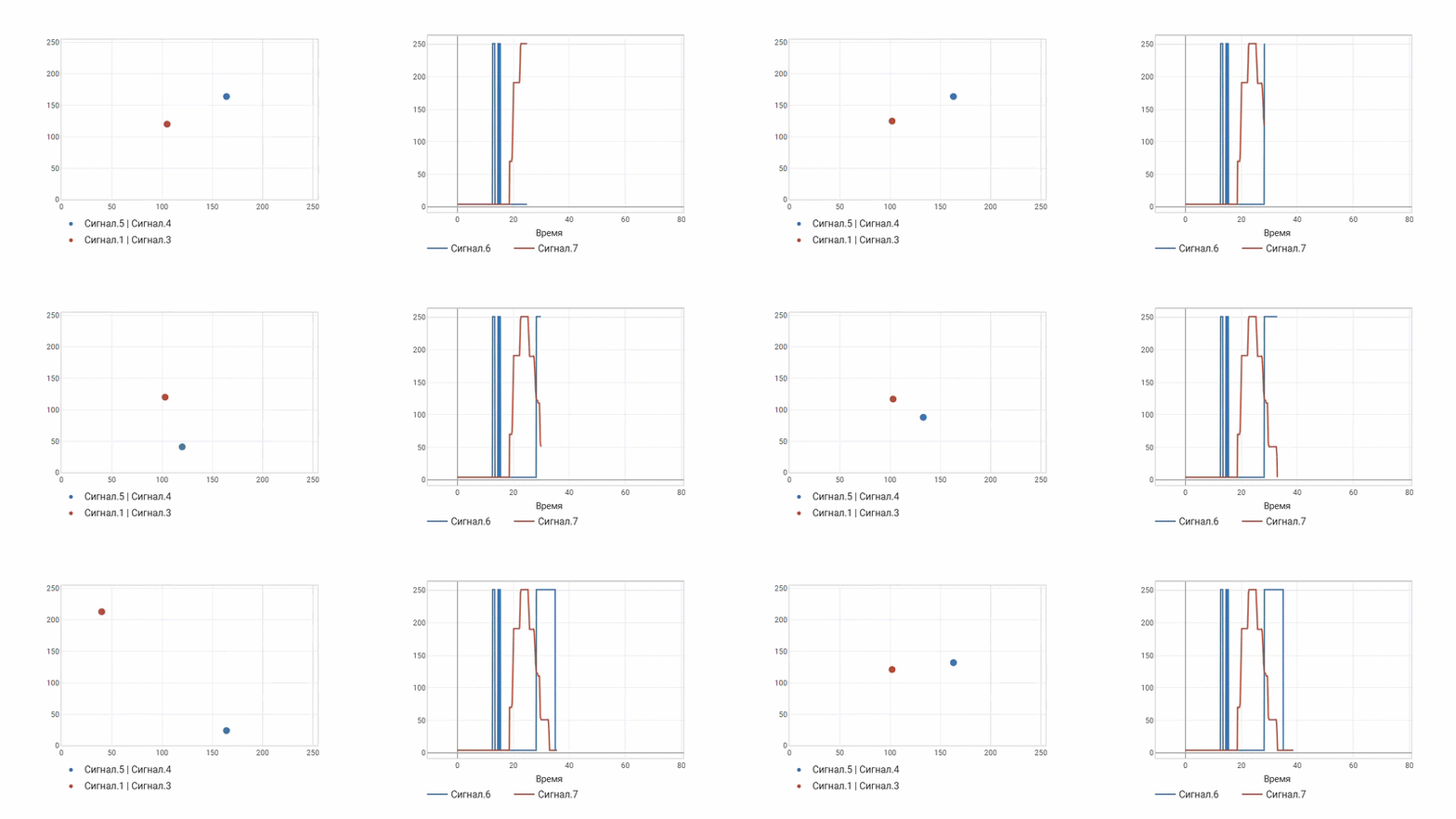
Task description
Any hardware can be connected to scripts and models in Engee, and in this project we demonstrate the possibility of connecting HID devices (Human Interface Device) connected to a local computer via USB. The Engee subsystem is responsible for communicating with Engee.Integration.
Installing the Engee subsystem.Integration
Run the command engee.package.install("Engee-Device-Manager") on the command line, to get your ID and download the client program (the link will appear in the terminal, you can click on it).
Get an access token in the [Communication and Security] section (https://engee.com/account/safety ) of your Engee personal account (section "Personal access tokens").
After launching the program engee-device-manager.exe (configured to your address and with a valid PAT token), a secure communication channel is created between Engee and the local computer, allowing you to use local software and hardware resources in a single model.
You can connect to local hardware through a HID profile that can be configured for input devices, joysticks, hobby platforms like Arduino, and many other hardware tools.
In Windows, you can check for a joystick by typing the line in the command window joy.cpl. This is a secondary tool that allows you to check for connected joysticks, but it won't show keyboards, mice, or Arduino.
Team Get-PnpDevice -Class "HIDClass" [PIPE] Select-Object FriendlyName, InstanceId it allows you to see the VID and PID identifiers that we will need to configure the communication channel with the equipment (joystick). Here's where to find them.:

The numbers 1781 and 0898 need to be converted to decimal and can be used in subsequent commands. On Linux, the same actions are performed by the command lsusb.
The next step is to check the connection:
hid = Main.EngeeDeviceManager.Devices.HID.Hid(6017,2200)
Data can be read from this channel by specifying the packet size. The size of the received vector is limited by the amount of information that the device sends.
Main.EngeeDeviceManager.Devices.HID.read( hid, 8 )
We have read an 8 byte packet that reflects the actual position of the knobs and buttons of the control panel. Then this package can be transformed and recomposed to extract the necessary information.
Reading data from a USB/HID device into an Engee model
Getting fresh data from real hardware and sending it to the Engee model is not much more difficult than getting this information in a script. First of all, we create a model with the Engee Function block.:
engee.open("usb_controller_example.engee")
.png)
The code of this component contains the following lines:
package_dir = "/internal_persistent_vol/support_packages/locations/Engee-Device-Manager/EngeeDeviceManager.jl"

if !isdefined(Main, :EngeeDeviceManager)
    include("$(package_dir)/src/EngeeDeviceManager.jl")
end

using .EngeeDeviceManager.Devices: HID

mutable struct Block <: AbstractCausalComponent
    hid::Any
    function Block()
        hid = HID.Hid(6017,2200)
        return new(hid)
    end
end
After initialization, there is a code that is executed at each step of calculating the model.:
function (c::Block)(t::Real)
    return HID.read(c.hid, 8)
end
As a result, we get a component that reads data from the control panel and sends numbers to the model.
Steps to run this model
The minimum steps to create a working environment where this model will work are as follows:
- launch the Engee program.Integration (an update may be implemented)
- click "Connect" (connection usually takes 10 seconds)
- connect the hardware to the local computer
- start the model (by enabling deceleration in the settings so that the model time runs at the same pace as the user's real time).
Conclusion
We easily connected the joystick to the Engee environment, and we can control model parameters, physics, or automation operation.